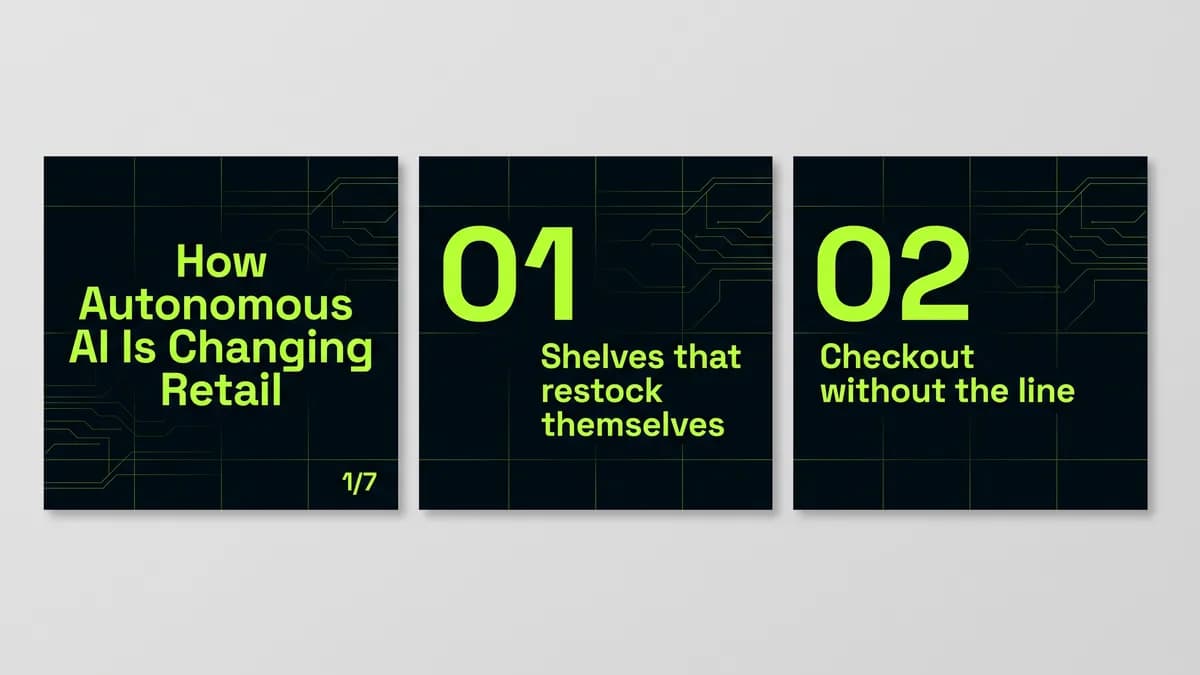
Research a topic and get a LinkedIn carousel in Canva
Use Manus as a LinkedIn carousel maker. It researches with Wide Research, writes a blog post, picks the key points and turns them into slides in Canva, then sends you the link.
Manus is a separate AI graphic design agent, not a feature built into Canva. Connect your own Canva account and it researches, writes and creates editable designs there for you to finish.
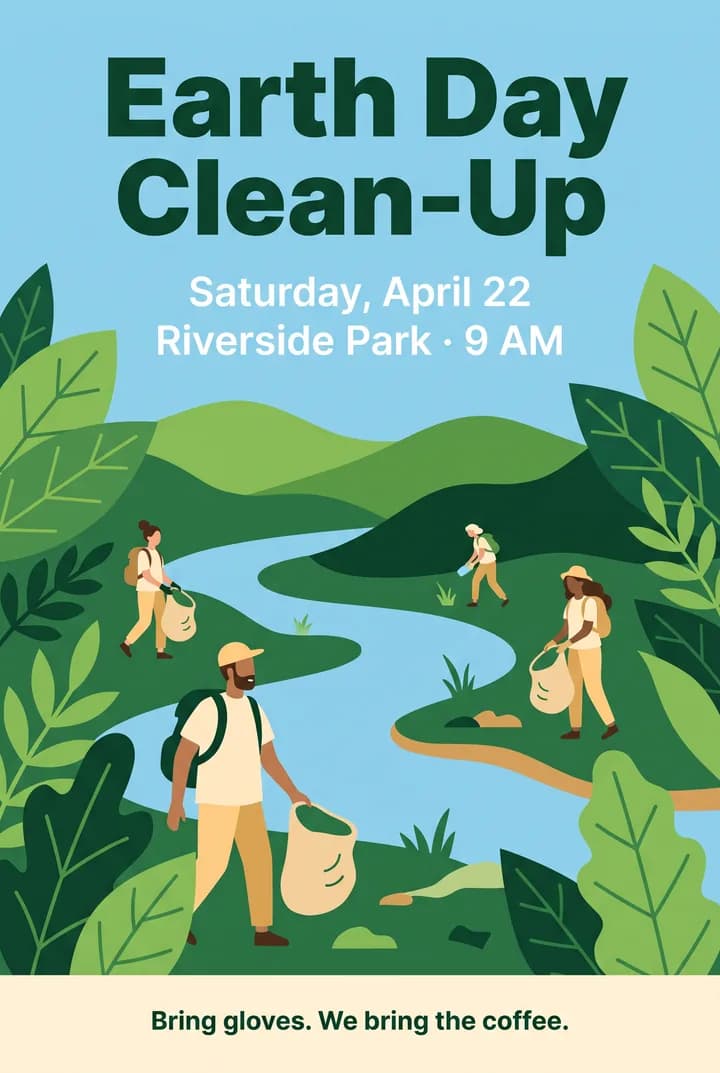
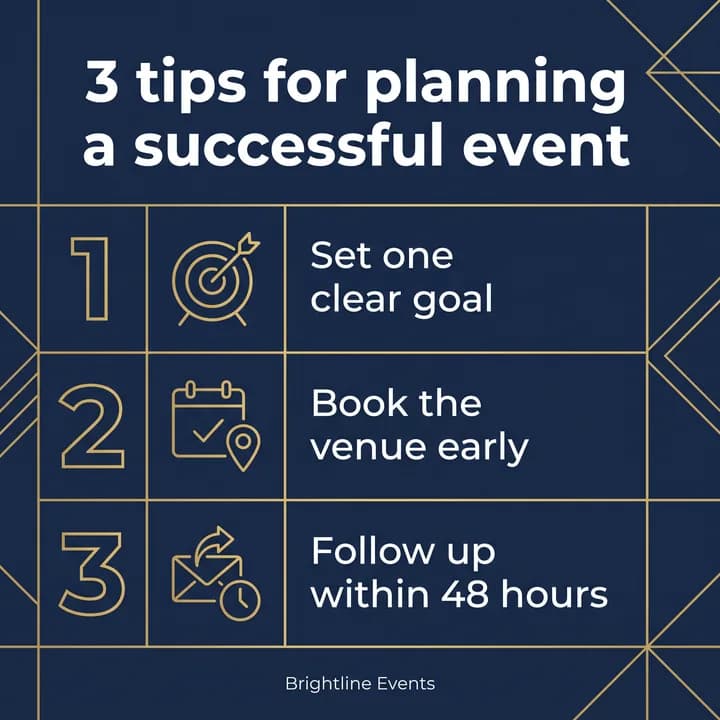

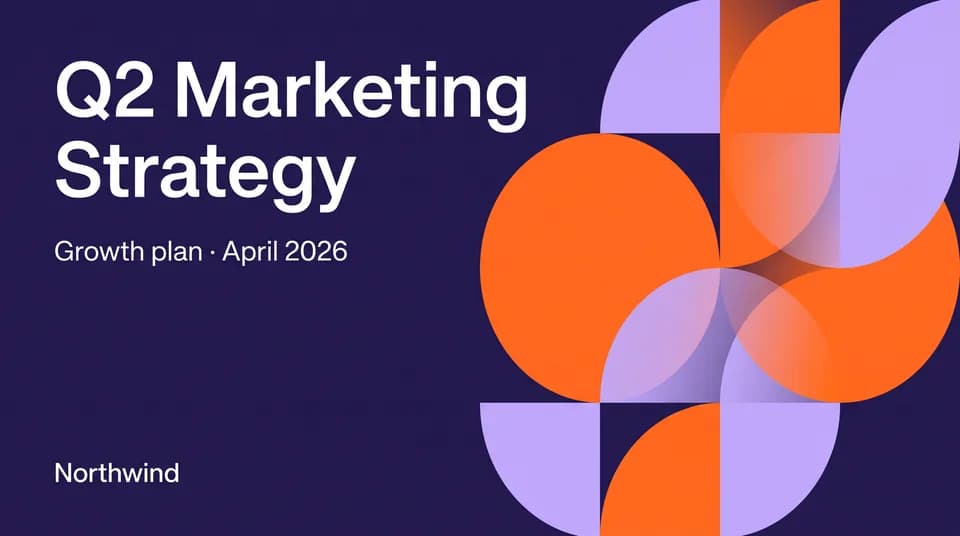
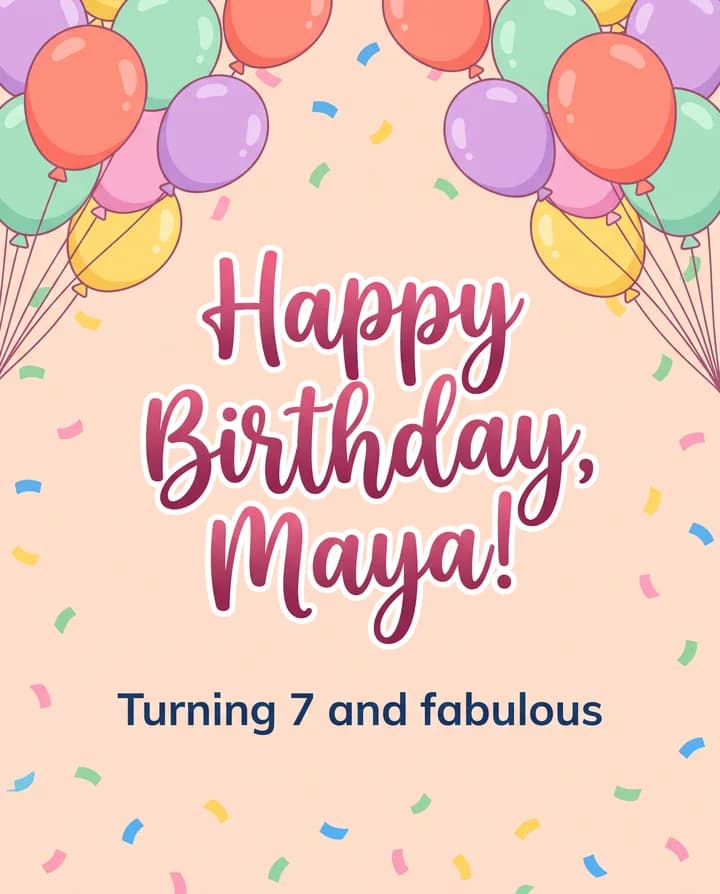


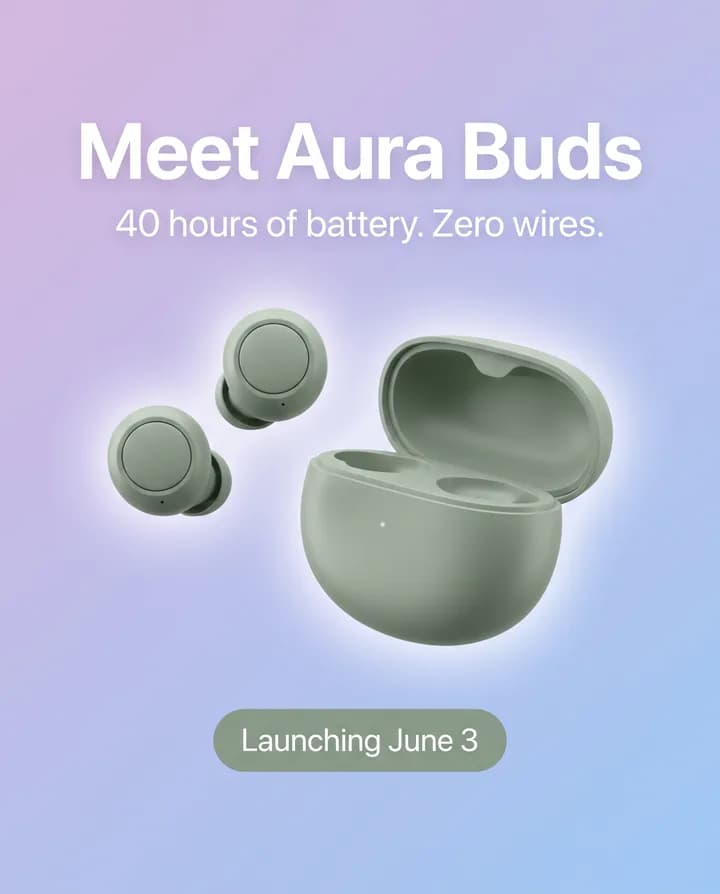
A social media post generator that finishes in your own Canva: Manus researches the topic, writes the copy and generates an editable carousel you can open and polish there.
Use Manus as a LinkedIn carousel maker. It researches with Wide Research, writes a blog post, picks the key points and turns them into slides in Canva, then sends you the link.
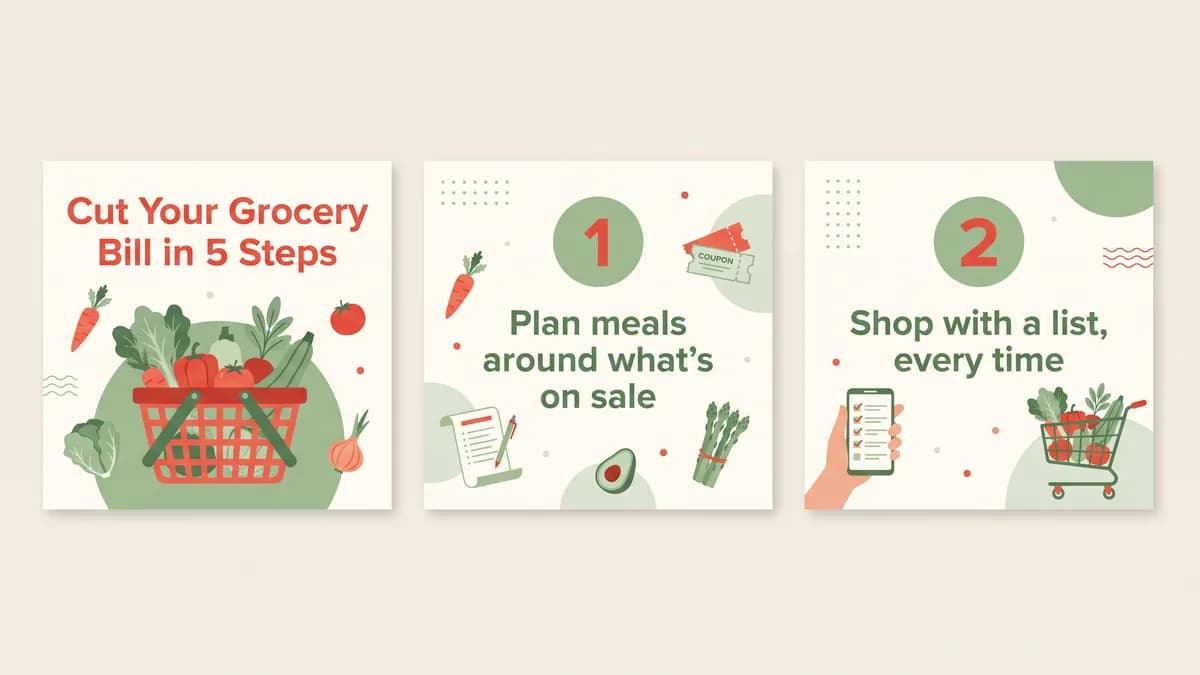
As an Instagram carousel maker, Manus reads your post, pulls out the key points and generates a multi-slide carousel in Canva that you can edit before you publish.
Edit, import and export without rebuilding anything. Manus works on the designs in your Canva account and keeps the layout and formatting.
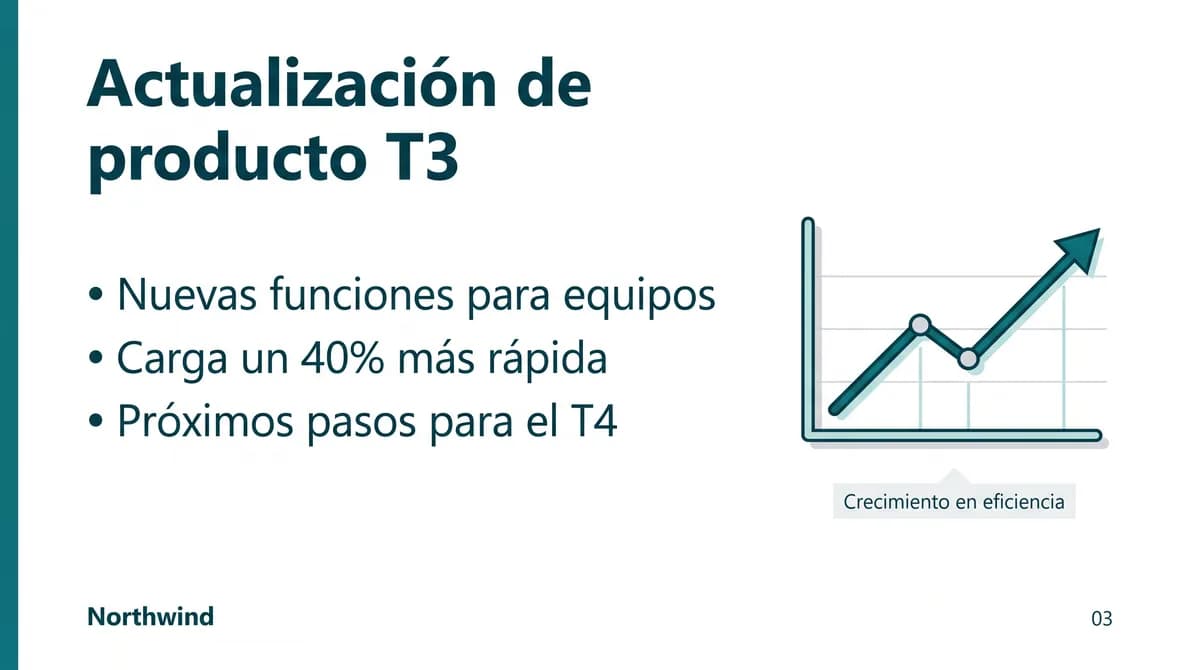
Use Manus as a Canva presentation AI: it finds the deck, translates the text on every page and keeps the layout and formatting as they are.
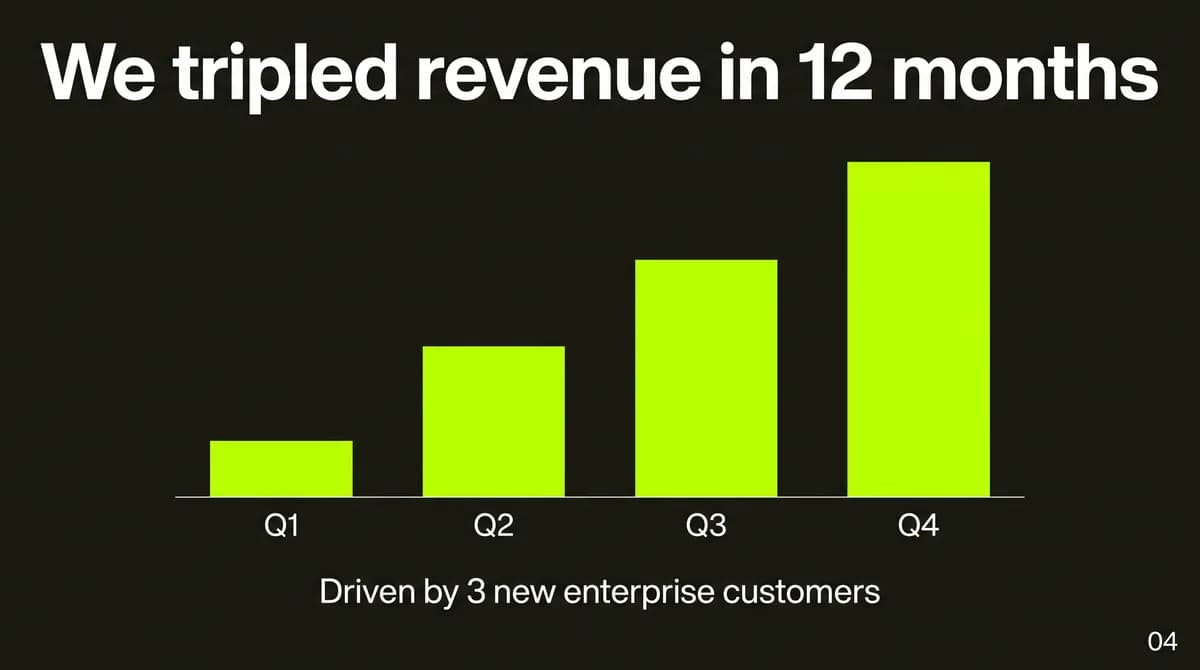
Ask for a different tone, page numbers on every slide or new text in one section. Manus makes the edits in Canva without breaking the layout.
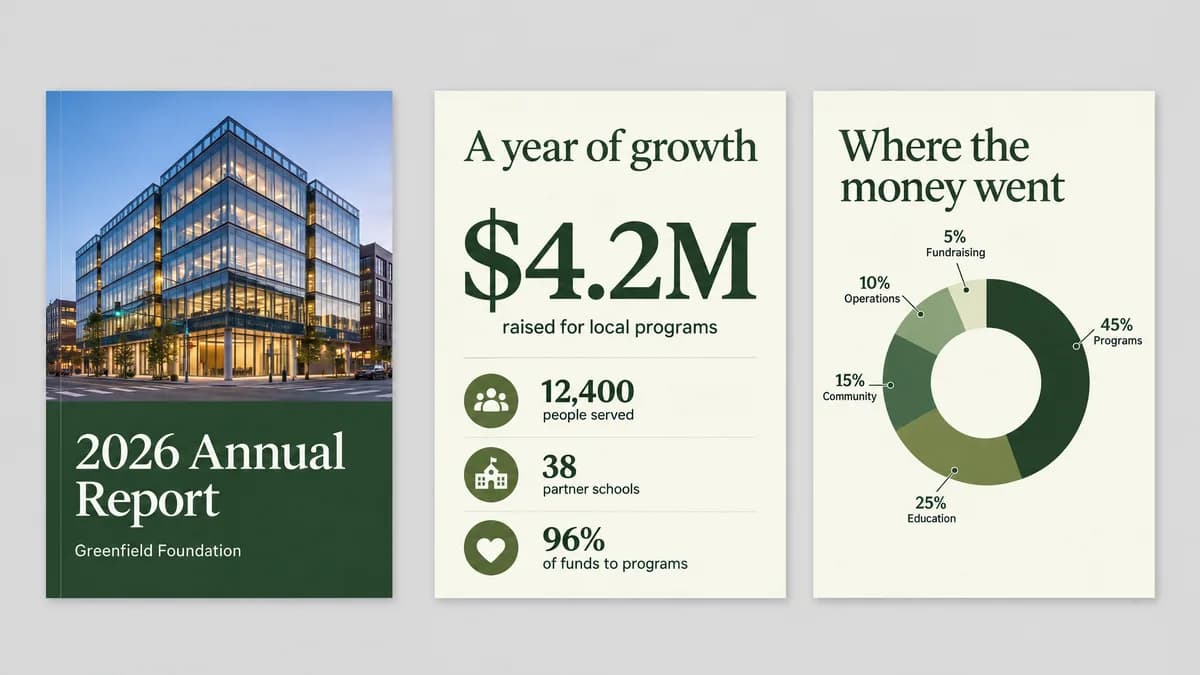
Bring in a PDF, PowerPoint or Word file and Manus turns it into a Canva design you can keep editing.
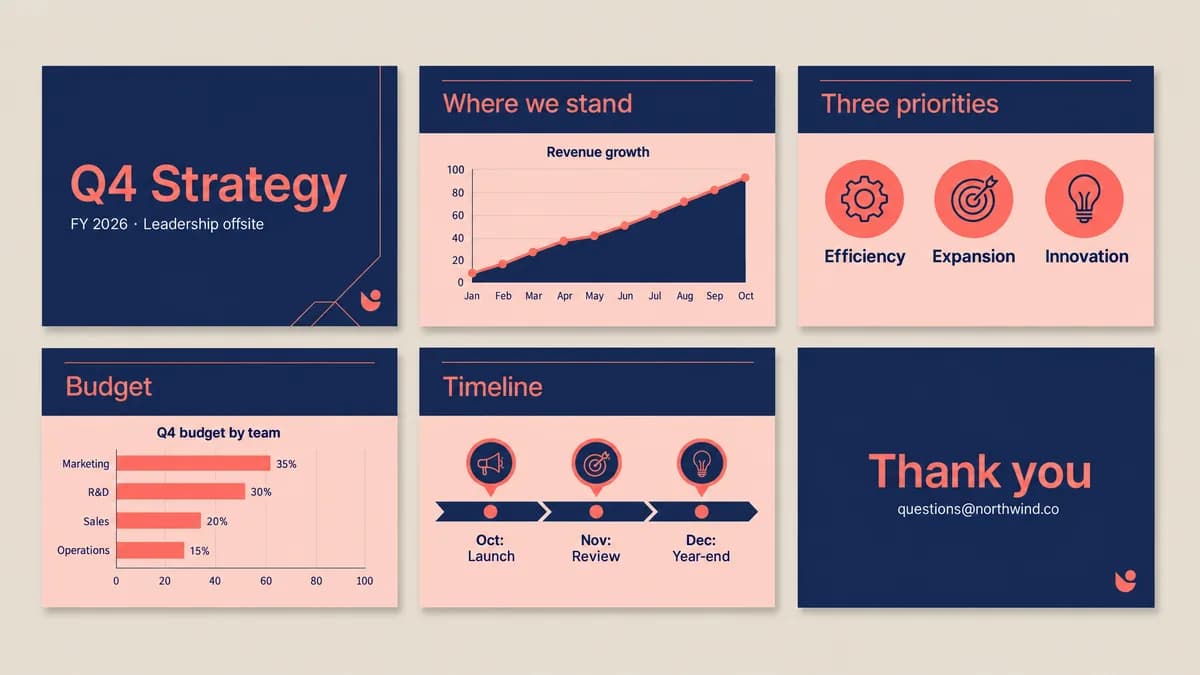
Need the file outside Canva? Manus finds the design and exports it as a PowerPoint file, a PDF, a PNG or an MP4.
One design becomes the sizes you need, such as a story, a banner and a presentation slide. Manus saves them as new designs in a folder, so the original stays as it is. Resizing needs Canva Pro or above.
Your design

Resized copies



Save a repeat design task as a skill or let it run on a schedule, and bulk create Canva designs without writing the brief again.
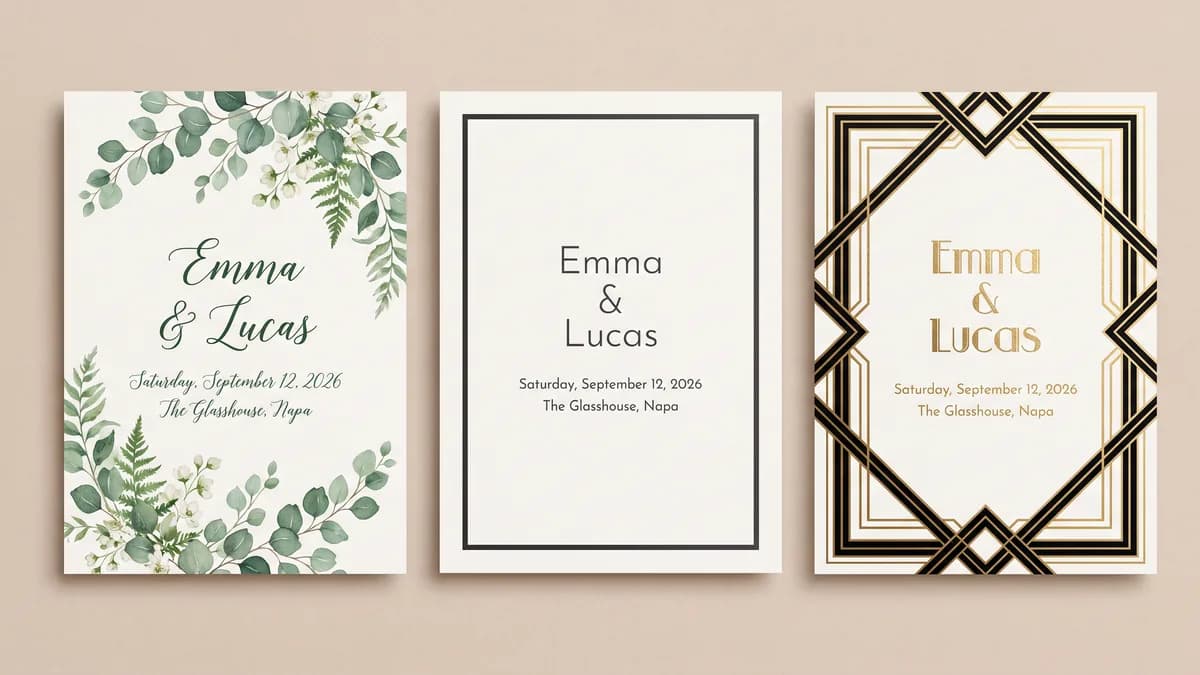
Turn the steps into a Manus skill once. Each time you call it, it asks for the event details and returns three invitation designs with PNG previews and editable Canva links.
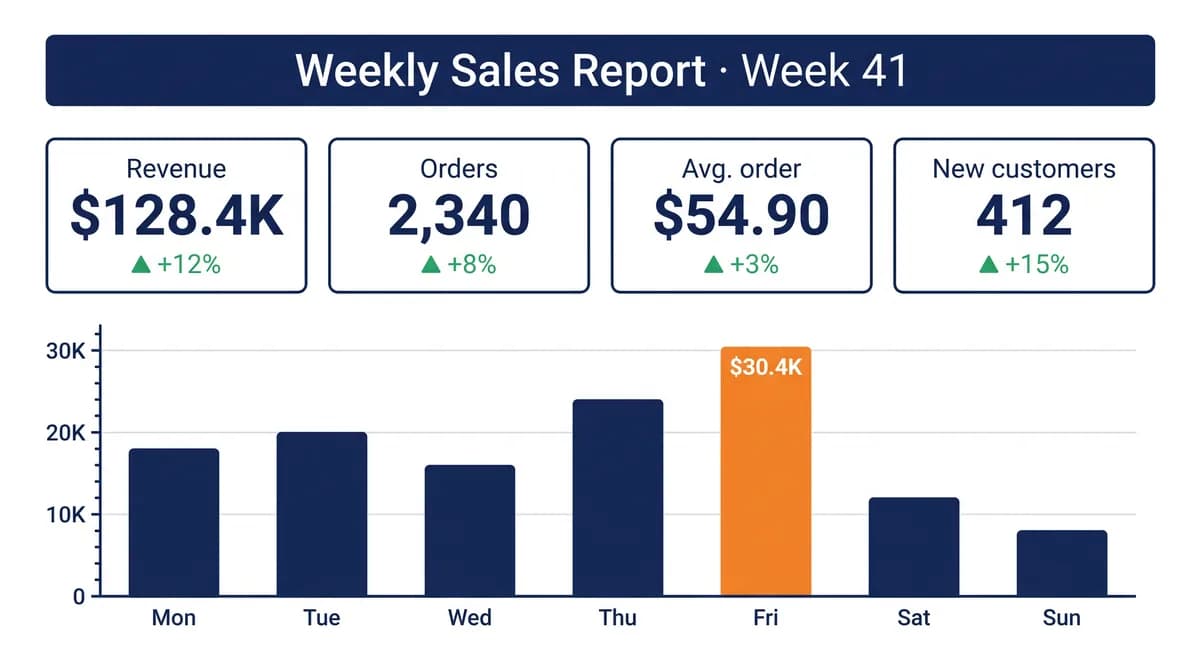
A simple Canva automation: every week Manus pulls fresh numbers, generates an updated report design and exports the visual.
The Canva connector is built into Manus. Set up the Canva integration once and any task can use it.
In Manus, open Connectors and select Canva.
Click Connect, sign in to Canva and authorize Manus to use your account.
Start a task, mention Canva and describe the design you need.
For developers: Canva is one of the built-in MCP connectors in Manus, so there’s no Canva MCP server address to add and no config file to edit. Manus only works with the Canva account you authorize, and you can revoke access at any time from Connectors.
How Manus connectors workManus can generate new designs from a text description, edit designs you already have, search your designs, resize them for other platforms, import PDF, PowerPoint and Word files, and export finished designs as PNG, PDF, MP4 or PowerPoint files. It can also save a repeat design task as a skill.
Yes. Manus is a separate AI agent, not a feature built into Canva. After you connect your Canva account, the designs it creates and edits are saved there, so you can open and finish them in Canva.
Not for most tasks. Generating, editing, searching, importing and exporting designs work on all Canva plans. Resizing a design needs Canva Pro or above (the Free plan only includes a limited trial), and brand templates need a Canva plan that includes them, such as Enterprise. Paid plans also export at higher quality, for example lossless PNG and transparent backgrounds.
Only when you ask it to edit one. New designs, resized versions and imported files are saved as new designs, so your originals stay as they are. Before an edit, you can ask Manus to make a copy and work on the copy, or to tell you what it plans to change before it saves.
Yes, if your Canva plan includes brand templates, such as Canva Enterprise. Manus only finds the brand templates your Canva role can access and shows the options in the chat, so you choose one before it continues.
In Manus, open Connectors, select Canva and click Connect. Sign in to Canva and authorize access. Then mention Canva in a task and describe the design you need.
Yes. You can disconnect Canva from Connectors in Manus at any time. Manus only works with the Canva account you authorize.
No. Canva is one of the built-in MCP connectors in Manus, so there’s no Canva MCP server address to add and no config file to edit. Connect your Canva account from Connectors and start a task.
Yes. Save a repeat design task as a Manus skill, such as event invitations, then call it with new details each time. You can also set a task to run on a schedule, for example a weekly report graphic.