

What it is
Automations let Manus keep work moving without waiting for you to start every task manually.
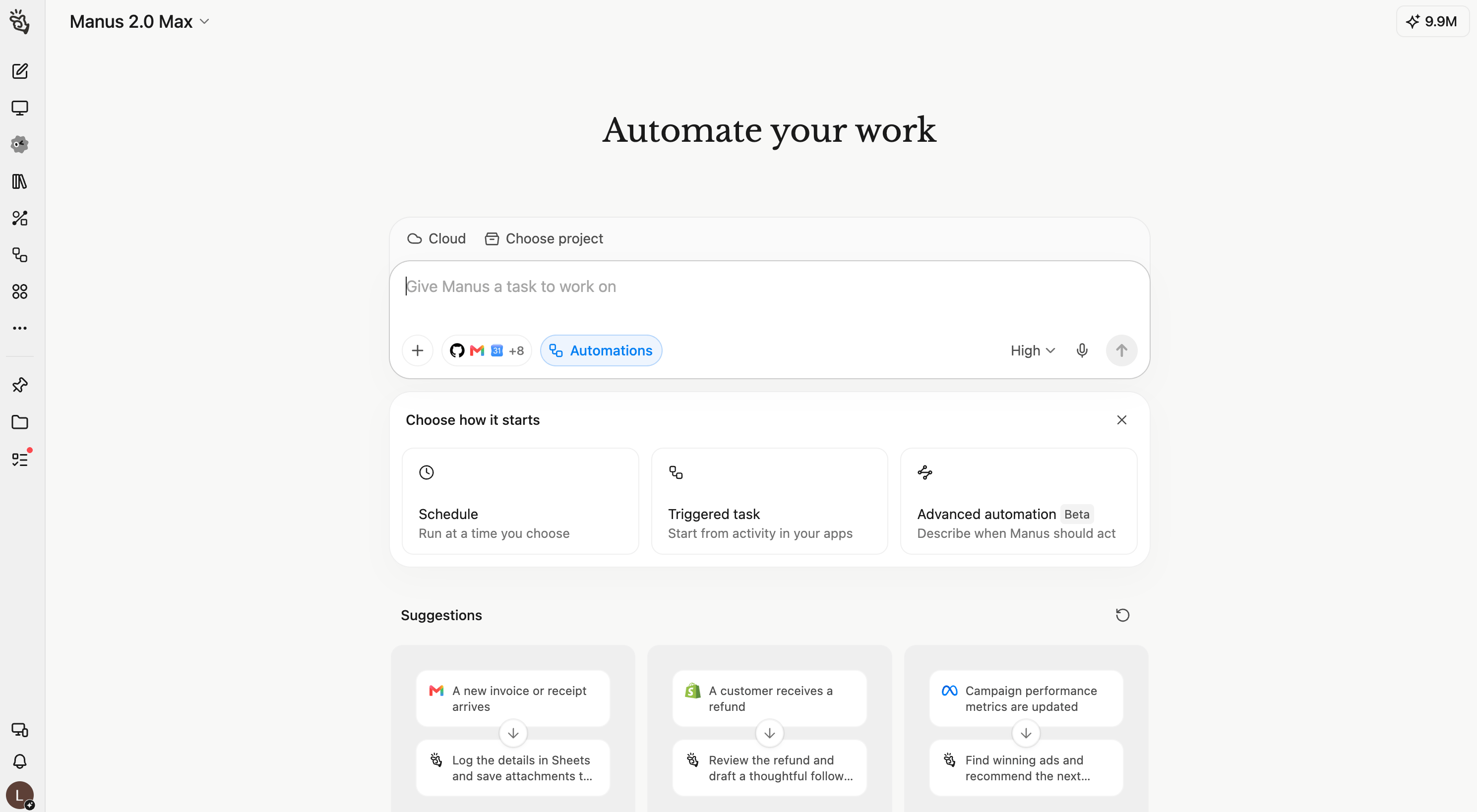
The main difference is what starts the work. A Schedule starts from time. A Triggered task starts from an event. An Advanced automation lets you describe the whole routine naturally and have Manus configure it for you.
How to Create Automations
From the left sidebar
Click Automations, then Create. Choose Schedule, Trigger, or Advanced automation. This route is best when you want to see existing automations, recent runs, and management controls before creating something new.From Build
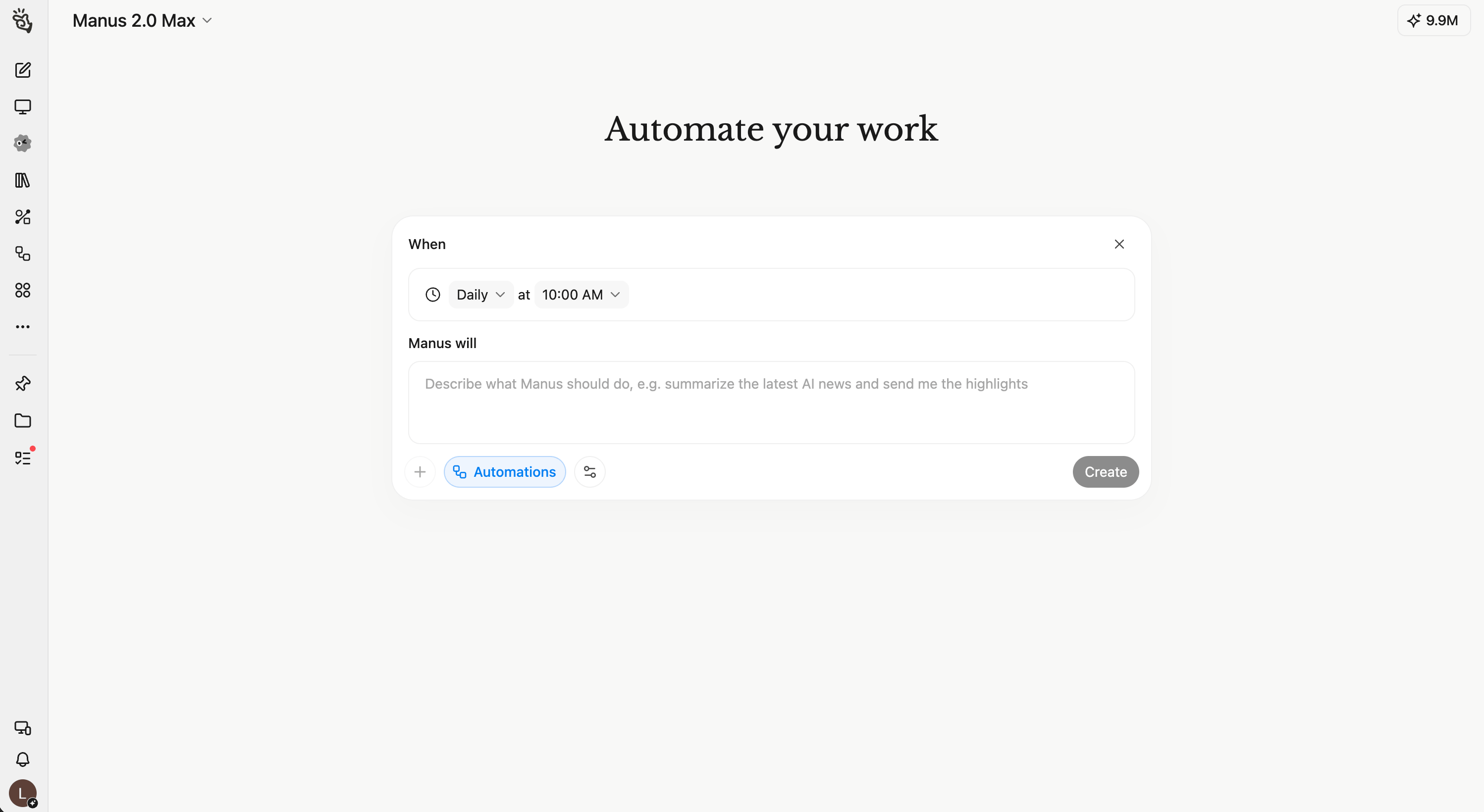
From the Manus home page, click Build, then choose Automations under Other. You will land on the same creation experience, where you can choose how the automation starts.Create a schedule
Create a triggered tas
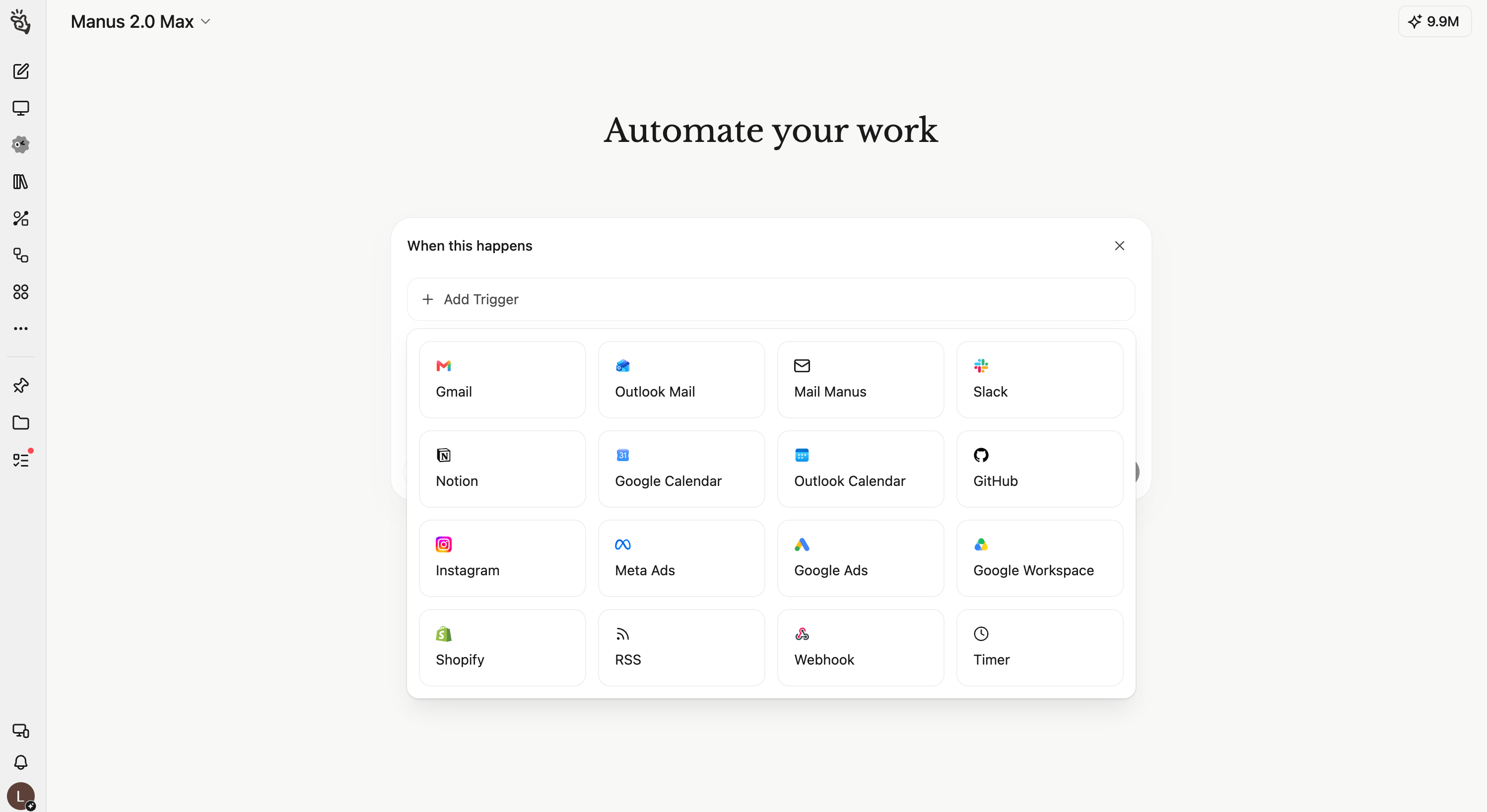
Review new GitHub pull requests
When: A pull request is opened or marked ready for review in the selected repository. Only if: The base branch is main and the pull request is not a draft. Summarize the change, identify high-risk files, and check whether the main behavior is covered by tests. Put blocking issues first. Post a review only when there is a clear actionable finding; otherwise send the summary to me in Manus. GitHub is a strong fit when the work should react to repository activity as it happens.Follow up after a Shopify refund
When: A refund is created in Shopify. Only if: The refund is greater than $100 or the customer has placed more than three previous orders. Review the order, refund reason, and customer history. Draft a personalized follow-up that acknowledges the issue and recommends the best next step. Send the draft to the customer-support channel for review. Shopify is a strong fit for event-driven store work such as new orders, refunds, fulfillment changes, and inventory updates.Log invoice emails
When: A new invoice or receipt email arrives. Only if: The message has an attachment and the sender or subject matches your billing rules. Extract the merchant, invoice number, date, currency, subtotal, tax, and total. Add one row to the finance spreadsheet, save the attachment to the invoice folder, and flag any missing fields for review.Create an advanced automation
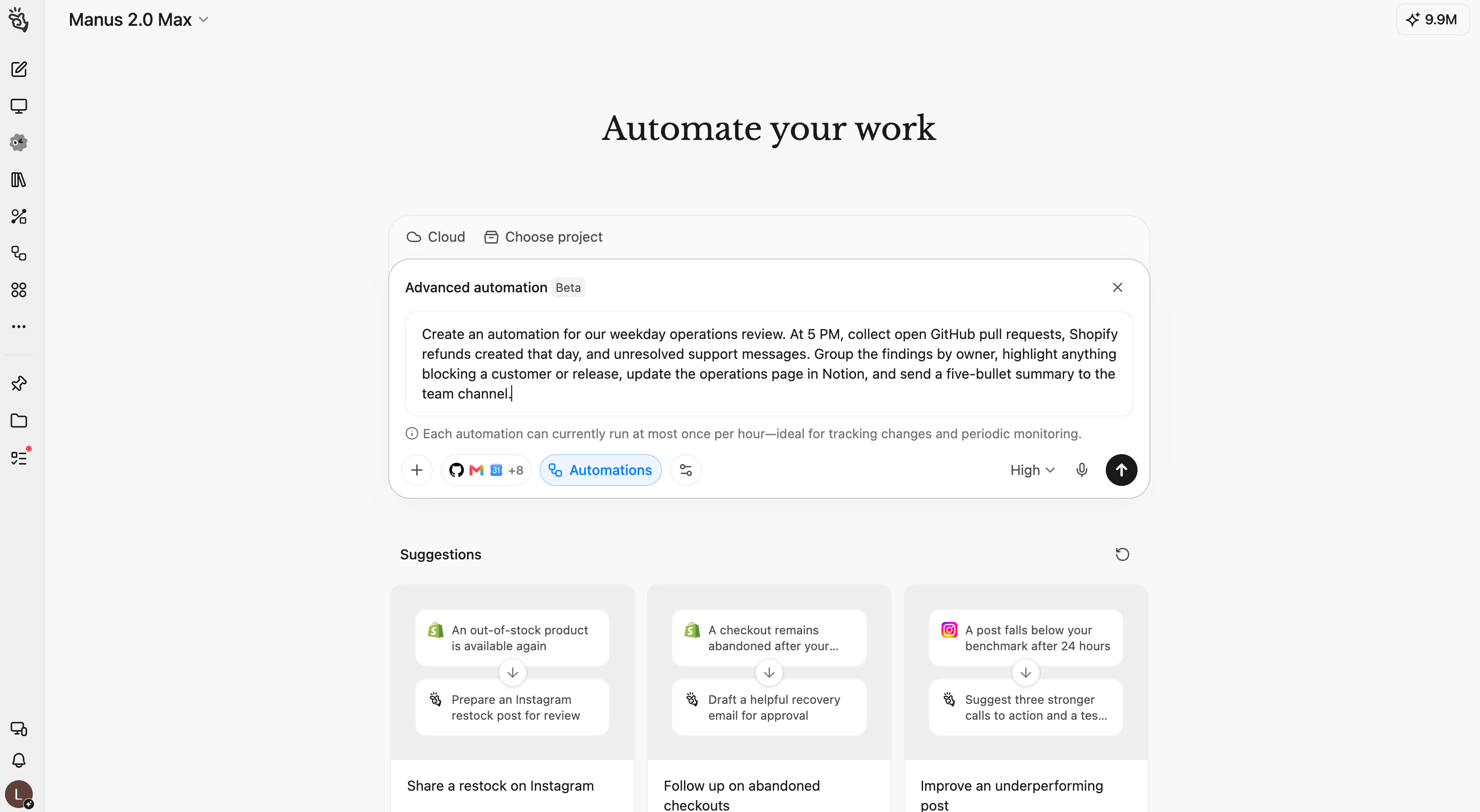
Create an automation for our weekday operations review. At 5 PM, collect open GitHub pull requests, Shopify refunds created that day, and unresolved support messages. Group the findings by owner, highlight anything blocking a customer or release, update the operations page in Notion, and send a five-bullet summary to the team channel.A useful request says when Manus should act, what information it should use, which cases matter, and where the result should go. You do not need to map every step yourself. After Manus builds the automation, review the generated timing, conditions, actions, and accounts before activating it.
Managing Your Automations
See what ran
Open Automations → Updates to see the latest runs grouped by date. Each entry shows the automation, run time, status, and a short result summary. Open a run to inspect the full result or find out why it needs attention. Switch to the calendar icon in the upper-right corner when you want a month-level view of activity and upcoming scheduled work. Use the arrows to change months, Today to return to the current date, and the more link to expand a busy day.Manage and test automations
Open Automations → Manage to see active schedules and triggers. Each card shows its type, connected app, status, name, and instructions. Open the More actions menu to pause the automation, run a test, locate its original task, edit it, or delete it. Use Test run before relying on a new automation and after changing its timing, conditions, instructions, or connected account. For a trigger, test one event that should match and one that should not.Differences between automation types
Scheduled tasks, available on Manus previously, continue to work in the unified Automations feature. These are tasks that run solely based on time.
A Triggered task runs based on an event, or perhaps when the source is checked periodically. Supported GitHub, Shopify, Webhook, and Mail Manus events can be delivered as they happen. Several other connected apps are checked for new events approximately at intervals, so those triggers may not start instantly.
Advanced automations can include a combination of several connectors, conditions and trigger types. Initiating by natural language is enough to set up such workflows.
Tips for reliable automations
- Describe the outcome, not the plumbing. Tell Manus what should happen, what a good result looks like, and where it should go.
- Make the event specific. “When a refund over $100 is created” is clearer than “when something changes in Shopify.”
- Say what not to act on. Conditions are especially useful for excluding drafts, internal senders, small transactions, or completed items.
- Define the exception path. Tell Manus what to do when information is missing, confidence is low, or an external action needs review.
- Test realistic cases. Check the expected path, a filtered-out event, connector access, and the final destination.
- Check Updates after changes. A quick review confirms that the new version ran and produced the intended result.