

What is Design View?
Design View is an integrated feature that allows for complex, multi-step visual workflows. Instead of starting from scratch with every new prompt, you can make precise edits to existing images, ensuring consistency and saving valuable time. Whether you’re designing a poster, creating a mood board, or refining a product shot, Design View acts as your creative partner, understanding your intent from start to finish. It is powered by Google’s advanced Nano Banana Pro image generation model, ensuring high-quality, photorealistic results.
How to Use Design View
Using Design View is an intuitive process that combines simple prompts with powerful editing tools. Here’s how you can get started:Step 1: Generate Your Initial Concept
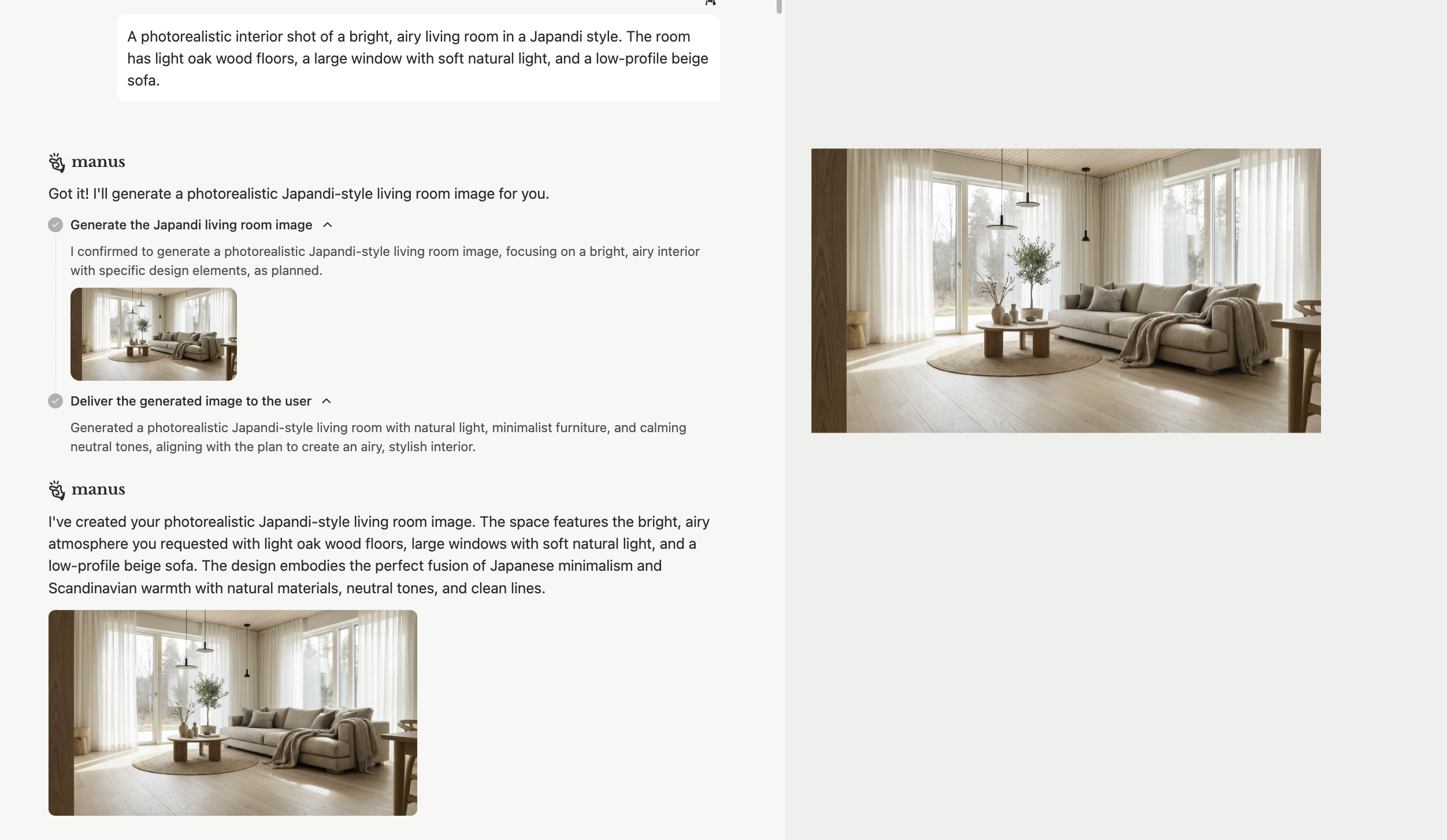
Step 2: Refine with the Mark Tool
Once you have your initial image, you can use the Mark Tool to make precise edits. Instead of writing a new prompt and hoping for the best, you can select specific elements and provide instructions for how to change them.- Click the [Mark] tool in the Design View interface. 2. Select the element you want to modify (e.g., a sofa, a plant, a window). 3. Provide a clear and concise instruction for the change.
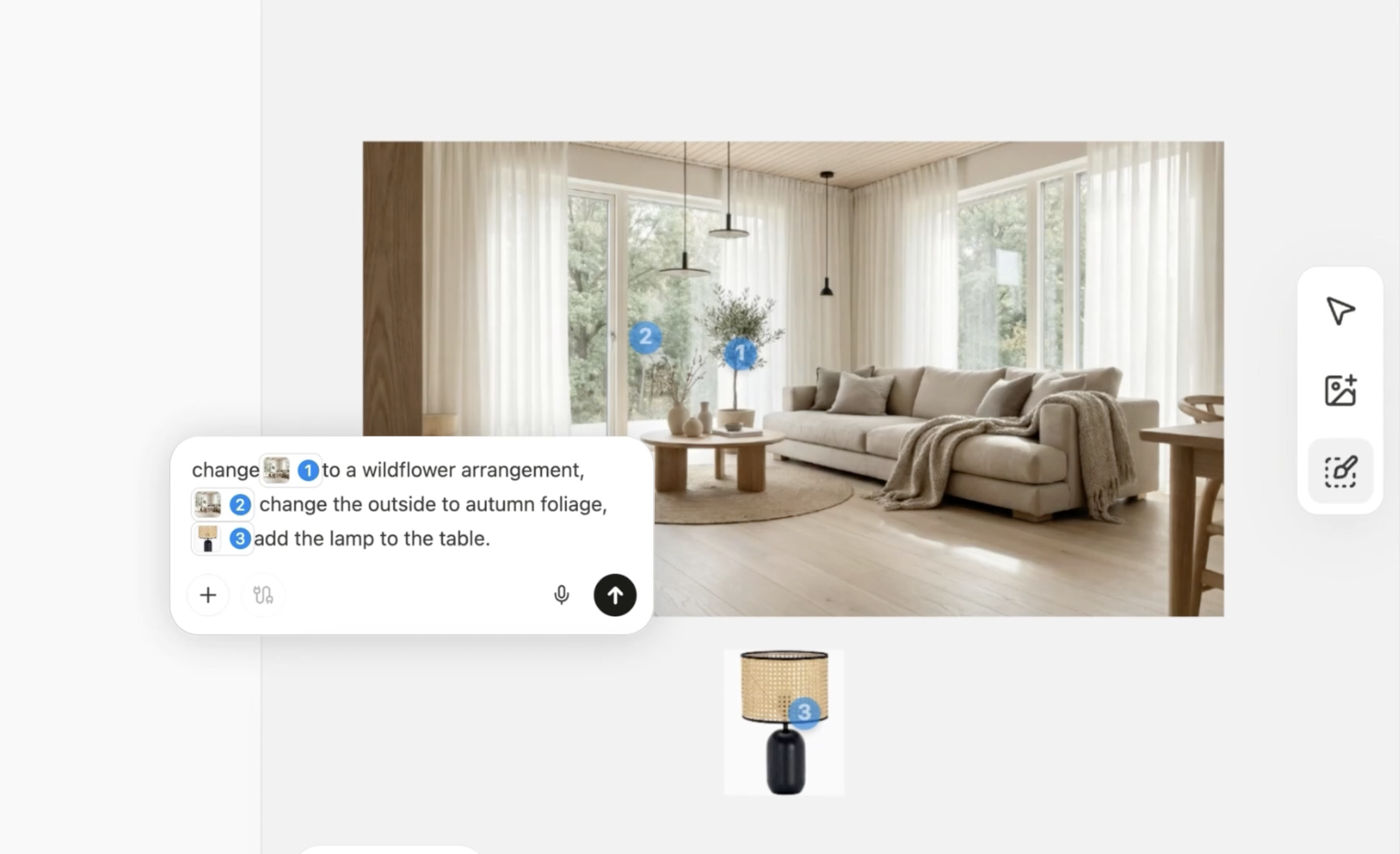
Change this to a muted sage green. * Select the plant: Change this to a wildflower arrangement. * Select the window: Change the leaves to autumn foliage.
- Reference Images: You can add elements to your design by providing a reference image. For example, you can add a specific lamp to a room by uploading an image of it.
Step 3: Edit Text Elements
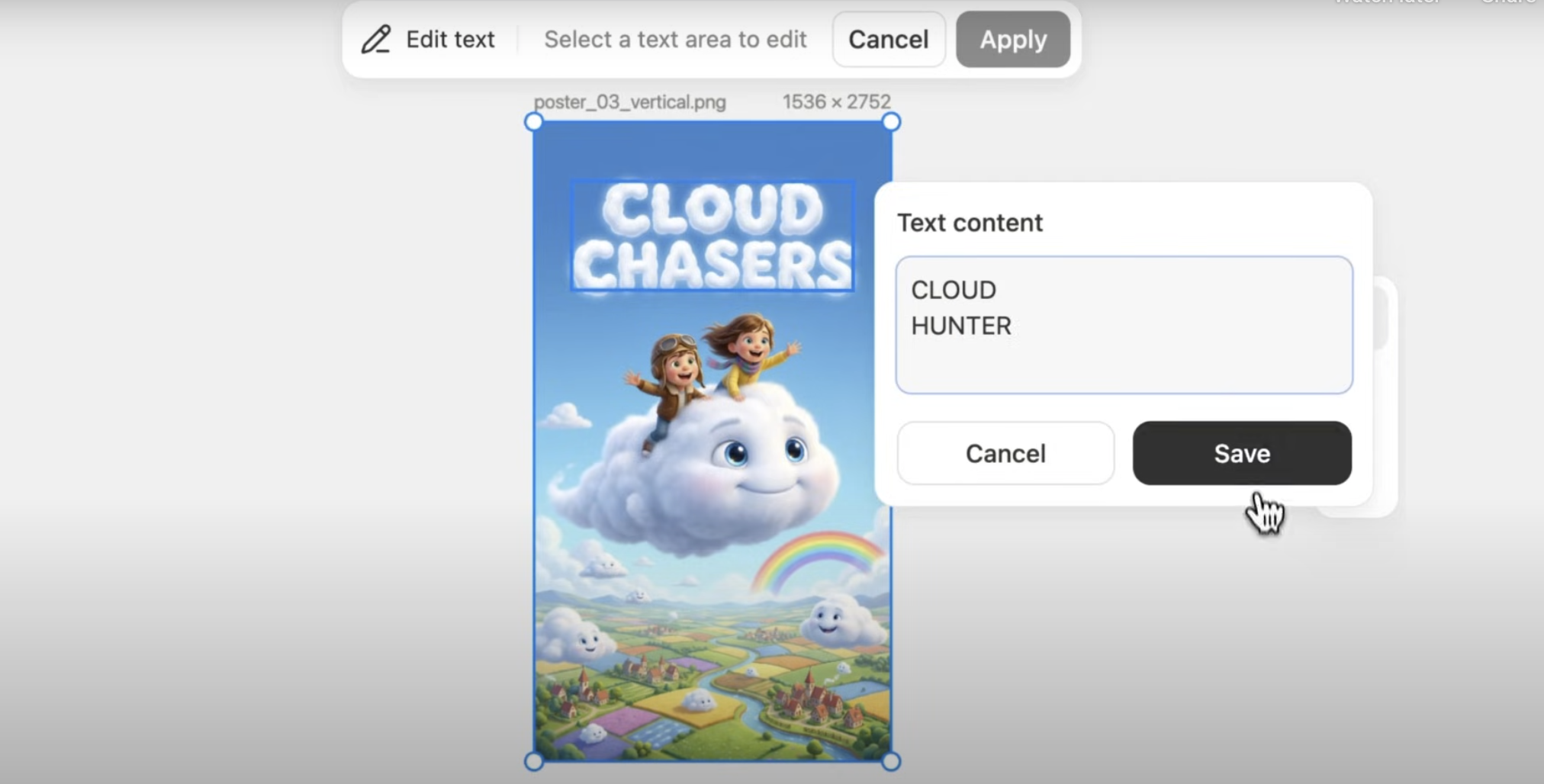
Mobile Editing
Design View is also available on the Manus mobile app, so you can continue your work on the go.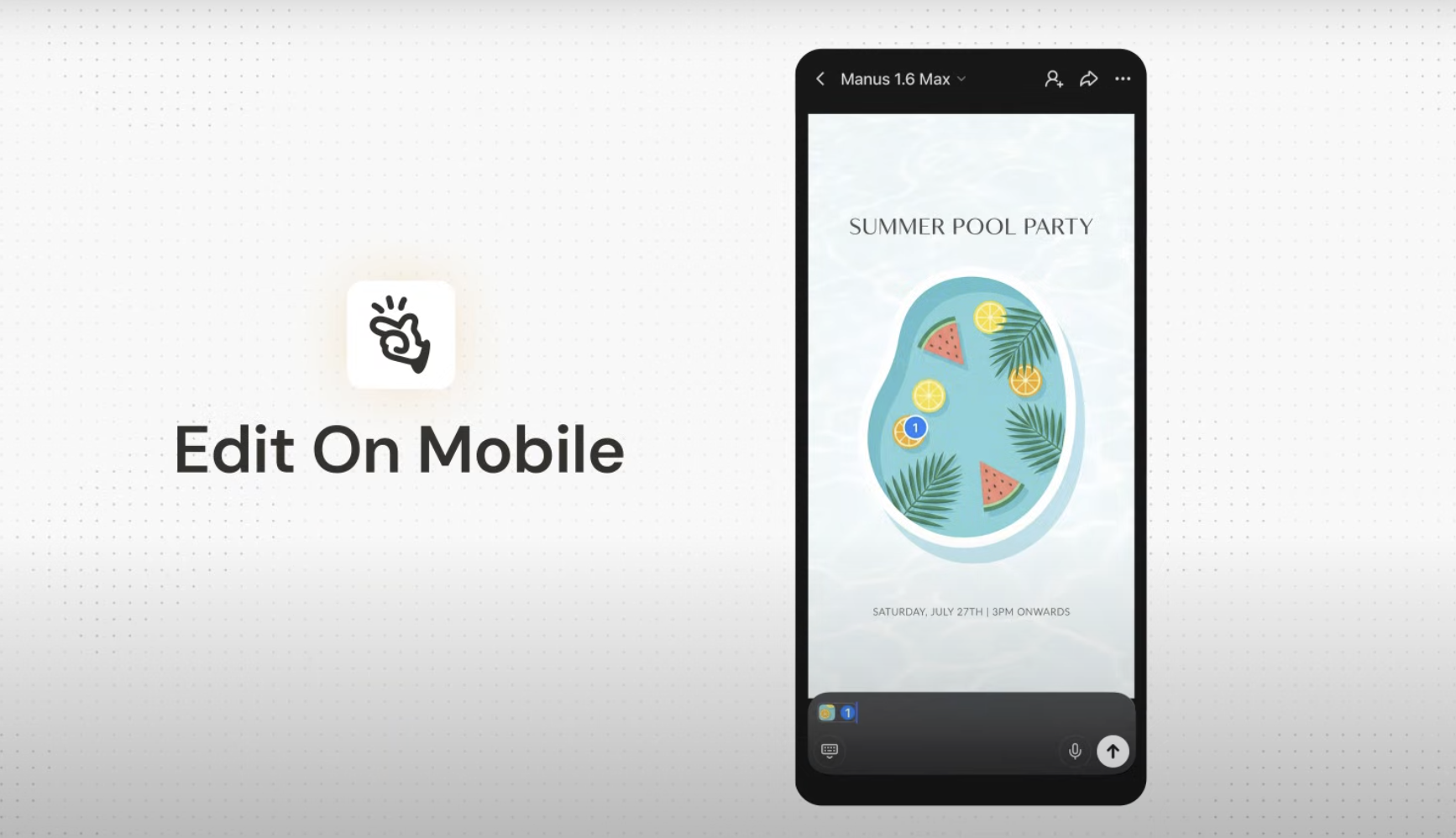
Batch Your Edits: Mark multiple areas on an image, add an instruction for each, and send them all to be processed in a single batch.
What You Need to Know
Integrated Workflow: Design View is not a standalone tool; it is an integrated capability of the Manus agent. This allows for a seamless transition between generating ideas, refining visuals, and incorporating them into larger projects. Precision and Control: The Mark Tool gives you a level of control that is not possible with traditional prompting. You can change specific elements of an image without affecting the overall composition, lighting, or style.Tips for Better Results
Common Questions
What AI model powers Manus Design View?
What AI model powers Manus Design View?
Design View is powered by Google’s Nano Banana Pro, a cutting-edge image generation model
How is this different from other AI image generators?
How is this different from other AI image generators?
Design View is not a standalone tool; it is an integrated capability of the Manus agent that allows for complex, multi-step visual workflows. The key difference is the ability to make precise, in-context edits to existing images, rather than regenerating a new image from scratch with every prompt.
Is Design View available on all Manus plans?
Is Design View available on all Manus plans?
Yes, Manus Design View is available to all Manus users.