

What it is
Video Editor is a timeline editor in Manus Studio, the Manus desktop app for macOS and Windows. You describe a video or add your own footage, and Manus builds a first cut on the timeline. You then refine that cut by hand, by asking Manus in chat, or both.Video Editor with Alchemy mode: one prompt becomes a finished, editable video.
How to use it
Create a video from a description
Start a video task
Describe the video
Send the task
Review the first cut
Make a finished video with Alchemy mode
Open the video creation screen
Turn on Alchemy mode
Pick a template
Set the aspect ratio
Describe your idea and send
Follow the progress
Fine-tune the result
Edit your own footage
Open Manus Studio
Add your footage
Describe the edit
Send the task
Review the first cut
Move a web task to Video Editor
Click Edit in Video Editor
Install Manus Studio if prompted
Open the same task
Edit on the timeline by hand
Use your mouse to make changes directly on the timeline. You can preview the sequence at any time.Edit by asking Manus
Describe the change
Let Manus update the project
Check the result
Open an earlier version
Each version of your video opens in its own tab at the top of the workspace. Earlier versions stay available as you keep editing.Find the version tabs
bricklane_launch_v8 or bricklane_launch_v9.Open a version
Compare versions
Continue from an earlier version
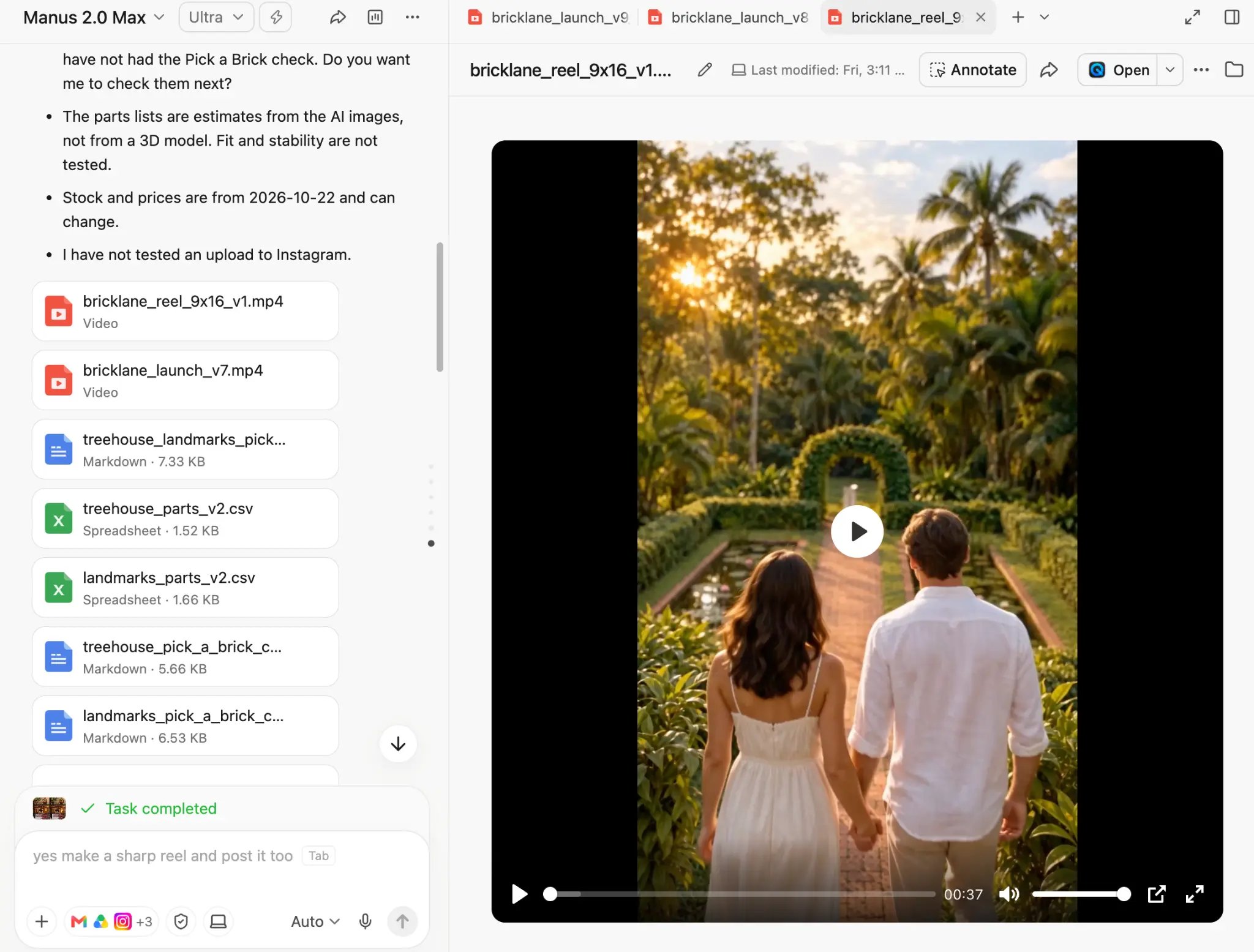
Each version opens in its own tab. In this example, the tabs show two versions of a launch video and a vertical reel.
Export your video as an MP4
Find the video file
Download the MP4
Publish the video
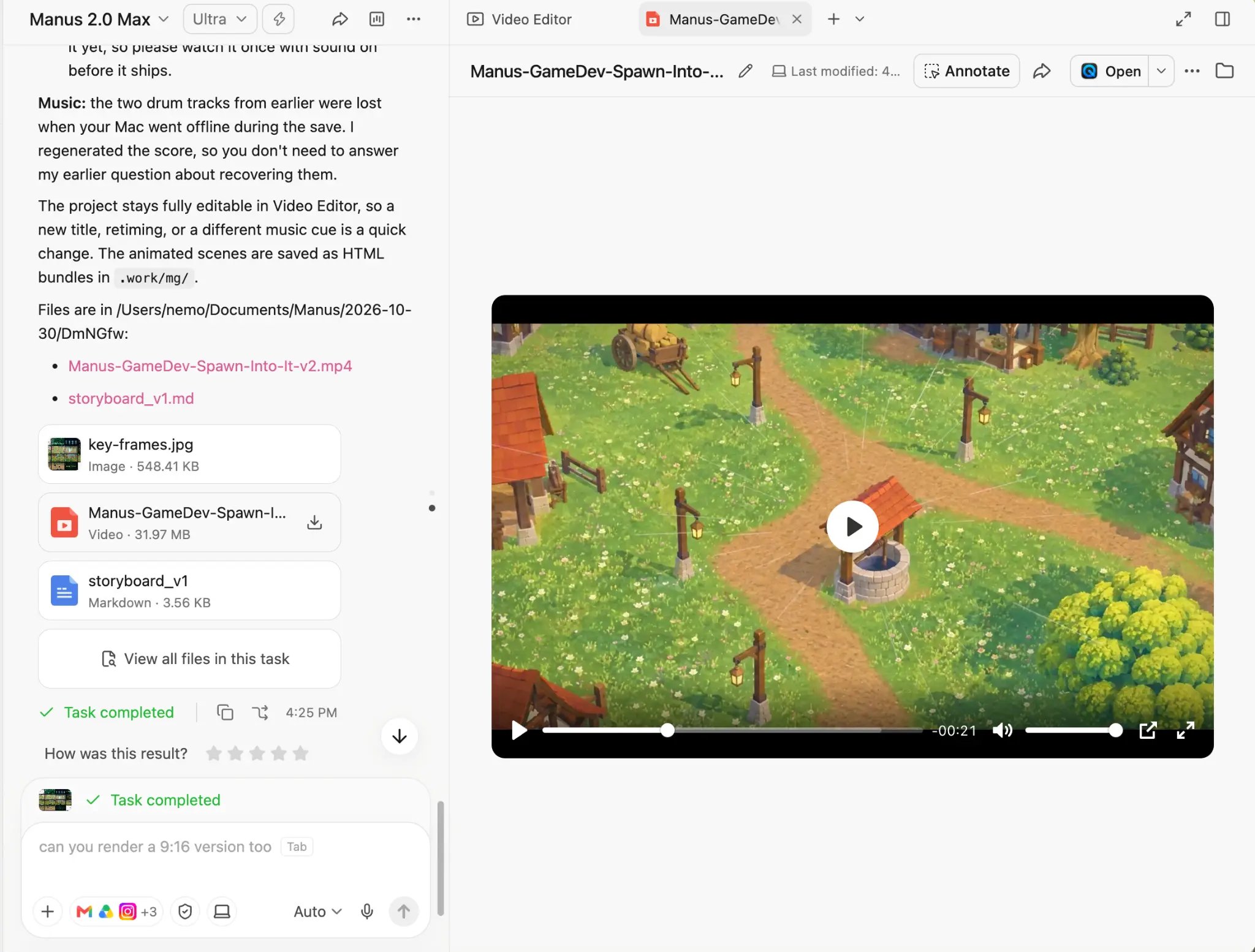
Hover over the video file card in the task chat, then click the download icon.
What you need to know
Where Video Editor runs
- Manus Studio for the full editor: Timeline editing and Alchemy mode run in Manus Studio for macOS (Apple Silicon) and Windows.
- Web for a quick start: On the web, you can start a video and review the first version. To edit it on the timeline, open the task in Manus Studio.
- Local files give the best results: For the best results, use footage that is stored on your computer and work in Manus Studio.
Plans and credits
- All plans: Video Editor is available on every plan, including the free plan. Video generation can be limited on some plans.
- Credits: Making and editing videos with Manus uses credits. Paid plans add more credits every month. See Plans and Pricing for details.
How edits work
- One shared project: Manual edits and chat edits change the same project. When you ask Manus for a change after you edit by hand, Manus continues from your version.
- Separate tracks: Each clip, image, caption, text effect, music cue, and sound effect stays on its own track. You can change one element without affecting the others.
- Previous versions: Each version of your video opens in its own tab at the top of the workspace. If an edit does not work, click the tab of an earlier version.
- Mixed sources: One project can combine your own footage, generated video clips, images, and visuals that Manus makes with code.
Formats and processing
- Aspect ratios: You can make vertical videos (9:16) for Reels, TikTok, and Shorts, widescreen videos (16:9), and other formats for UGC and social posts. You can also resize the canvas on the timeline.
- Input types: You can add video clips, images, audio, screenshots, and screen recordings. The supported file formats and maximum file sizes are not listed yet (unverified).
- Export format: Video Editor exports MP4 files. More export options are planned.
- Processing time: Processing time depends on the length of your footage and the complexity of the video.
Accuracy
- Review facts and captions: For videos that use web research, Manus may flag facts that it could not confirm. Check those facts, names, and captions before you publish.
- First cuts can run long: The first cut can be longer than your target. Ask Manus to cut it to the length you need.
Tips
- Use Alchemy mode for high-stakes videos. For launch films, ads, and other videos where quality matters most, start in Alchemy mode.
- Give the key details in your first prompt. State the platform, aspect ratio, target length, language, and tone. This reduces the number of changes you need later.
- List the moments that must stay. Name the clips, quotes, or shots that Manus must keep in the final video.
- Use the timeline for precise changes. Instructions such as “move this half a second earlier” are hard to state in chat. Make these changes by hand.
- Use chat for broad changes. Ask Manus to change the pacing, the mood, the music, or the structure of the whole video.
- Ask for a segment list before you cut. Ask Manus to list each segment with its length and spoken lines. Then decide which segments to remove.
- Lower the music under speech. Ask Manus to dim the music whenever someone speaks.
- Share a reference video. Give Manus a link to a video with the pacing or style you want. Manus can study it and make its own version.
- Replace generated assets with your own. Swap a generated image for your real product photo or logo on the timeline.
- Keep brand materials in a Project. Store logos, brand guidelines, and past scripts in a Project so that each video task starts with the same context.
- Make several clips from one recording. Ask Manus to turn one long interview or meeting into multiple short clips.
FAQ
Do I need video editing experience?
Do I need video editing experience?
What is the difference between Alchemy mode and a standard video task?
What is the difference between Alchemy mode and a standard video task?
Can I use Video Editor in my browser?
Can I use Video Editor in my browser?
Why does Edit in Video Editor ask me to download an app?
Why does Edit in Video Editor ask me to download an app?
Can I use Video Editor on the free plan?
Can I use Video Editor on the free plan?
Will asking Manus for a change undo my manual edits?
Will asking Manus for a change undo my manual edits?
Can I go back to an earlier version?
Can I go back to an earlier version?
The first cut is longer than I want. What should I do?
The first cut is longer than I want. What should I do?
Manus cannot find my footage. What should I do?
Manus cannot find my footage. What should I do?
Can I make vertical videos for YouTube Shorts, TikTok, and Reels?
Can I make vertical videos for YouTube Shorts, TikTok, and Reels?
Can I combine my own footage with AI-generated clips?
Can I combine my own footage with AI-generated clips?
Which export formats are available?
Which export formats are available?
Further reading
- Introducing Video Editor in Manus 2.0
- Introducing Manus 2.0, which introduces Manus Studio and Alchemy mode