

What it is
Game Developer (Game Dev) lets you create games that run in a web browser. You start from a playable template, such as a scrolling, jumping, or block-puzzle game. You describe the gameplay, the world, and the visual style in everyday language. Manus then creates a first version that you can play in the same session. You do not need any coding experience. After the first version is ready, you shape the game with direct controls or by asking Manus for changes. This page uses three terms:How to use it
The video below shows the full workflow: a first prompt, the tweak panel, an AI asset edit, and an online multiplayer lobby.Start a new game
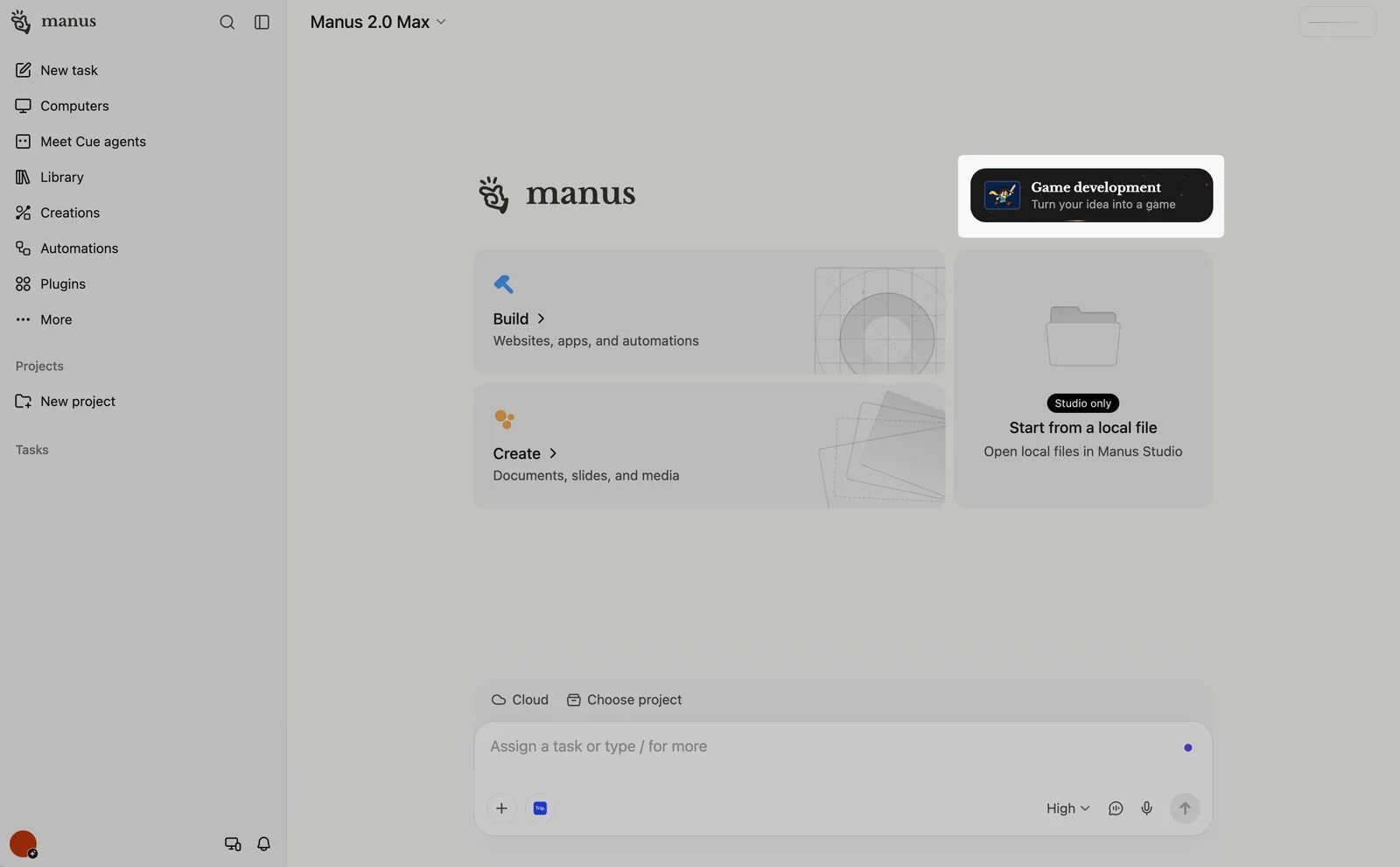
Open Game development
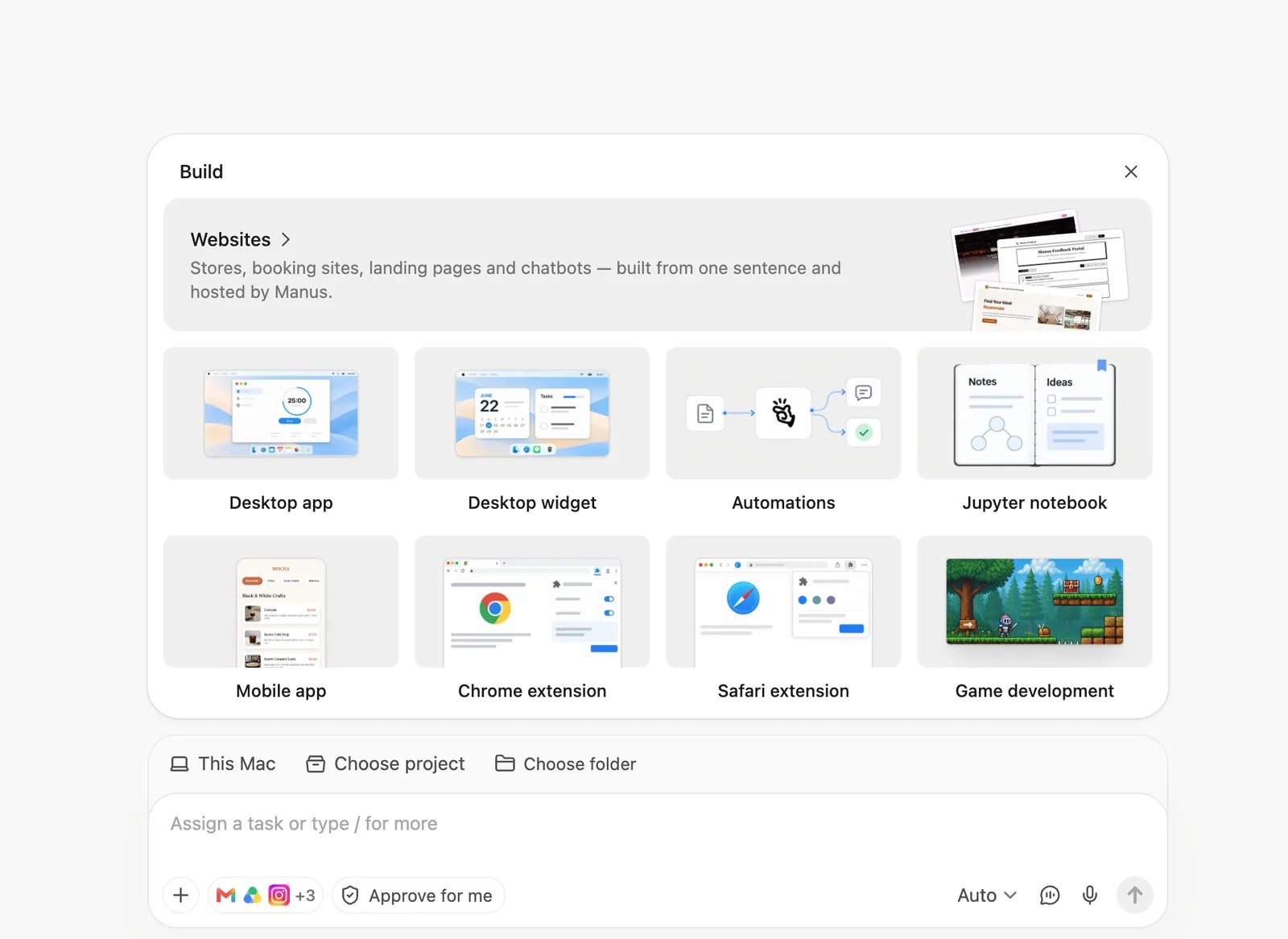
Choose a playable template
Describe your game
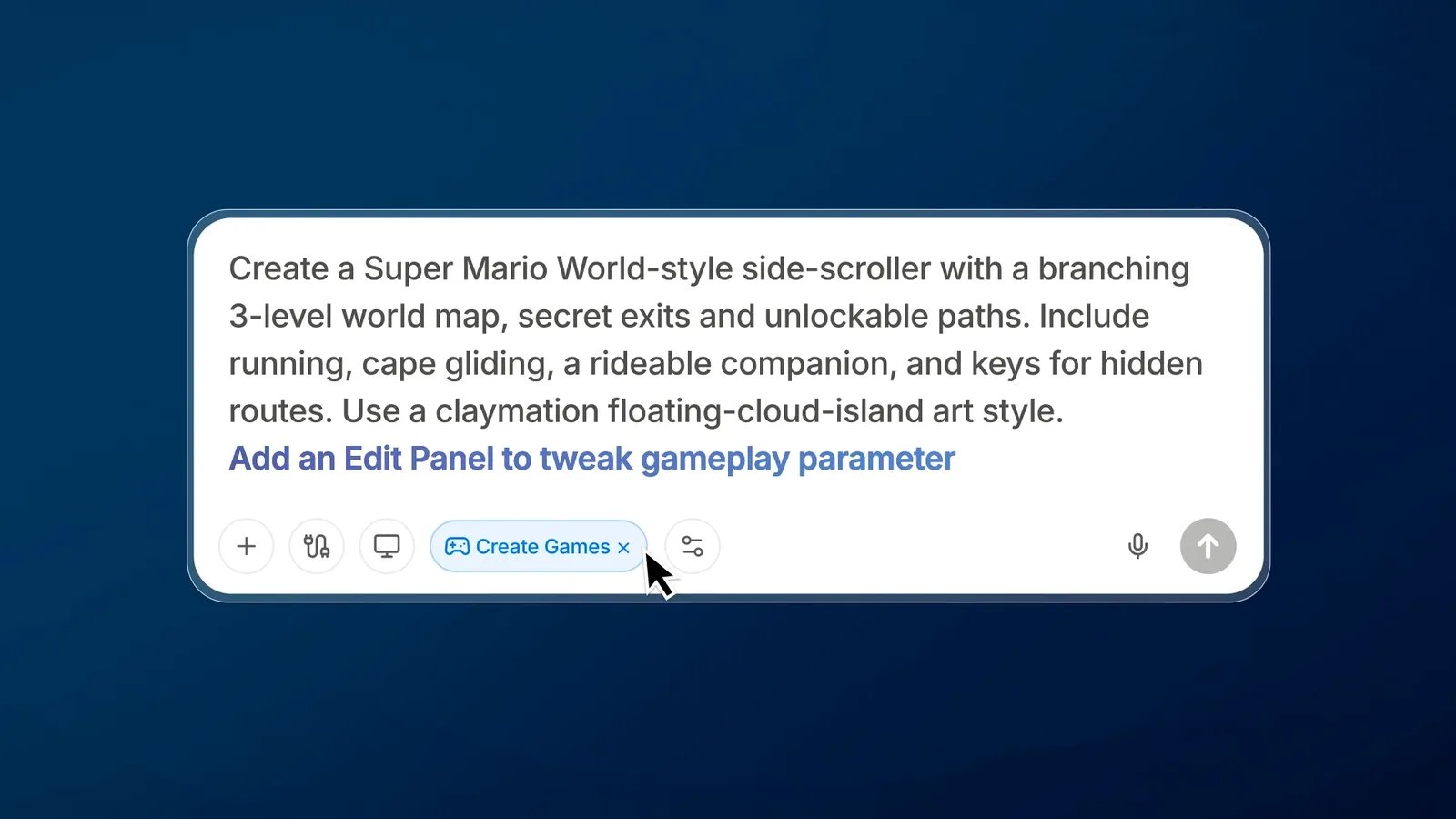
Send your prompt
Play the first version
Start from a showcase game
- Go to the Game Dev page and scroll to Explore games.
- Open a showcase game and play it.
- Choose to build on it. Manus adds the game to the input box.
- Describe the changes you want, for example a new theme, new characters, or different rules.
- Send your prompt. Sign in if Manus asks you to.
Work in the Edit panel
The Edit panel opens next to the conversation. You can make a change by hand in the panel, or ask Manus to take another pass on the same project.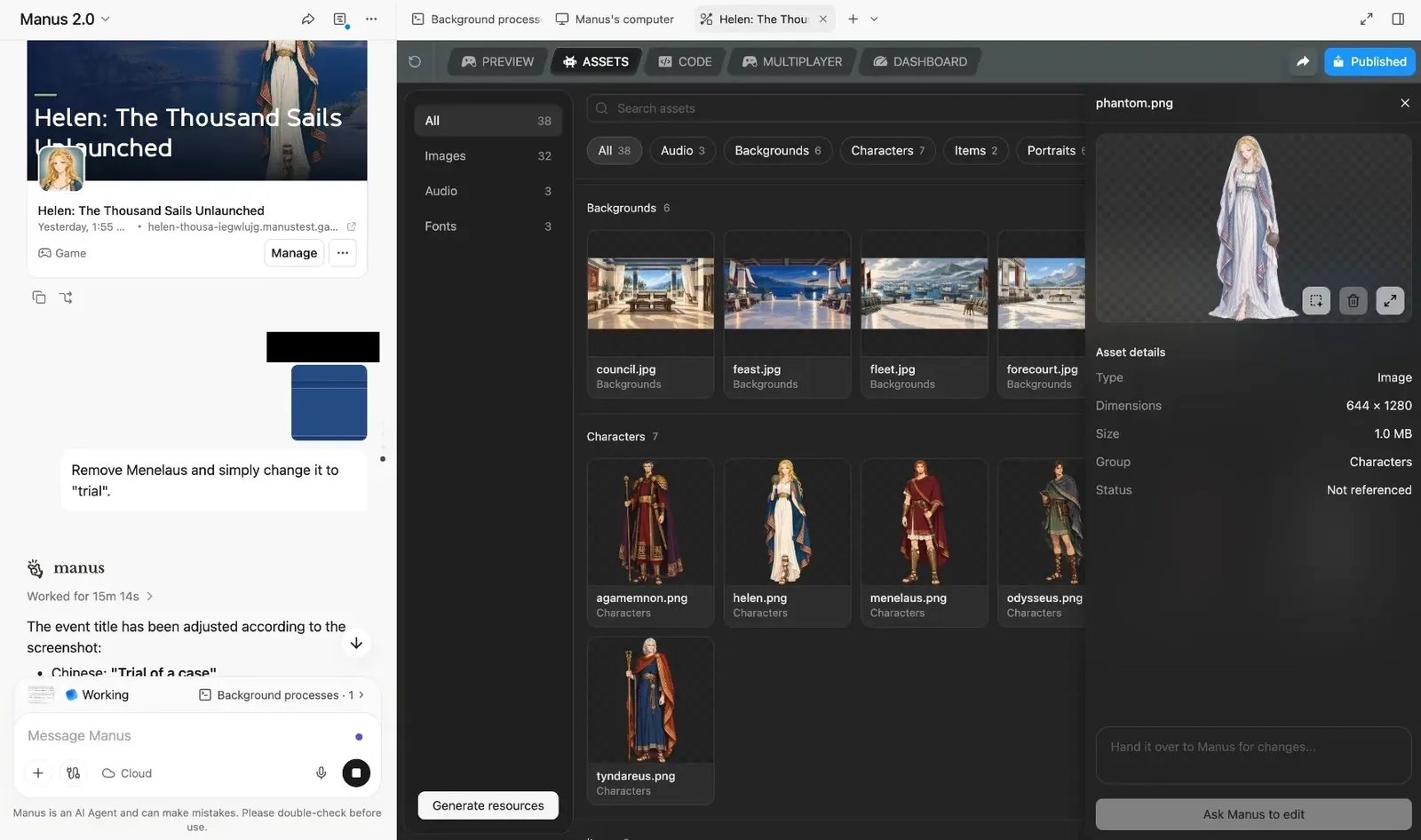
Adjust gameplay with the tweak panel
Manus creates a tweak panel for each game. The panel lists settings that belong to that game, so the settings differ from game to game. A game can use a different name for it, such as “Tuning panel”.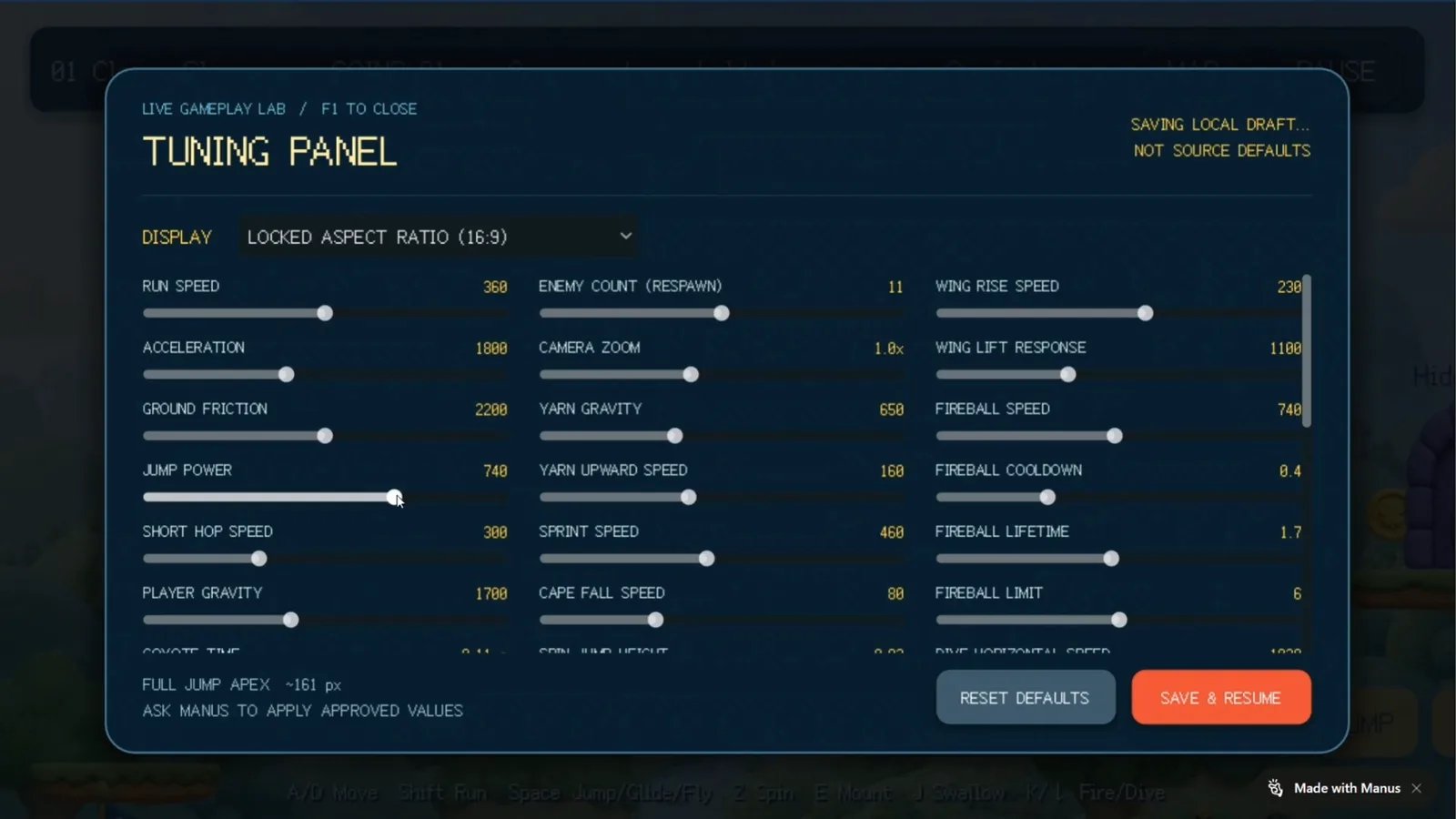
- Start playing your game in the Preview tab.
- Open the tweak panel. In the game shown above, a Tweak button and the F1 key open the panel. Your game can use a different button or key.
- Move a slider, for example run speed, jump power, player gravity, enemy count, or camera zoom.
- Keep playing to feel the effect of the change.
- Select Save & Resume to keep testing with the new values, or select Reset defaults to go back to the original values.
- When you like the result, ask Manus to apply the values to your game. For example: “Apply my current tweak panel values as the new defaults.”
Change characters, art, and sound
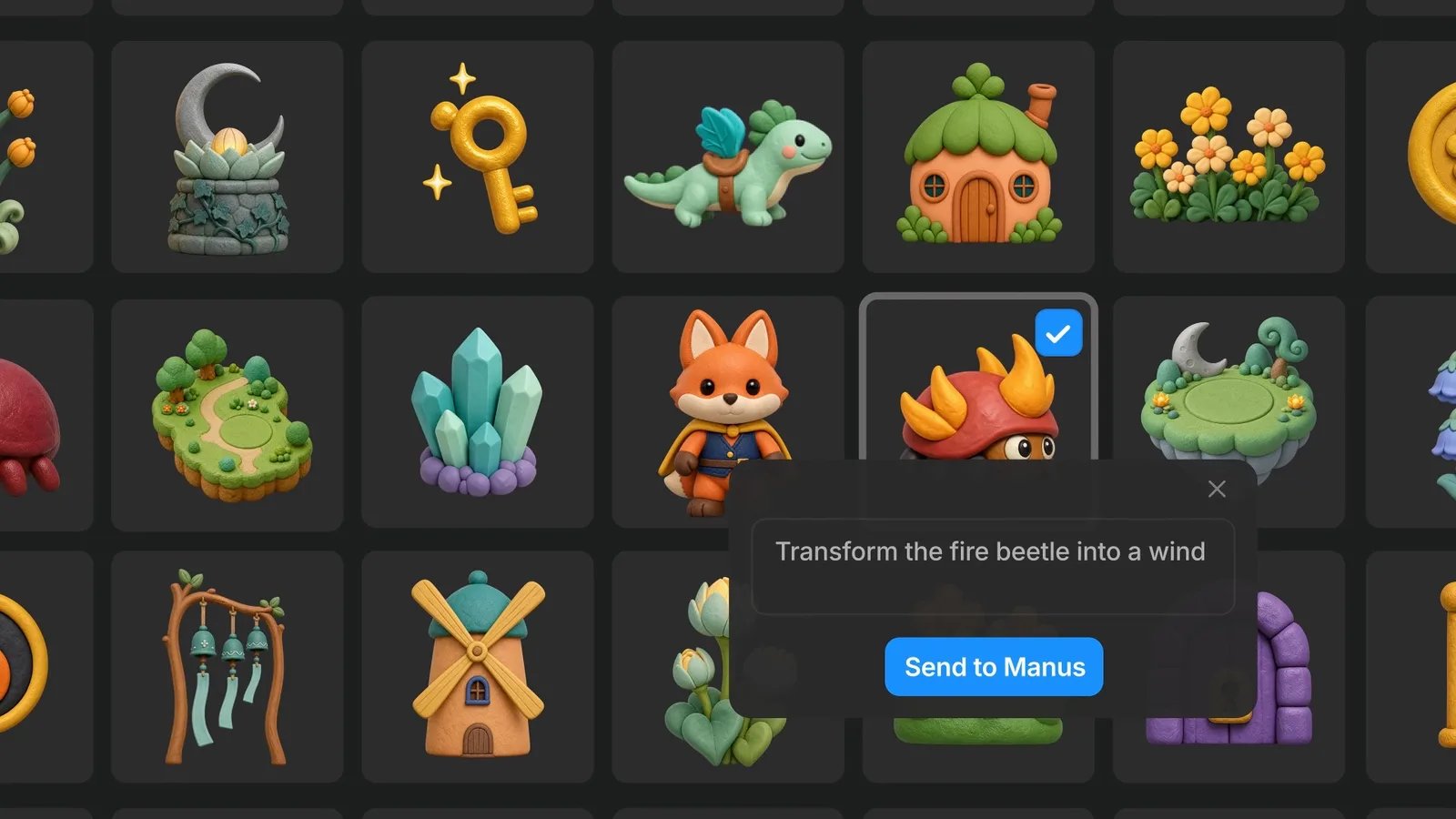
Assets are the characters, backgrounds, items, images, audio, and fonts in your game. Edit an asset with AI- In the Edit panel, open the Assets tab.
- Filter by type, for example Characters or Backgrounds, or search for the asset by name.
- Select the asset. Its details show on the right.
- In the text box, describe the change. For example: “Transform the fire beetle into a wind beetle.”
- Select Ask Manus to edit.
- Play the game again in the Preview tab to check the new asset in context.
- In the input box, select + and attach your image or sound files.
- Tell Manus how to use each file. For example: “Use the attached drawing as the main character. Use the attached sound when the player collects a coin.”
- Play the game to check that the new assets look and sound right.
Play, test, and improve your game
- Play through your game from the start.
- Write down what feels wrong, such as a jump that is too short or a level that is too hard.
- Tell Manus about one or two changes at a time, in the same conversation.
- Play the new version and repeat.
Add multiplayer to your game
You do not need a server to build a game. Whether you need one for multiplayer depends on where the players are:- Ask Manus for a local mode. For example: “Add a two-player split-screen mode. Player 1 uses WASD and player 2 uses the arrow keys.”
- Play the game in the Preview tab with a second player on the same device.
- Ask Manus for online multiplayer features. For example: “Make this an online racing game where friends join a room with an invite link or a room code.”
- In the Edit panel, open the Multiplayer tab.
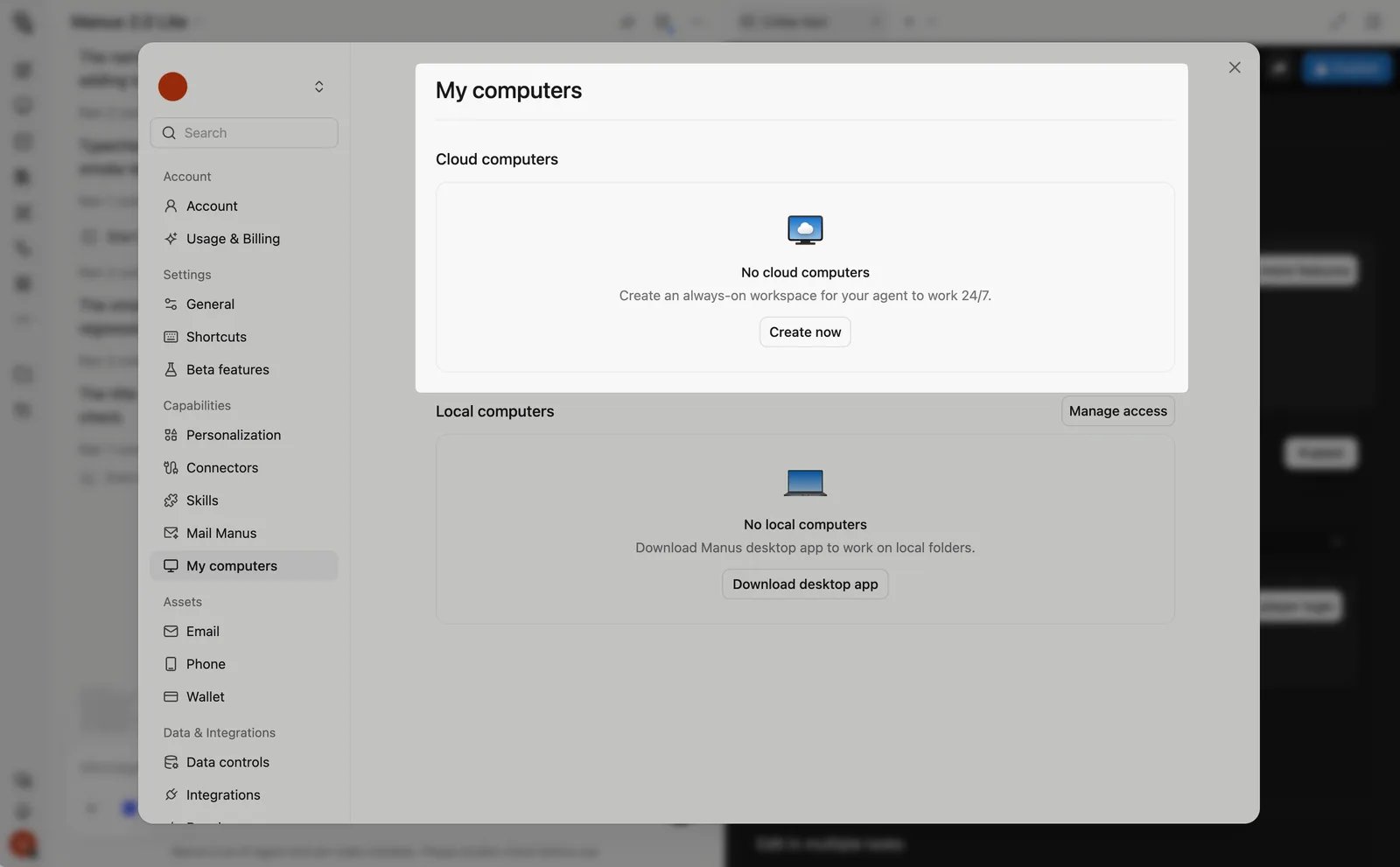
- Select Cloud Computer. If you do not have one yet, buy one.
- Wait while Manus sets up the game on the Cloud Computer.
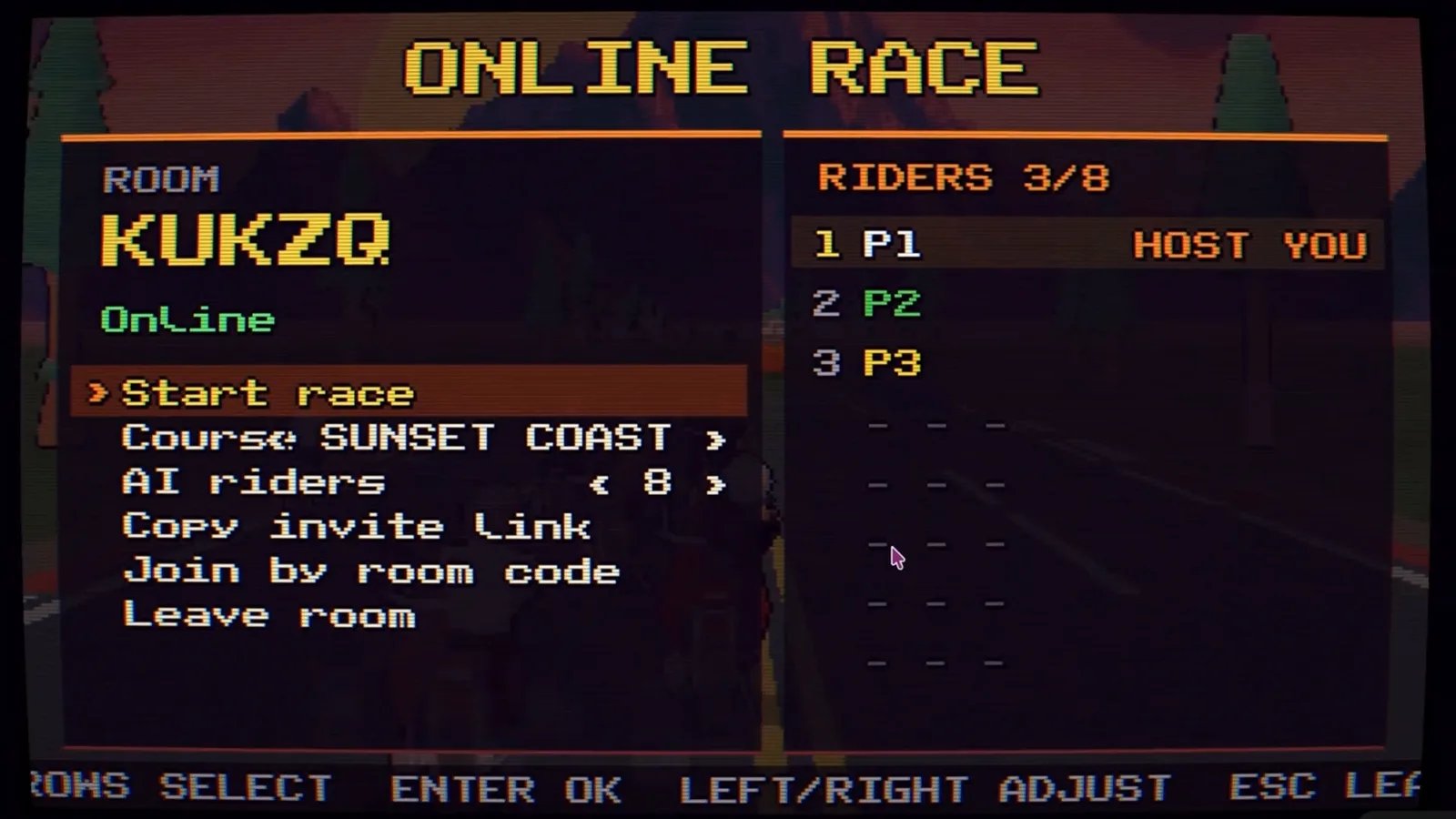
- Open the game, create a room, and share it with friends. In the game shown below, the lobby has Copy invite link and Join by room code options.
Publish and share your game
You can publish in two ways:- Copy the link to your published game. The link also shows on the game card in the conversation.
- Send the link to the people you want to play. They play in their web browser.
- Collect feedback, then ask Manus for changes in the same conversation.
What you need to know
- Game Dev is a Manus Studio add-on. (unverified: which plans include it and how users get access.)
- Every game starts from a playable template. Templates include scrolling, jumping, and block-puzzle games. You can play the first version in the first session.
- Games run in a web browser. Supported genres include platformers, puzzles, and racing games. The video also shows a side-scroller, a kart racer, a split-screen snowboarding game, a physics puzzle game, and a mini-golf game.
- Changes are targeted. When you change one character, scene, or setting, the rest of the game stays as it was.
- Tweak panel values are a local draft. They do not change your game until you ask Manus to apply them. Other players do not see your draft values.
- The tweak panel is specific to each game. Manus chooses the settings based on your game. If a setting is missing, ask Manus to add it.
- You do not need a server to build a game. Single-player games and local multiplayer games, such as split screen or same screen, run without one.
- Online multiplayer needs a Cloud Computer. The Cloud Computer is the server behind your game. It is a separate purchase, and it stays on when your laptop is closed.
- Host one online game per Cloud Computer. Running several games on one Cloud Computer is not recommended with the current hardware.
- You must sign in to send a prompt. You can browse and play showcase games first.
- Your edits stay in one conversation. Keep working on a game in the same conversation so that Manus keeps the full context.
- Games can show a “Made with Manus” label. The games in the video show this label in the corner of the screen. (unverified: whether the label appears on all published games and whether you can remove it.)
- Credits. Manus uses a credit-based system, and credit use depends on the complexity of the task. See Plans and Pricing. (unverified: the typical credit cost of a game.)
- No game engine is named. The sources do not state which engine or technology Manus uses. (unverified: whether you can export a game to another engine or to an app store.)
- The feature is still changing. Manus states that Manus 2.0 has rough edges and will continue to improve. Some steps on this page can change.
Tips
- Pick the closest template. A template that already matches your game type gives you a better first version.
- Start with three facts. Tell Manus what the player does, how the player wins, and how the game looks. Add details in later messages.
- Start small. Ask for one level or one game mode first. Add levels, modes, and multiplayer after the core game feels right.
- Make one change at a time. Short, specific requests make it easier to see what changed and to undo a change you do not like.
- Edit by hand when you know exactly what to change. Use the Assets tab or the tweak panel for one specific item. Ask Manus for new rules, levels, and menus.
- Lock in tuned values before you publish. Ask Manus to apply your tweak panel values. Otherwise, players get the original defaults.
- Describe what you see and what you expect. For example: “When I land on a moving platform, the player slides off. The player should move with the platform.”
- Name a familiar style. References such as “claymation”, “pixel art”, or “low-poly 3D” help Manus match the look you want.
- Try local multiplayer first. A split-screen or same-screen mode needs no server. Add online play when you want friends to join from their own devices.
- Test online multiplayer with more than one window or device. Join your own room from a second browser window to check the invite flow before you share it.
FAQ
Can I use a showcase game as a starting point?
Can I use a showcase game as a starting point?
What is the Edit panel?
What is the Edit panel?
Can I change one character without resetting the game?
Can I change one character without resetting the game?
Can I use my own images, characters, or sounds?
Can I use my own images, characters, or sounds?
The game does not do what I asked. What should I do?
The game does not do what I asked. What should I do?
I changed values in the tweak panel, but the published game did not change. Why?
I changed values in the tweak panel, but the published game did not change. Why?
Do I need a server to build a game?
Do I need a server to build a game?
How do I make a multiplayer game?
How do I make a multiplayer game?
Can a Cloud Computer host a game server?
Can a Cloud Computer host a game server?
Do I need to set up my own server?
Do I need to set up my own server?
Can one Cloud Computer host more than one game?
Can one Cloud Computer host more than one game?
How many players can join a multiplayer game?
How many players can join a multiplayer game?
How do I publish my game?
How do I publish my game?
How do other people play my game?
How do other people play my game?
If I change my game after I publish it, do players see the change?
If I change my game after I publish it, do players see the change?
How many credits does a game use?
How many credits does a game use?
Further reading
- Launch blog: Introducing Game Dev
- Help center: How can I use Game Dev in Manus?