

What it is
With Parallel Tasks, Manus starts separate tasks for you. You describe a goal with several parts, and Manus creates one task for each part. All tasks run at the same time. Manus does not put these tasks in a Project for you. The best practice is to create a Project first and start the work there. The Project holds the key context: instructions, files, skills, connectors and, if you have one, your website. Every task in the Project starts from that context, so each new task builds on the work before it. The task where you make the request is the main task. It stays in charge of the work. From the main task, Manus can check progress, read each task’s result and send changes to one task or to all of them.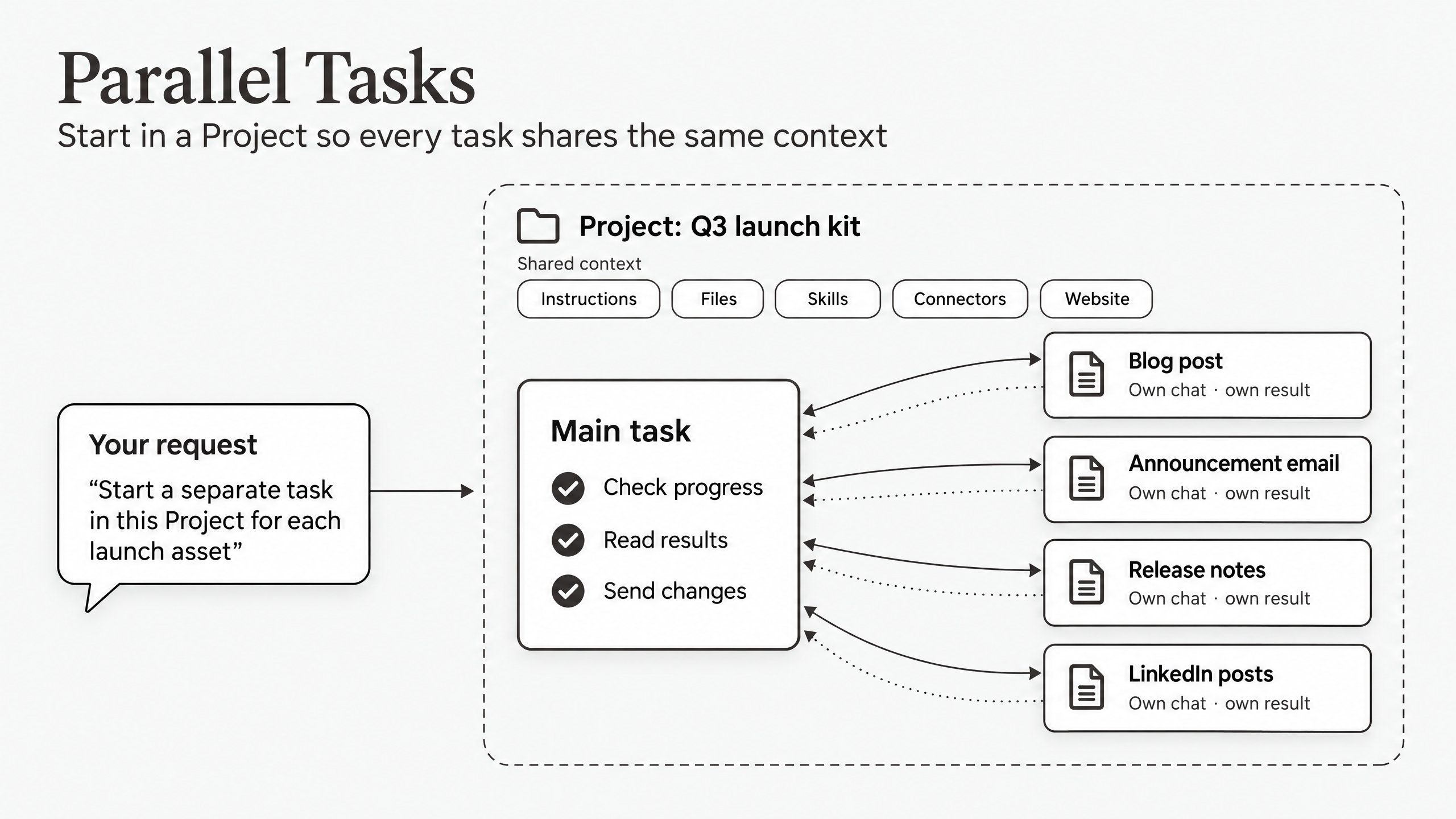
When to use Parallel Tasks, Branch, Wide Research or one task
How to use it
Step 1: Create a Project that holds the shared context (recommended)
Parallel Tasks works without a Project, but each task then starts with only its brief. A Project gives every task the same starting point, and it keeps all tasks in one place in the sidebar.- In the sidebar, click the + icon next to Projects.
- Enter a clear name, for example Q3 launch kit.
- Write the master instruction. Include every rule that all tasks must follow, such as audience, tone, format and where to save results.
- Upload the knowledge base files that every task needs, such as a product fact sheet or a style guide.
- Add the connectors and skills that the tasks must use. Sign in to each connector first. Adding a connector to a Project does not sign in to it for you.
- If the work involves a website, keep the website in the same Project. Build it in a task inside the Project, or move the task that built it into the Project.
Step 2: Ask Manus to start separate tasks
- Open a new task inside the Project. This task becomes your main task.
- Ask Manus to start a separate task in this Project for each part of the work. Manus works in the current task by default, so you must ask for separate tasks.
- Ask Manus to give each task a short brief. A new task does not see the chat history of the main task.
- Ask Manus to return one link per task.
Step 3: Review and edit each task on its own
- Open a task from its link, or from the Project in the sidebar.
- Review the result in that task.
- Give feedback in that task only. For example, in the email task: “Shorten the subject line to six words.”
Step 4: Manage all tasks from the main task
Return to the main task to manage all tasks from one place.Run several tasks on one website
To let several tasks edit the same website or app, use Edit in New Task. Each task edits the same project, with one shared version history, database and published site.- Open the website dashboard, the Library item or the Project website card.
- Click Edit in new task.
- Describe the change that this task must make, then send the message.
Example ways to split work
What you need to know
- Manus starts separate tasks when you ask. By default, Manus does the work in the current task. Ask for separate tasks in your request. For websites, Manus can also suggest a new task, and you choose whether to start it.
- Manus does not create a Project for you. If you do not set up a Project, the new tasks are not grouped together and do not share instructions, files or connectors. Start the main task inside a Project, and ask Manus to create the tasks in that Project.
- New tasks do not see the chat history. Each new task starts with the brief that it receives, plus the Project context if you work in a Project. Put rules that all tasks need in the Project, not only in the main task.
- Project updates reach tasks at different times. Instruction updates apply the next time you send a message in a task. File updates apply only to tasks that you create after the update.
- Each task uses credits. Several tasks can use more credits than one task. API usage in the main task can also use credits.
- Action confirmations happen in each task. If a task needs your approval, for example before it sends an email, open that task to approve it. The main task cannot approve actions for another task.
- Tasks on the same computer can share files. Tasks that run on the same device and in the same folder see the same files. Manus does not create separate copies automatically. Give each task its own file or folder.
- Tasks on one website share its code, database and published site. Code changes merge automatically, but database changes have no conflict protection. For details, see Edit in New Task.
- Tasks stay private. Project collaborators see only the tasks that they created. To share a task, invite people to that task.
Tips
- Write shared rules once. Put tone, format, facts and save locations in the Project instruction and files. Then each task follows them without extra setup.
- Let each round of tasks build on the last. Save finished results, such as a final fact sheet or approved copy, to the Project files. Tasks that you start after the update read those files, so the next round starts from the approved work.
- Keep the website in the Project. If several tasks change one website, keep the website and those tasks in the same Project. Each task then has the same context about the website.
- Ask for a self-contained brief per task. Each brief needs the goal, the audience, the key facts and the expected output. A brief must not refer to “the chat above.”
- Decide when to start a new task.
- Quick questions: stay in the main task.
- Separate deliverables: start one task for each.
- Long research (more than about 10 minutes): start a separate task so that the main task stays free.
- Follow-ups on one deliverable: send them to that deliverable’s task.
- Split website work by area. Give each task a different area, such as styles, content or one feature, and change the database from one task at a time.
- Use the main task as the final check. Ask the main task to verify key numbers and claims from each task before you share the results.
- Keep shared notes in files. Save notes, decisions and work in progress to Project files or a shared folder. Every task can read files. No task can read another task’s chat unless the main task reads it for you.
- Turn feedback into Project rules. After a review, add the lessons to the Project instruction. The next set of tasks starts from better rules.
FAQ
Does Manus start separate tasks on its own?
Does Manus start separate tasks on its own?
No. Manus starts separate tasks when you ask for them. For websites, Manus can suggest starting a new task, and you click Start in new task or Not now.
Do I need a Project to use Parallel Tasks?
Do I need a Project to use Parallel Tasks?
No, but we recommend it. Without a Project, each new task starts with only its brief, and the tasks are not grouped in the sidebar. With a Project, every task shares the same instructions, files, connectors and website, and you find all tasks in one place.
How is Parallel Tasks different from Wide Research?
How is Parallel Tasks different from Wide Research?
Wide Research runs many agents inside one task and combines their work into one result, such as a table or a report. Parallel Tasks creates separate tasks that you can open, review and edit one at a time. Use Wide Research for many similar items in one output. Use Parallel Tasks for several deliverables that each need their own review.
How is Parallel Tasks different from Branch?
How is Parallel Tasks different from Branch?
Branch copies a task’s chat history and files up to one reply into a new task. You start each branch yourself. With Parallel Tasks, Manus starts several new tasks for you. Each new task gets only the Project settings and a short brief, not the chat history. Use Branch when the new work needs the full conversation. Use Parallel Tasks when each piece of work can start from a clear brief.
Can a new task see what I discussed in the main task?
Can a new task see what I discussed in the main task?
No. A new task starts with the Project settings and the brief from the main task. If you want the main task to use another task’s results, ask the main task to read that task.
Can I send the same change to all tasks?
Can I send the same change to all tasks?
Yes. In the main task, ask Manus to send the message to all tasks. To make a change permanent for future work, update the Project instruction.
Can several tasks edit the same website?
Can several tasks edit the same website?
Yes. Use Edit in New Task. All tasks edit the same project and share one published site.
Does Parallel Tasks use more credits?
Does Parallel Tasks use more credits?
Each task uses its own credits. Several tasks can use more credits than one task, but they run at the same time instead of one after another.
Can my collaborators see the tasks that Manus starts?
Can my collaborators see the tasks that Manus starts?
Not by default. Project collaborators see the shared instruction and knowledge base, but they see only their own tasks. To share a task, invite them to that task.
Can I move an existing task into the Project?
Can I move an existing task into the Project?
Yes. Projects work like folders, so you can move an existing task into a Project. For more information, see Projects.