Top 10 Best AI Video Generators of 2026 (Tested & Compared)
In the ever-evolving landscape of digital content, AI has become an indispensable partner for creators, marketers, and businesses alike. The days of AI as a simple video editor are long gone. Today, the best AI video generators are sophisticated tools that can brainstorm ideas, draft entire video sequences, and even automate complex content workflows. But with so many options on the market, how do you choose the right one for your needs?
As a content writer deeply embedded in the world of AI, I've spent countless hours testing and evaluating these text-to-video tools. In this guide, I'll take you through a hands-on review of the top 10 prompt-to-video AI generators of 2026. I've put each one to the test with the same prompt, giving you a real-world look at how they perform.
The Best AI Video Generators of 2026 at a Glance
For those who want a quick overview, here's a summary of the top AI video generators and what they excel at:
Tool | Best For | Starting Price (Monthly) |
Runway | Advanced creative control | $15/month |
HeyGen | Personalized & translated videos | $29/month |
OpenAI Sora | Narrative storytelling | $20/month (via ChatGPT Plus) |
Kling AI | Photorealistic humans | $10/month |
Synthesia | Business & training videos | $29/month |
Luma Dream Machine | Fast, cinematic results | $9.99/month |
Pika | Creative & social media content | $10/month |
Google Veo 3 | Cinematic realism | $28.99/month (via Google AI Pro) |
Adobe Firefly | Adobe Creative Cloud users | $9.99/month |
AI-powered workflow automation | $40/month |
How We Tested the Best AI Video Generators
To provide the most accurate and unbiased review, we tested each of the 10 AI video generators with the exact same prompt. This allows for a direct comparison of each tool's ability to interpret and execute a complex creative brief.
The Test Prompt:
"A young woman in a flowing emerald green coat walks alone through a rain-soaked Tokyo alley at night. Cherry blossom petals drift through the air, sticking to the wet ground. Neon signs in Japanese kanji cast pink and blue reflections across the puddles. She pauses at a small ramen stand, steam rising from the kitchen, and turns to look over her shoulder with a slight, knowing smile. The camera slowly pushes in on her face. Cinematic lighting, shallow depth of field, anamorphic lens flare, moody and atmospheric."
Evaluation Criteria:
•Accuracy & Consistency: How well did the tool adhere to the prompt? Were there any strange artifacts or inconsistencies?
•Realism & Quality: How realistic did the final video look? What was the overall visual fidelity?
•Creativity & Style: Did the tool add any creative flair or unique interpretation to the prompt?
•Ease of Use: How intuitive and user-friendly is the platform?
1. Runway (Gen 4.5) – Best for Advanced Creative Control
Runway has established itself as a powerhouse in the AI video generation space, offering a suite of advanced tools that provide granular control over the creative process. It's a favorite among filmmakers and VFX artists who need to do more than just generate a clip from a prompt.
Key Features
•Advanced Camera Controls: Offers precise control over camera movements like pan, tilt, and zoom, allowing for more dynamic and intentional shots.
•Multi-Motion Brush: A unique feature that lets you animate specific regions of an image or video, bringing static elements to life.
•AI Training: You can train your own AI models on specific styles, ensuring brand consistency or a unique artistic look across your projects.
My Experience
Though it said that the Free plan comes with 125 credits, when I signed up there were zero credits left, so I jumped straight into the Standard plan to give this a proper test. First impressions? The interface is a lot. There's a sidebar packed with options like Tool, App, Chat, Workflow, and Live, which can feel overwhelming if you're just trying to do a simple text-to-video generation. It took me a minute to find the actual prompt bar, so it's not the most intuitive experience for newcomers.
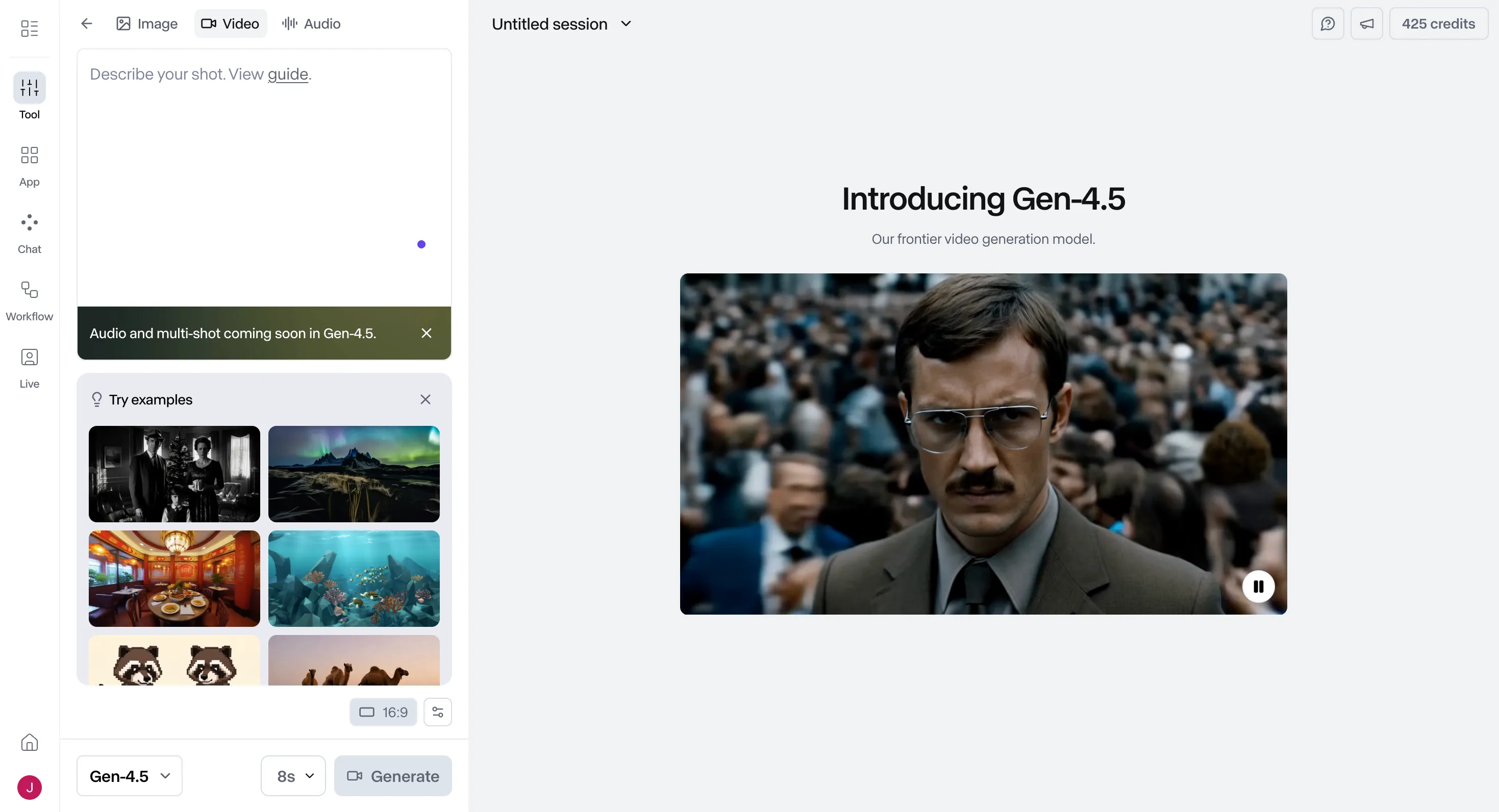
Once I got the hang of it and submitted my prompt using the Gen-4.5 model, the generation time was pretty reasonable, just a few minutes.
Video Generated:
The output captured most of the elements I asked for, and the background and the young woman looked genuinely good. But here's where it fell short: her eyes were glitching and moving in this strange, robotic way that was a bit unsettling. The movement overall felt awkward, like she was following the prompt too literally. And the ramen store? It didn't really look like a ramen store at all, and the store owner had some weird issues with his face and hands.
What I liked and What I didn't like
What I liked | What I didn't like |
Multiple model options (Gen-4.5, Veo) | Overwhelming interface for beginners |
Acceptable generation time | Some facial artifacts and glitches |
Included most prompt elements | Unnatural character movement |
Pricing
For those wanting to try before they buy, Runway offers a free plan with a one-time allotment of 125 credits. (Even though this did not work for me, you could try) Mostly for image gen and image-video generation. If you need more, the Standard plan comes in at $15 per month and includes 625 credits that refresh monthly, with several video gen models available to choose from. Stepping up to the Pro plan at $35 per month gets you 2,250 credits and features like custom voices for lip sync. Heavy users might consider the Unlimited plan at $95 per month, which offers unlimited generations at a relaxed rate.
2. HeyGen – Best for Personalized & Translated Videos
HeyGen has carved out a niche for itself by focusing on creating personalized and translated videos at scale. It's an excellent tool for sales teams, marketers, and businesses that need to create customized video messages for a global audience.
Key Features
•AI-Powered Video Translation: A standout feature that can translate your videos into multiple languages with impressive accuracy.
•Custom Avatar Creation: You can create your own AI avatar with voice cloning, allowing for highly personalized video messages.
•Interactive Avatars: HeyGen offers interactive avatars that can be used for personalized sales and marketing videos, creating a more engaging experience for the viewer.
My Experience
I was pleasantly surprised to find a free version available, so that's what I used for this test. Right off the bat, the interface is super clean and easy to use. It doesn't overwhelm you with flashing videos or a million options; the prompt box is right there in the middle of the page.
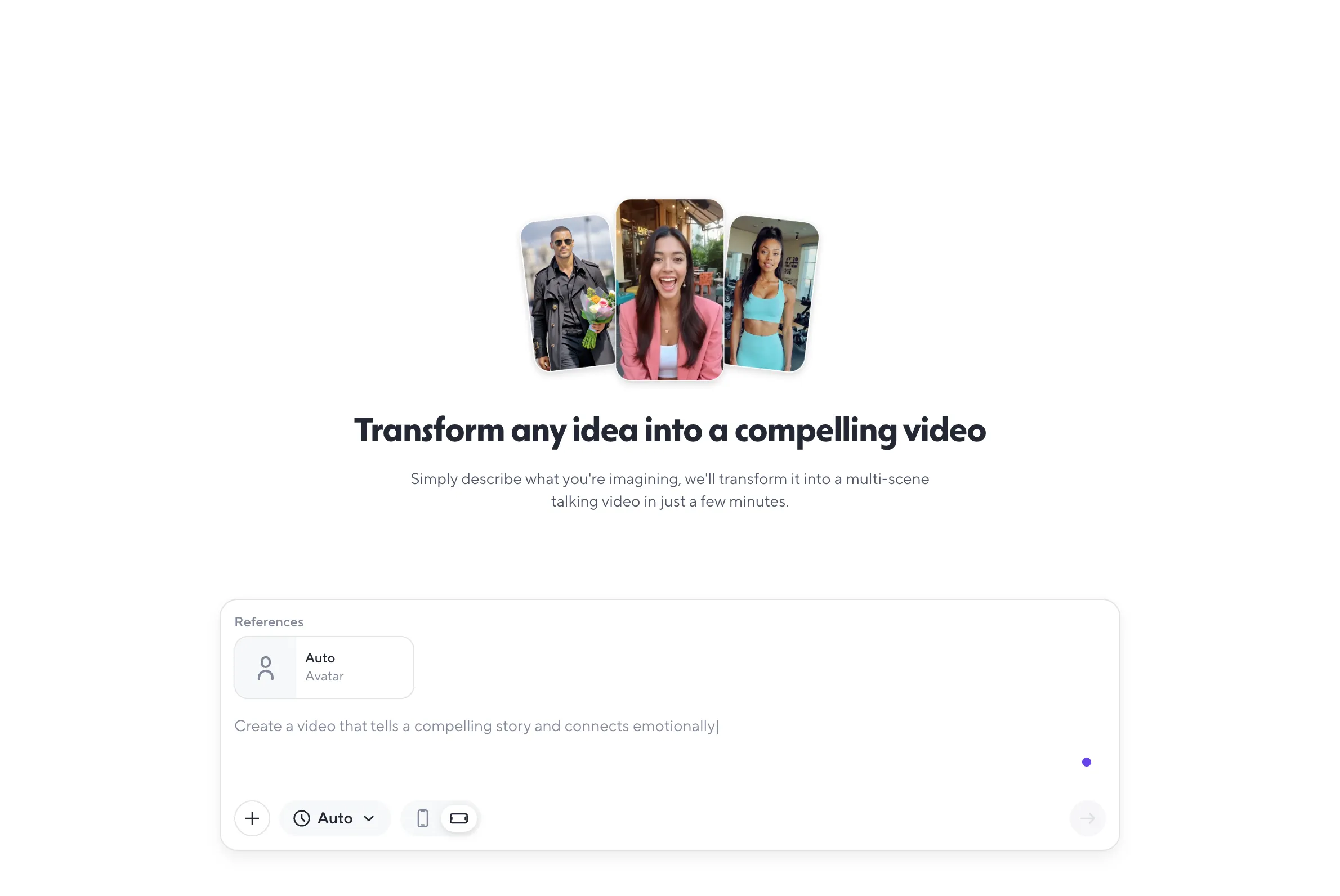
There's also a neat avatar settings panel where you can choose from a library of avatars or even create your own. One thing I noticed is the video length options are different here, ranging from 15 seconds up to 3 minutes, which is longer than most competitors.
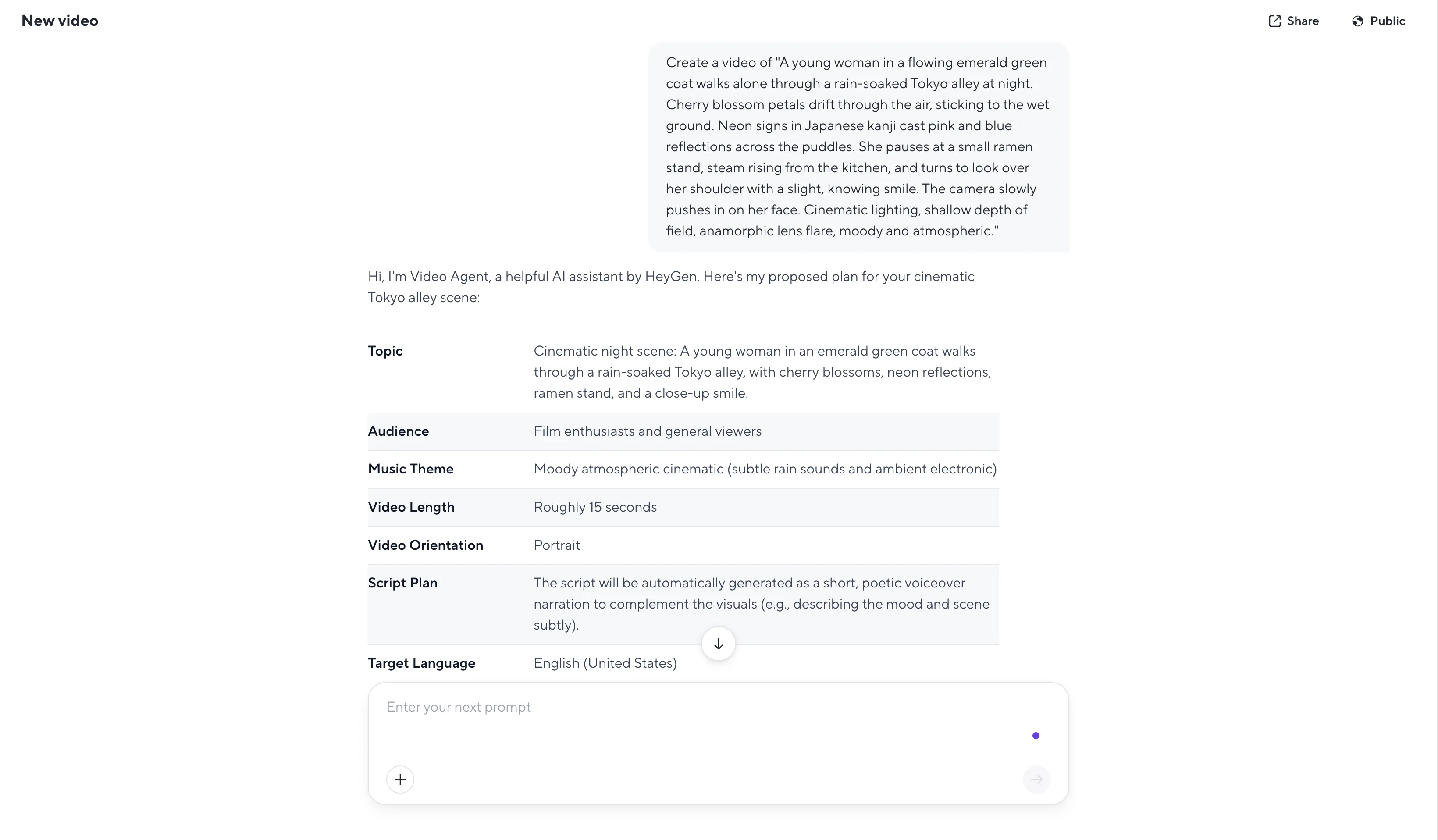
Before the video was created, HeyGen gave me an overview outline of what it was about to generate, which is a unique feature that lets you make last-minute edits.
Video Generated:
The generation itself took a little longer than some other tools. As for the output, it included a voiceover with subtitles narrating the scene, which was a bit strange. The avatars weren't very realistic either, looking more like video game characters than real people. The movement of the lady was unnatural, with noticeable shifts in frames, and her outfit and face weren't even consistent throughout the video.
What I liked and What I didn't like
What I liked | What I didn't like |
Clean, easy-to-use interface | Video game-like avatars |
Overview outline before generation | Unnatural movement |
Longer video length options | Character consistency issues across frames |
Pricing
HeyGen's free plan lets you generate up to 3 videos per month, which is a decent way to test the waters. For unlimited generated videos, the Creator plan is priced at $29 per month. Teams looking to collaborate will want the Team plan at $39 per seat per month, which includes 2 seats and unlocks 4K video export.
3. OpenAI Sora – Best for Narrative Storytelling
OpenAI's Sora has generated a massive amount of buzz, and for good reason. It excels at creating longer, more coherent videos with a strong sense of narrative. It's a powerful tool for storytellers who want to create compelling video content from a simple text prompt.
Key Features
•Long-Form Video Generation: Sora can generate videos up to a minute long, which is significantly longer than many of its competitors.
•Strong Narrative Consistency: It's particularly good at maintaining temporal and narrative consistency, creating videos that feel like a cohesive story.
•Integrated with ChatGPT: Sora is integrated with ChatGPT, making it easy to use for anyone familiar with the popular chatbot.
My Experience
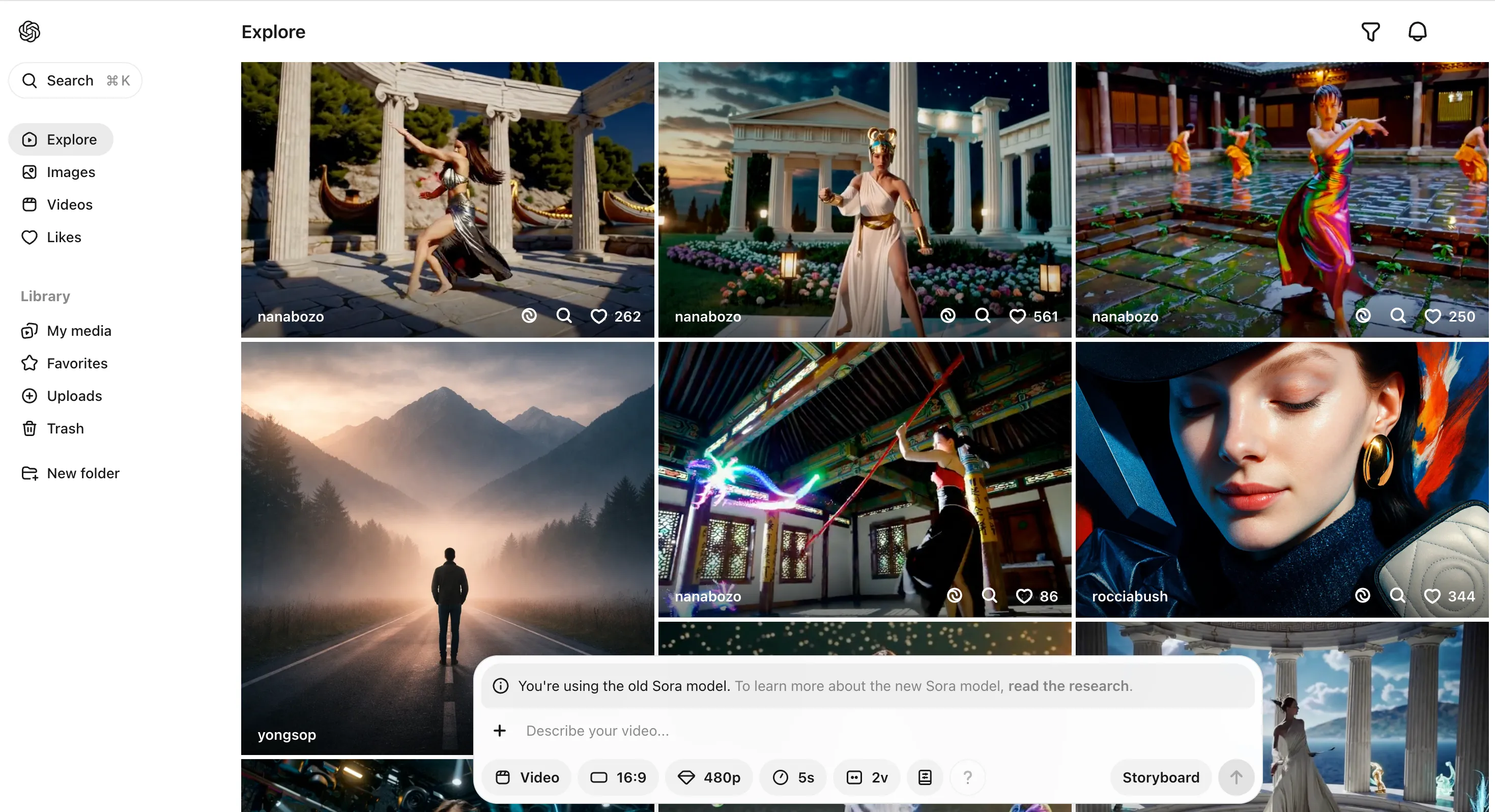
I went with the free version, which is accessible through ChatGPT. The interface is easy enough, with a simple toggle for video creation and options for aspect ratio, resolution, and video length. The free version limits you to 480p resolution and 5-second videos, and it outputs two variations by default. Before I even started, I checked out the explore page and could already see some of the AI's limitations in other people's creations, which tempered my expectations. But more so, there were so many moving colors and parts, while I understand that it was to showcase their range of creations, it ended up being quite overwhelming.
First Video Generated:
Generation was quick, under a minute even on the free tier. The first video was a bit of a miss. The young lady in the green coat was there, along with the rain-soaked alley and cherry blossoms, but she looked back twice, which wasn't in my prompt. Worse, she seemed to be walking in place while only the camera moved, which looked unnatural.
Second Video Generated:
The second video was way better and captured more elements, but the walking-in-place issue persisted. It seems like getting realistic walking or running movement right is still a common struggle for these tools. I also wanted to try Sora 2, but it's not accessible in my region (Singapore), which was a bummer.
What I liked and What I didn't like
What I liked | What I didn't like |
Quick generation time | Walking movement issues |
Multiple output variations | Region restrictions for Sora 2 |
Easy-to-use interface | Lower resolution on free version |
Pricing
Sora isn't available as a standalone product. Instead, you access it through a ChatGPT subscription. The ChatGPT Plus plan at $20 per month gives you limited access to Sora 1 video generation, up to 50 videos at 480p resolution or fewer videos at 720p. For extended access, you'll need the ChatGPT Pro plan, which runs $200 per month.
4. Kling AI – Best for Photorealistic Humans
Kling AI has made a name for itself by specializing in the generation of photorealistic human characters and movements. It's an excellent choice for creators who need to generate videos with realistic human actors for social media, marketing, or other content.
Key Features
•Realistic Human Generation: Kling AI is best-in-class for generating realistic human faces and movements.
•Strong Lip-Sync Capabilities: It offers impressive lip-syncing, making it a great choice for videos with dialogue.
•Fast Generation Times: Kling AI is one of the faster video generators on the market, allowing for quick iteration and experimentation.
My Experience
The free version kept throwing a traffic error, so I ended up on the Standard plan.

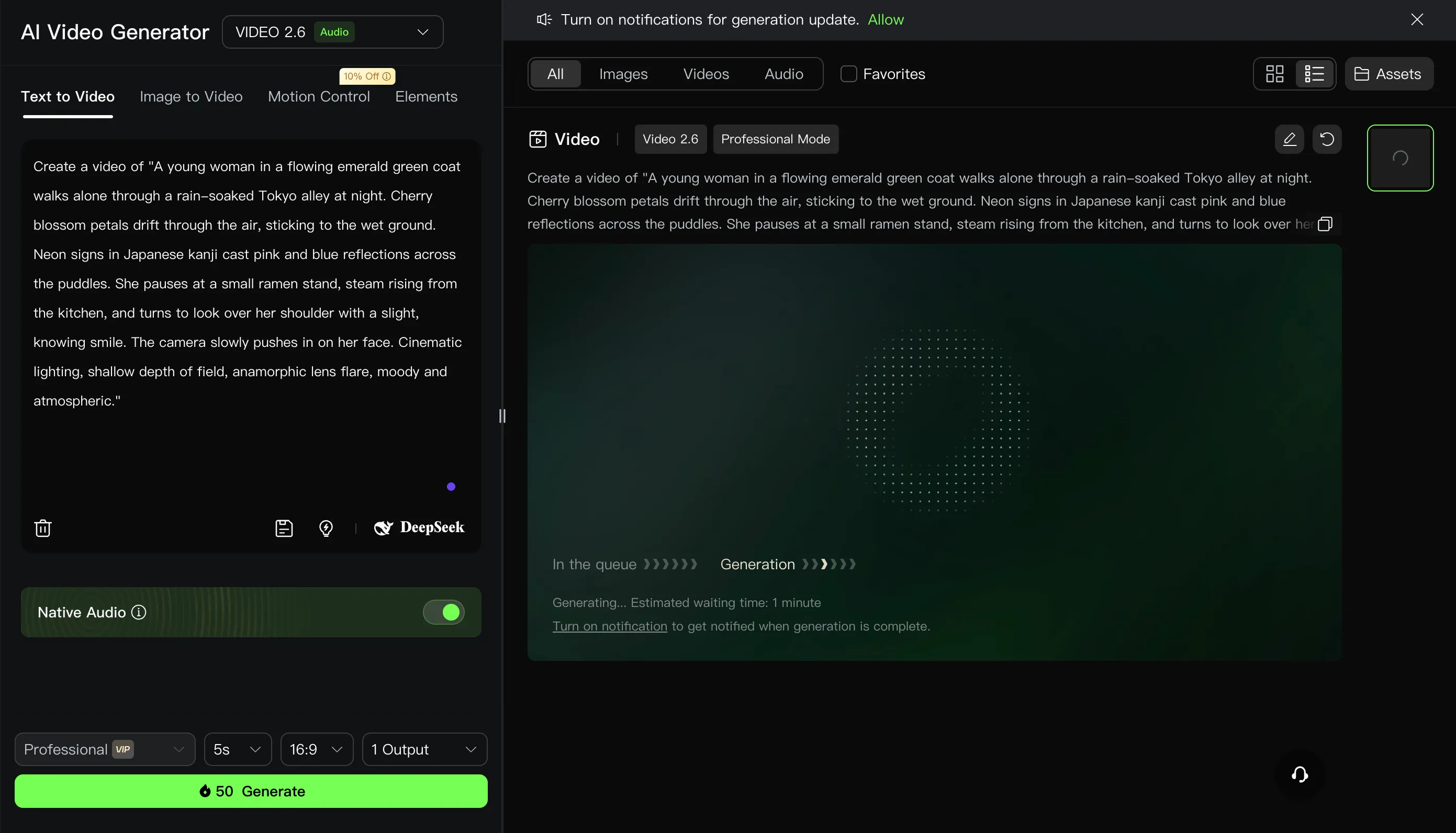
The app interface has a lot going on, but navigating to the prompt-to-video feature was pretty easy. There are options for video length (5s or 10s), aspect ratio, and number of outputs. Some features like Professional mode were locked behind VIP tiers, but the default settings worked fine. There was also an option to get DeepSeek which was integrated into the prompt box to help refine your prompt, which could be useful for beginner users who are not sure what to include in their text. They also have multiple model versions, and I went with Video 2.6, the newest one. Generation was quick, about a minute max.
Video Generated:
Out of all the tools I tested, this one produced the most natural-looking video. The walking, the pausing, the camera shots, everything just felt more realistic. That said, some elements were slightly off. The coat was more of a turquoise, rain-jacket style rather than the flowing emerald green I described. The cherry blossoms were only in one area and stopped falling when the camera zoomed in on her face. The ramen store looked okay, but it was strange that no one was mending it despite the steam. There was no anamorphic lens flare or reflection in the puddles, and the AI made the rain really heavy, which was its own creative choice. Still, for sheer realism in human movement, Kling AI is hard to beat.
What I liked and What I didn't like
What I liked | What I didn't like |
Most natural-looking video | Some VIP-locked features |
Fast generation time | Color accuracy could be better |
Easy-to-navigate interface | Missed some finer details like reflections |
Pricing
Kling AI has a free Basic plan that gives you daily credits just for logging in. (Subject to traffic as for my case) The paid tiers start with the Standard plan at $10 per month (or $8.80 with a promotional discount), which includes 660 credits. The Pro plan at $37 per month bumps you up to 3,000 credits, while the Premier plan at $92 per month offers 8,000 credits and priority access to new features.
5. Synthesia – Best for Business & Training Videos
Synthesia is the clear leader in the world of AI-powered business and training videos. It offers a library of professional AI avatars and a user-friendly platform that makes it easy to create high-quality corporate and educational content at scale.
Key Features
•Library of 140+ Realistic AI Avatars: Synthesia offers a wide range of professional AI avatars to choose from.
•Support for 120+ Languages and Accents: It's an excellent tool for creating videos for a global audience.
•Easy-to-Use Script-to-Video Editor: The platform is very intuitive, making it easy for anyone to create professional-looking videos.
My Experience
I used the free version for this test, and the interface is one of the cleanest I've seen.
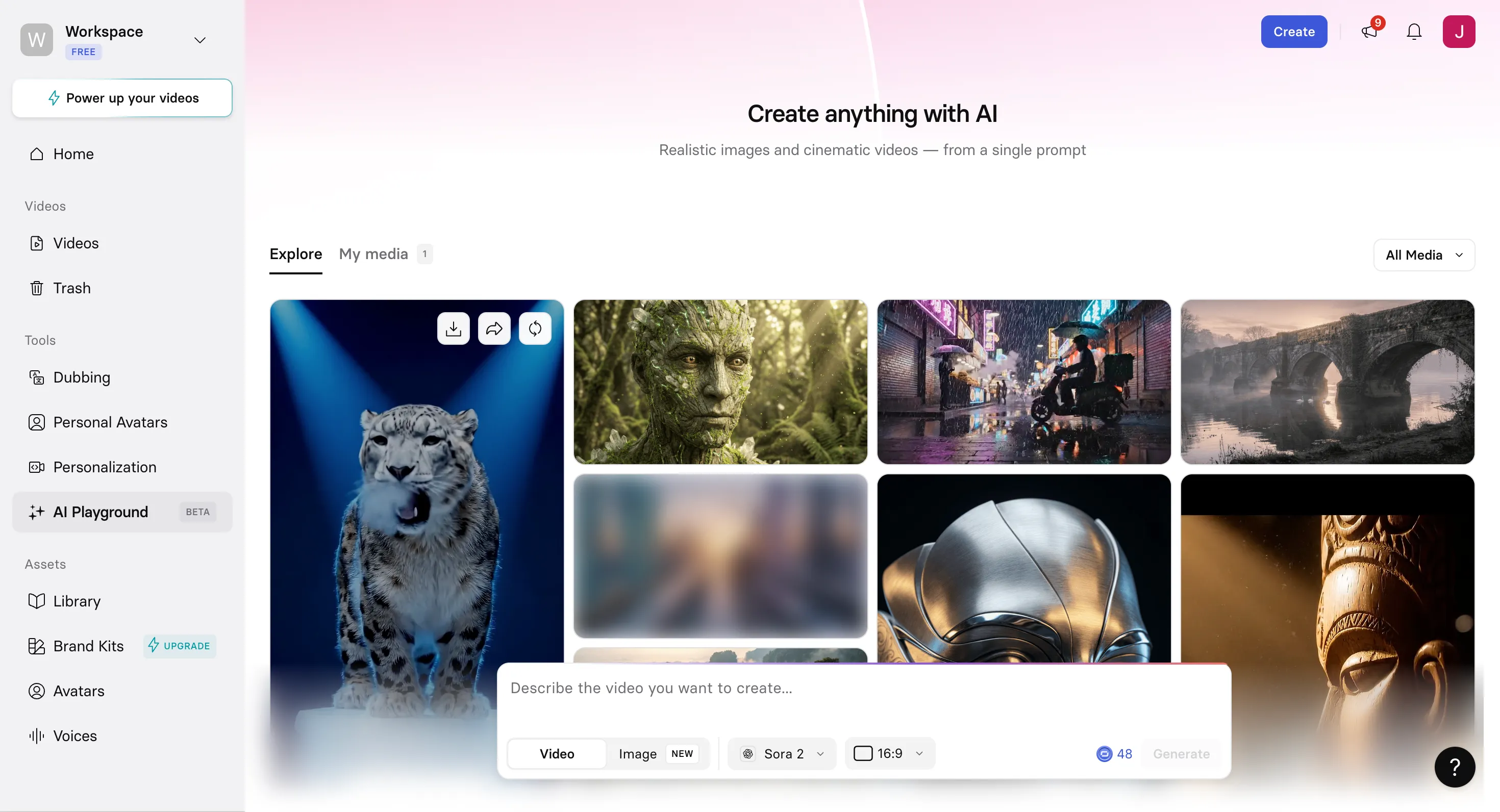
There's a video library for organizing your content and an AI Playground tab with example videos for inspiration. The prompt box is straightforward, with options for model choice (Veo or Sora) and aspect ratio.
Video Generated:
One unique thing about Synthesia is that it produced audio along with the video, heavy rain sounds and piano music, which added a nice atmospheric touch. The cherry blossoms were present but hard to see. The lady was in an emerald green coat, but here's a logic issue: she wasn't wet at all despite the heavy rain. She also didn't look over her shoulder to smile as I prompted; instead, she stopped after the ramen store and smiled from the same distance, which felt awkward. On the plus side, the ramen store was one of the better depictions I saw, with a plastic cover and a chef mending the booth. The neon signs looked more Chinese than Japanese, though. There's also a cool "Editor" mode that lets you add text and overlay pictures or videos for further customization, which is a nice touch for business users.
What I liked and What I didn't like
What I liked | What I didn't like |
Clean, user-friendly interface | Some logical inconsistencies in the scene |
Audio generation included | Didn't follow all prompt instructions |
Editor mode for customization | Download requires paid plan but generation did not |
Pricing
Synthesia lets you try the platform for free with a Basic plan. The Starter plan is $29 per month and includes 120 minutes of video per year along with 125+ AI avatars. For more features and 360 minutes of video, the Creator plan is $89 per month. Larger teams can opt for the Enterprise plan with custom pricing and unlimited video minutes.
6. Luma Dream Machine – Best for Fast, Cinematic Results
Luma Dream Machine is all about speed and quality. It's designed to produce highly cinematic and visually appealing results quickly, making it a great choice for social media managers, marketers, and creators who need to generate eye-catching content on the fly.
Key Features
•Very Fast Generation Speeds: Luma is one of the fastest video generators available, allowing for rapid iteration.
•Cinematic Output: It consistently produces visually stunning and cinematic results.
•Keyframes: A helpful feature that lets you define start and end images, giving the AI a clearer path to follow.
My Experience
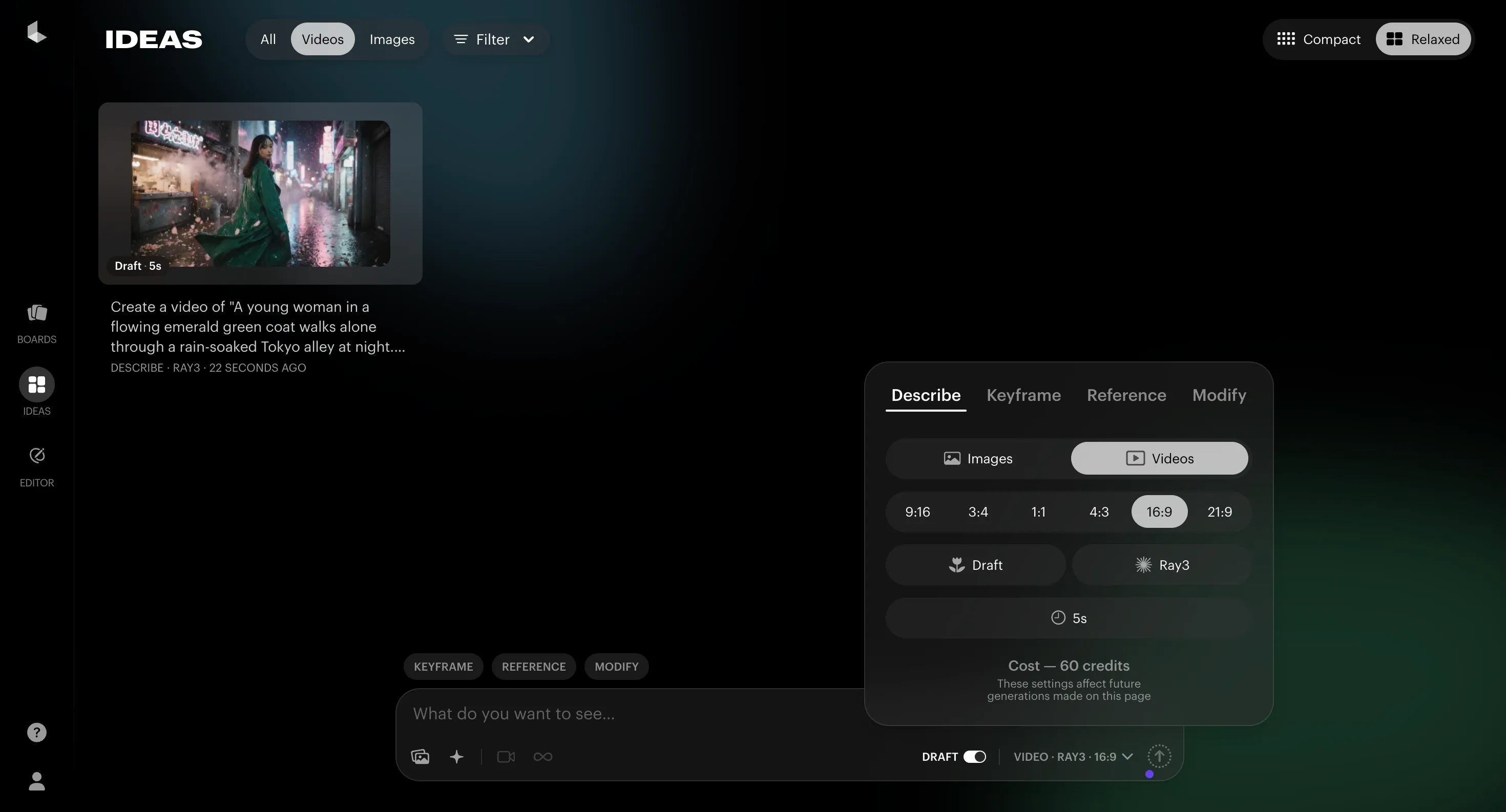
I started with the free version, which limits you to Ray 3, 5-second videos in draft quality with a Luma watermark. The interface has an Ideas tab for prompt entry, with options for aspect ratio, version (Ray 2 or Ray 3), and duration. There's also a helpful library of shots, camera angles, styles, and lighting for inspiration. One standout feature is the key frames option, where you can upload start and end images and let the AI fill in the middle.
The generation was extremely quick.
Free Version:
The cherry blossoms were the most consistent I've seen across all tools, present throughout the entire video. Everything looked realistic and natural. But here's the major flaw: the lady was looking back over her shoulder the entire time, which wasn't what I asked for. The smile was also more of a sweet, picture-ready smile than the "knowing" one I described. The ramen store wasn't obvious and didn't look conventional. No anamorphic lens flare either.
Plus Version:
I then upgraded to the Plus version to test with 1080p resolution and HDR instead of SDR. The quality improved, but the core issues with prompt adherence remained.
What I liked and What I didn't like
What I liked | What I didn't like |
Extremely fast generation | Didn't follow the action sequence in the prompt |
HDR and HiFi make a huge difference | Character expressions not fully accurate to prompt |
Detailed post-output customization | Missed some cinematic effects |
Pricing
Luma Dream Machine has a free plan that lets you generate 8 videos in draft mode. For more, the Lite plan is $9.99 per month and includes 3,200 credits with full Ray3 access but still includes watermarks and is for non-commercial use. The Plus plan at $29.99 per month gives you 10,000 credits, HDR support, and commercial use rights. Power users can go for the Unlimited plan at $94.99 per month, which adds unlimited generations in relaxed mode.
7. Pika – Best for Creative & Social Media Content
Pika is a fun and creative tool that's popular with artists, designers, and social media creators. It offers a wide range of features for remixing and adding creative twists to your videos, making it a great choice for those who want to create unique, stylized content.
Key Features
•Creative Features: Pika offers a variety of unique features like Pikaframes, Pikaswaps, and Pikatwists that allow for a high degree of creative manipulation.
•Video-to-Video and Image-to-Video: It has strong capabilities for transforming existing images and videos.
•Active Discord Community: Pika has a very active Discord community, which is a great resource for inspiration and support.
My Experience
I used the free version, and honestly, the interface was quite confusing at first.
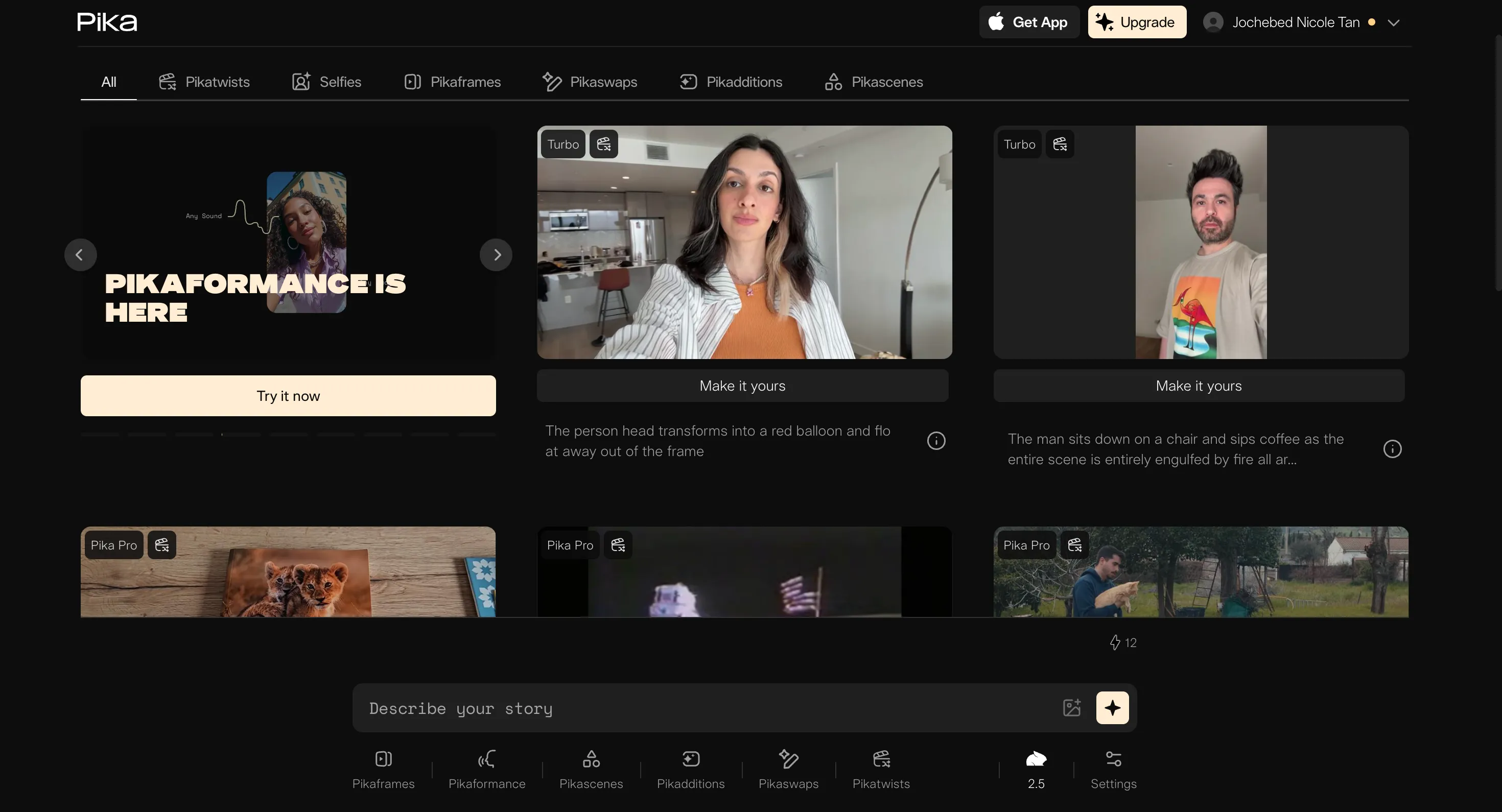
There are a lot of elements, and I wasn't sure where to input my prompt initially. There's Pikaframes (upload start/end frames and the AI creates the in-between), Pikaformance (talking head with avatar), Pika Additions (add things to a preexisting video), Pikaswaps (swap characters or objects), and Pikatwists (add a twist to a character or object). It's a lot to take in. I ended up just using the basic prompt feature without any of the special add-ons.
Video Generated:
The video quality itself was good, but it wasn't what my prompt asked for. The lady was young and wearing a green coat, and the street looked damp with cherry blossoms falling, which was nice. But the street and signs looked more Chinese than Japanese. The ramen store didn't look like a ramen store at all, again more Chinese in style. And here's the big miss: the lady wasn't walking, didn't look over her shoulder, and didn't smile. Many key components from my prompt were just missing. The camera angle and overall quality were decent, but if the output doesn't match what you asked for, it's hard to be satisfied.
What I liked and What I didn't like
What I liked | What I didn't like |
Good video quality | Confusing and messy interface |
Multiple creative features | Many prompt elements were missing |
Most features available on free plan | Cultural/setting details weren't accurate |
Pricing
Pika's free Basic plan gives you 80 monthly video credits, which is enough to experiment with. The Standard plan at $10 per month includes 700 credits and unlocks fast generations. For faster speeds, commercial use rights and no watermark, along with 2,300 credits, the Pro plan is $35 per month. The Fancy plan at $95 per month is for heavy users who need 6,000 credits and the fastest generation speeds plus everything in the Pro plan.
8. Google Veo 3 – Best for Cinematic Realism
Google's Veo 3 is a major contender in the AI video space, aiming for high-fidelity, near-photorealistic video output. It has an excellent understanding of natural language and cinematic terms, making it a powerful tool for storytellers and brands looking to create high-end video content.
Key Features
•High-Fidelity Output: Veo 3 produces stunning, near-photorealistic video quality.
•Consistent Character Generation: It excels at maintaining character consistency across multiple shots.
•Natural Language Understanding: It has a deep understanding of cinematic terms and natural language prompts.
My Experience
There's no free version for Veo 3 video generation, so I had to upgrade to test it. When I tried prompting Gemini without a subscription, it just threw an error telling me to upgrade.
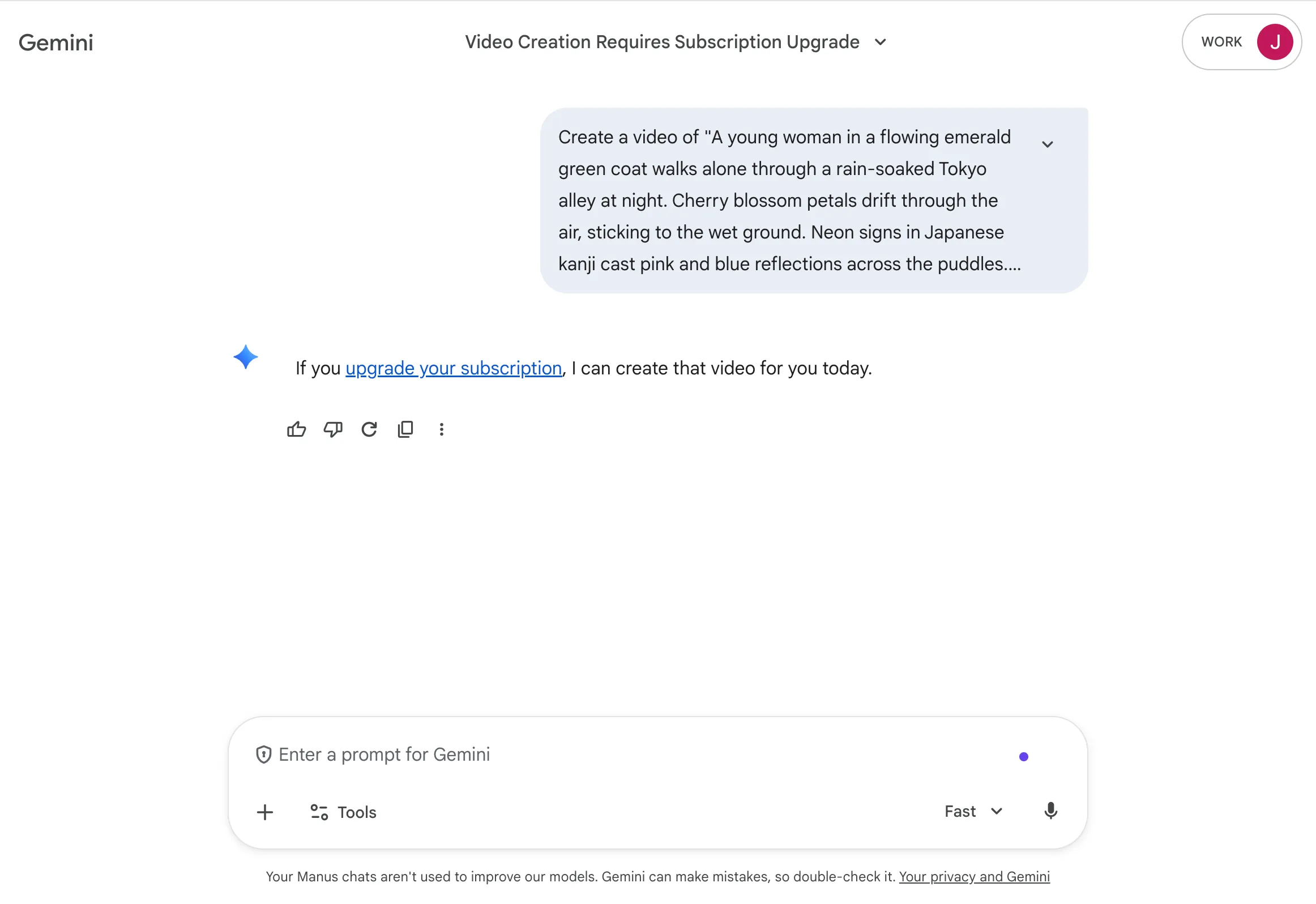
Once I did, toggling to video generation was easy. The interface is clean, just a normal chatbox for your prompt. There are three versions to choose from: Fast, Thinking, and Pro. I went with Fast (the default) since Pro is more for advanced math and code.
Video Generated:
The video quality was impressive. The lady looked similar to what I described, with a similar hairstyle, and the street looked very much like a Tokyo alley. The movement and smile were quite natural and realistic, adhering closely to the prompt. There was good attention to detail, like the rain on her coat and cherry blossoms sticking to it. But here's the most obvious issue: the cherry blossoms suddenly vanished when the camera zoomed in on her face. It was jarring. Compared to Manus, which also uses Veo 3, this output had a different sound, looked clearer and brighter, and felt more realistic overall. But that cherry blossom glitch was a significant flaw.
What I liked and What I didn't like
What I liked | What I didn't like |
Natural movement and smile | No free version available |
Good attention to detail (rain on coat) | Some elements disappeared during camera transitions |
Clearer and brighter quality | Not all elements from prompt included |
Pricing
Access to Google Veo 3 requires a Google AI subscription. The Google AI Pro plan is $28.99 per month and includes 2 TB of cloud storage along with higher access to Veo 3.1. For the highest limits, the Google AI Ultra plan is $359.98 per month, though there's often a promotional offer of $179.98 per month for the first three months.
9. Adobe Firefly – Best for Adobe Creative Cloud Users
For video editors, motion designers, and creative professionals already embedded in the Adobe ecosystem,  Firefly is a natural choice. Its native integration with Adobe Premiere Pro and After Effects creates a seamless workflow that other tools can't match.
Key Features
•Native Integration: Firefly is built directly into Adobe's suite of creative tools, streamlining the editing and post-production process.
•Text-to-Video Generation: You can generate video clips directly within the Adobe ecosystem using text prompts.
•Generative Fill for Video: This powerful feature allows you to add, remove, or replace objects in your videos with simple text commands.
My Experience
I used the free version, and the interface is pretty easy to use and clean cut. You click generate video, settings are on the left, and the prompt box and chat are on the right. The settings are very elaborate, almost like a combination of other tools. You can choose from a wide range of models and versions, including the Firefly Video model. On the free version, you can adjust resolution, aspect ratio, input frames, shot size, and camera angle, though frames per second and duration are fixed. There's also an Edit tab available. Overall, I was impressed with the interface.
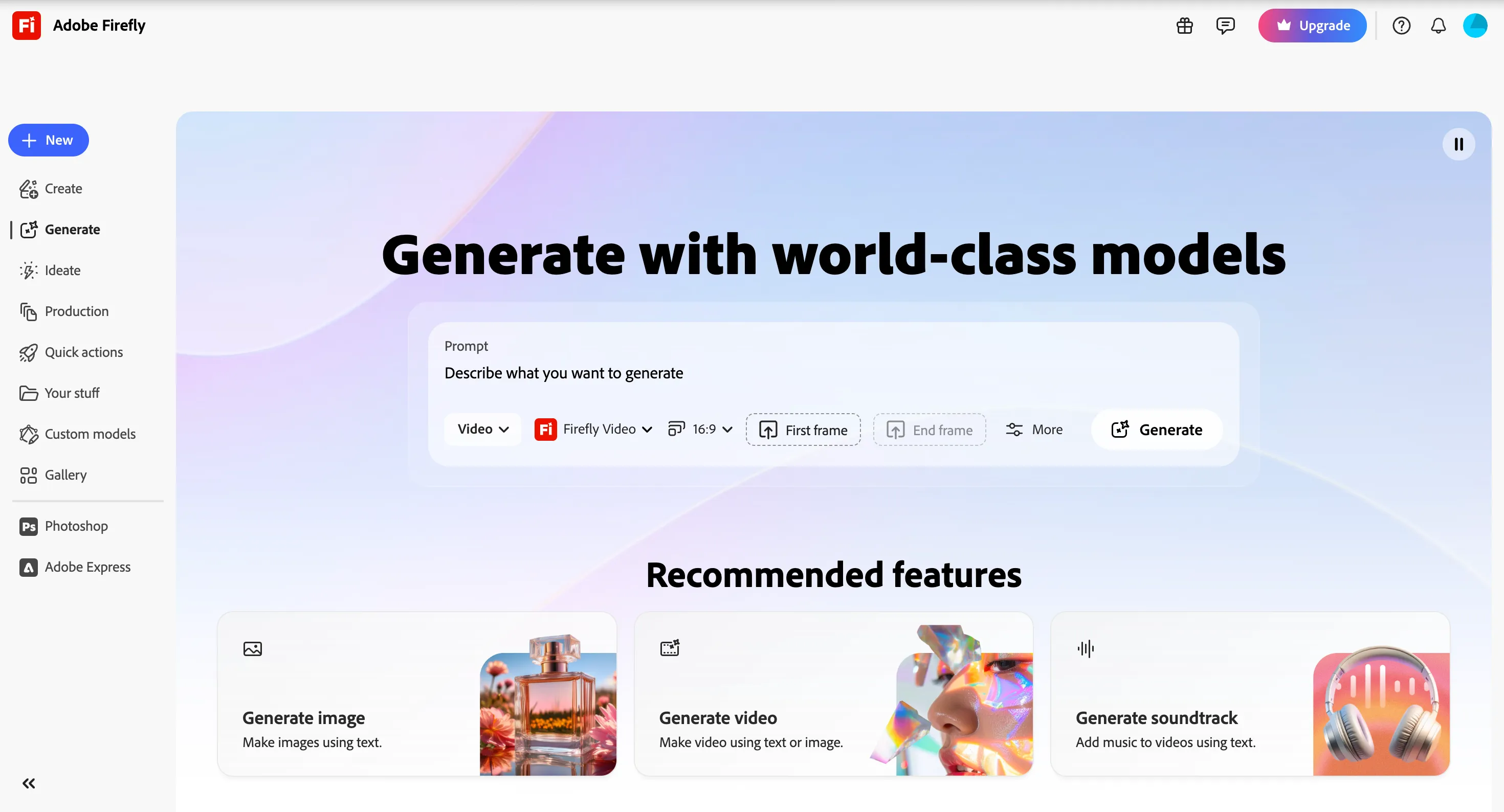
My first attempt using the Firefly Video model was confusing. The result looked like some kind of ad preview, and nothing from my prompt was included. I have no idea where it got the information for that video.
Firefly Video Model:
So I switched to the Veo 3.1 model, which took substantially longer to generate. This one was much better and hit most of the main points.
Veo 3.1 Model:
There was a cherry blossom tree in the background, and it was raining, though it didn't really look like cherry blossoms falling until the camera zoomed in. The ramen store looked different, not really ramen-like on close inspection. The street looked good but again, more Chinese than Japanese. There were no pink and blue neon signs and no reflections in the puddles as I asked for.
What I liked and What I didn't like
What I liked | What I didn't like |
Clean, easy-to-use interface | Firefly Video model gave an unrelated result |
Elaborate settings options | Veo 3.1 model took a long time to generate |
Multiple model choices available | Some atmospheric details were missing |
Pricing
Adobe Firefly has a free plan with limited generative credits. The Firefly Standard plan is $9.99 per month and includes 2,000 credits, enough for up to 20 five-second videos. Stepping up to Firefly Pro at $19.99 per month doubles your credits to 4,000. For unlimited video generation, the Firefly Premium plan is $199.99 per month with 50,000 credits.
10. Manus – Best for AI-Powered Workflow Automation
Manus takes a different approach. Instead of being just a video generator, it acts as an  AI agent that can orchestrate complex tasks across different AI models. It's a powerful tool for advanced users who want to automate their entire video creation pipeline.
Key Features
•AI Agent Orchestration: Manus can manage complex, multi-step workflows, from generating a script to creating assets and assembling the final video.
•Integration with Multiple Models: It integrates with various AI video and image generation APIs, choosing the best tool for the job.
•Natural Language Interface: You can use simple, natural language commands to execute complex video generation tasks.
My Experience
Using Manus was pretty simple. The interface is straightforward, just a normal AI chat with a text prompter. Initially I tested out the free version which used 1.6 Lite and I was met with this error message. Manus could only generate videos for higher paid tiers but in the Lite version, it offered to generate an image for me instead.
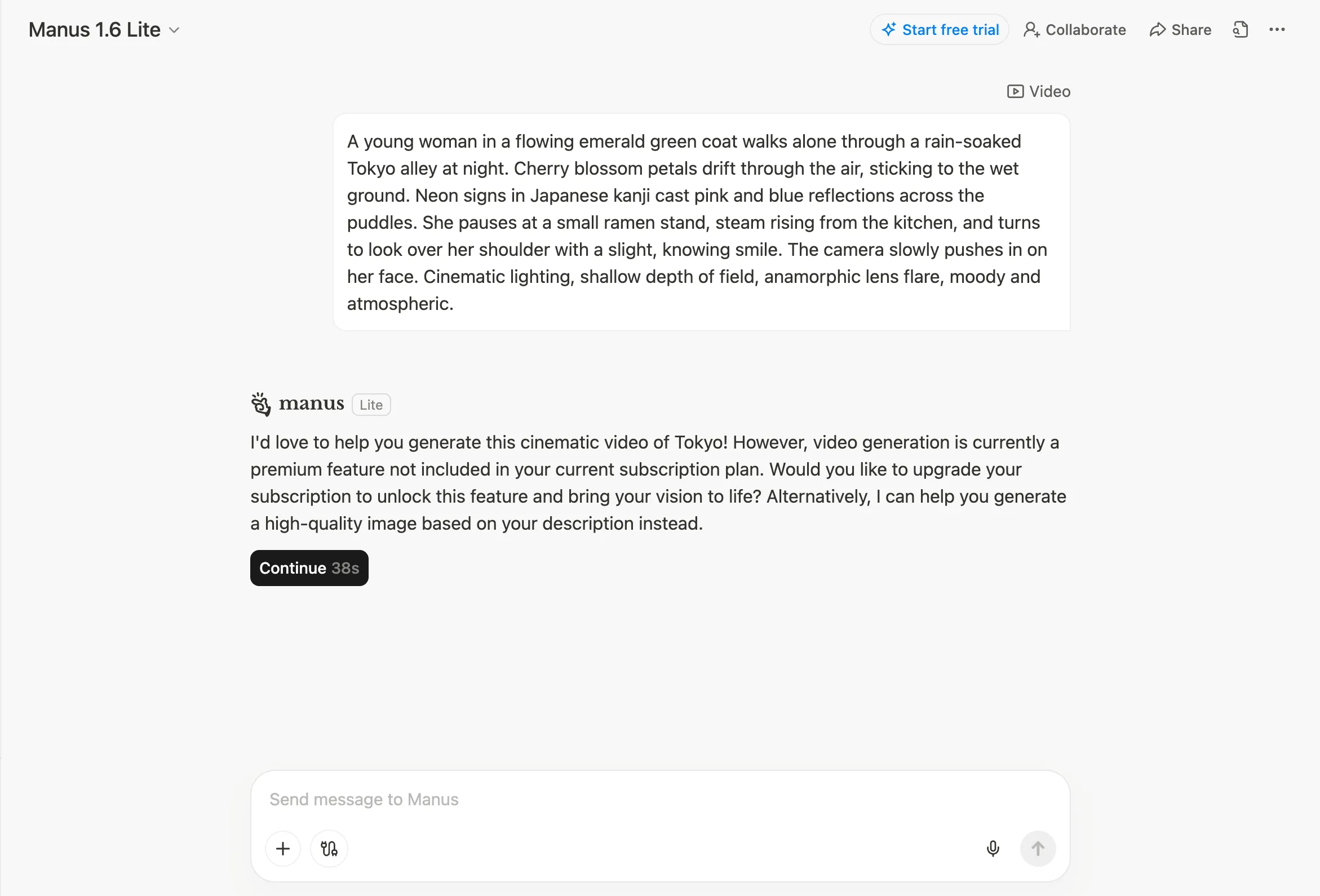
Since the focus of this blog was on video generation I upgraded to the Pro version and used Manus 1.6 Max instead. The agent did require me to choose from "Default mode" or "Generate with Quality Mode" so I clicked the Quality Mode option to clarify my intent. It then told me that it was using Veo 3 for this request.
Video Generated:
I didn't have high hopes initially since Manus isn't a specialized video generation tool, but the output was pretty decent and captured most of the elements from my prompt. It might have missed the anamorphic lens flare, and the cherry blossoms falling were a bit much, almost like a cherry blossom rainstorm rather than petals drifting through the air. One thing that stood out was that sound was included automatically, which is a nice touch. The downside? The sound was this upbeat anime music, like something out of Dance Dance Revolution, and it just didn't fit the moody, atmospheric vibe of the video at all. It was jarring and should have been more subtle. Still, for a tool that's more about workflow automation than pure video generation, it delivered a pretty solid result.
Full disclosure: Manus leverages models like Google's Veo for video generation. However, Manus is designed as a workflow automation tool, not just a video generator. While Veo excels at creating individual clips from prompts, Manus can orchestrate entire video projects, from scriptwriting to final assembly.
What I liked and What I didn't like
What I liked | What I didn't like |
Straightforward, chat-based interface | The generated sound didn't match the video's vibe |
Captured most elements from the prompt | Video generation not available on free plan |
Can handle complex, multi-step prompts (scriptwriting to video to deployment) | Some background details were off or context wasn't interpreted well |
Pricing
Manus operates on a credit-based system. The entry-level paid plan is the Customizable plan at $40 per month, which includes 8,000 credits. For heavy users, the Extended plan is $200 per month and offers 40,000 credits. There's also a Team plan with custom pricing for businesses looking to scale.
How to Choose the Right AI Video Generator for You
With so many powerful tools available, choosing the right one depends entirely on your specific needs. Here's a breakdown to help you decide.
What is Your Goal?
•Cinematic Storytelling: If your focus is on creating high-quality, narrative-driven videos, tools like OpenAI Sora and Google Veo 3 are excellent choices.
•Marketing & Social Media: For creating quick, eye-catching content for social media, Luma Dream Machine offers speed, while Pika provides a wealth of creative options.
•Business & Training: Synthesia is the undisputed leader for creating professional, avatar-based videos for corporate training and communication.
•Creative Control: For filmmakers and artists who need granular control over every aspect of the video, Runway is the best option.
What is Your Budget?
•Free/Budget-Friendly: Most of the tools on this list offer free plans or trials. Kling AI, Pika, and Luma Dream Machine offer very affordable entry-level paid plans starting around $10/month.
•Professional/Business: Paid plans from Runway, Synthesia, and HeyGen provide more features and higher quality for professional use in the $15-$35/month range.
•High-End: Tools like Google Veo 3 and Manus, accessed through premium subscriptions, deliver top-tier results for those with a larger budget.
What is Your Technical Skill Level?
•Beginner: Tools like Synthesia, HeyGen, and Luma Dream Machine are very user-friendly and easy to get started with.
•Intermediate: Runway and Adobe Firefly offer more control but come with a moderate learning curve.
•Advanced: Using Manus for workflow automation requires a more technical mindset and an understanding of how to orchestrate different AI capabilities.
The Verdict: What's the Best AI Video Generator?
After extensive testing, here are my final recommendations:
•Best Overall: Runway (Gen 4.5) for its unparalleled balance of creative control, high-quality output, and advanced features.
•Best for Realism: Kling AI for its best-in-class ability to generate photorealistic human characters and natural movements.
•Best for Business: Synthesia for its professional avatars, scalability, and ease of use in a corporate environment.
•Best for Automation: Manus for its unique ability to act as an AI agent and automate complex, multi-step video creation workflows.
Frequently Asked Questions (FAQ)
What is an AI video generator?
An AI video generator is a tool that uses artificial intelligence to create or modify videos from text prompts, images, or other videos.
How do AI video generators work?
They work by training large neural networks on vast datasets of videos and images. When you provide a prompt, the AI uses this training to generate a new video that matches your description.
Can I use AI-generated videos for commercial purposes?
This depends on the terms of service of the specific tool you are using. Many paid plans, such as those from Luma Dream Machine, Pika, and Kling AI, explicitly allow for commercial use.
What are the limitations of AI video generation?
Common limitations include difficulty with complex physics, unnatural human movement, and maintaining perfect consistency over longer video durations. However, the technology is improving at an incredibly rapid pace.
How much does it cost to use an AI video generator?
Costs vary widely. Many tools offer free plans with limited features, while paid plans can range from around $10 per month to several hundred dollars for premium or enterprise-level access.
