

Connect your Manus project to GitHub
.jpg?fit=max&auto=format&n=OMZXVO9ke2Xqfh0m&q=85&s=5705ab0a4fe23874d0d70f10c149cd45)
How to Use It
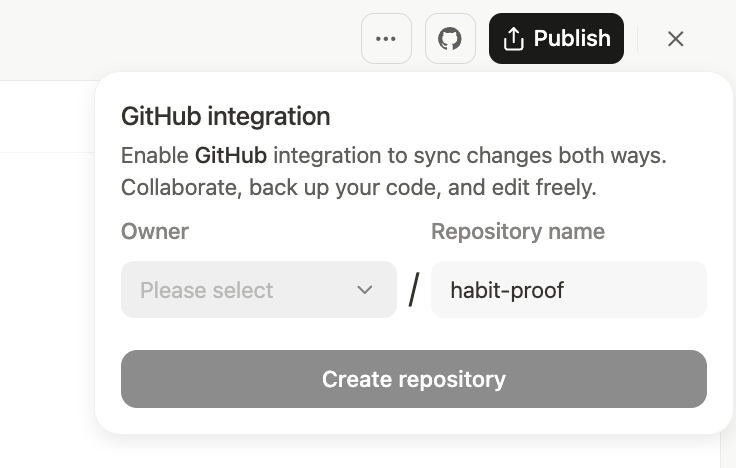
- Authorization: In your project’s dashboard, click the GitHub icon in the top-right corner or navigate to the GitHub tab under Settings. If you haven’t connected your GitHub account before, you will be prompted to authorize the connection.
- Export to a New Repository: Once your account is connected, choose an owner (you or an organization you belong to) and a name for the new repository before clicking on “Create Repository”. This action creates a new private repository in your GitHub account containing all of your project’s code. Manus is automatically granted the necessary permissions to sync with this new repository.
- Sync Your Code: With the repository created, Manus keeps your project and the main branch of your GitHub repository in sync automatically.
- Automatic Push: When Manus generates or modifies code in your project, the changes are automatically pushed to the main branch.
- Automatic Pull: Before making any new code changes, Manus first pulls the latest version from the main branch to reduce the risk of conflicts.
- Manual Sync & Status Check: You can check the sync status at any time by clicking the GitHub icon. From there, you can also manually trigger a pull to ensure your Manus project is up-to-date with any changes you’ve made directly on GitHub.
What You Need to Know
Once your code is on GitHub, you have full control. You can clone the repository to your local machine, make edits in your favorite IDE, and push your changes back to the main branch on GitHub. When you return to Manus, it will pull those updates before making its next set of changes, which helps keep your work in sync and reduces the chances of overwriting your manual edits. Tip: Use Manus to generate the initial boilerplate and structure for your application. Then, export your code to GitHub and use your favorite IDE for the finishing touches and detailed implementation. Once you are ready, sync your work back to Manus for easy deployment and hosting.GitHub Connector Capabilities
Connecting your project to GitHub also activates the GitHub Connector, giving Manus the ability to help you manage your repository directly from the Manus interface. The permissions granted allow Manus to perform several common actions on your behalf:- Manage Code: Read and write code, commit changes, and handle push/pull operations to keep your repository synced.
- Handle Issues: Create, view, edit, and close issues in your repository.
- Work with Pull Requests: Create, view, edit, and close pull requests.
- Organize Projects: Interact with your repository’s project boards.