Plan, generate and polish Runway videos in one chat
Connect Runway and say what video you want. Manus writes the script and storyboard, then has Runway turn text or images into short clips, make images, upscale them and add a voiceover. It all runs on the credits in your own Runway account, and Manus can show you the plan before any are spent.
Spring green tea, 8-second teaser
- Storyboard
- Clips
- Upscale
- Voiceover
“Picked at dawn. Ready in a minute.”



 Final cut
Runway AI video examples to start from
Runway video generator examples for brand films, travel promos, food ads and animated shorts. Pick one, use its prompt, and Manus plans the shots before Runway generates them.
 0:10
0:10Brand film for a ceramics studio
 0:10
0:10Hotel promo with a drone pull-back
 0:05
0:05Slow-motion food ad
 0:08
0:08City lifestyle spot at blue hour
 0:10
0:10Walkthrough for a home listing
 0:08
0:08Clay animation short
Runway storyboard to video, shot by shot
Give Manus one line. It writes a four-shot storyboard, has Runway make a key frame for each shot so you can approve the look, then turns each frame into a clip.
 Shot 1Key frameClip, 0:05
 Shot 2Key frameClip, 0:05
 Shot 3Key frameClip, 0:05
 Shot 4Key frameClip, 0:05
From product photo to video ad
Start from the photos you already have. Runway adds the motion, and you can test a few styles before you pick one.
Bring a product photo to life
Upload one product photo, and Runway turns it into a short clip with a slow orbit, a light sweep or a push-in on the details. It’s a quick way to use the Runway AI video creator for product pages and ads.
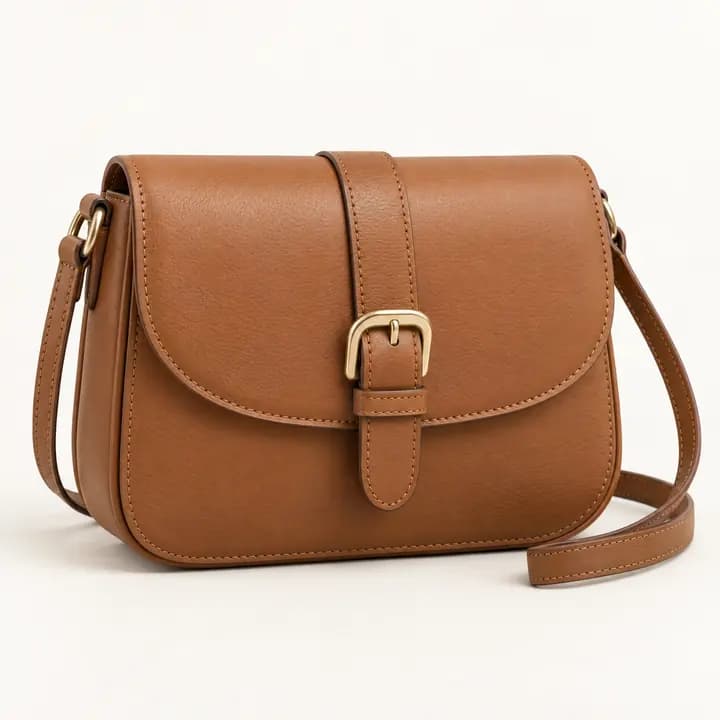 Photo
Photo 0:00
0:00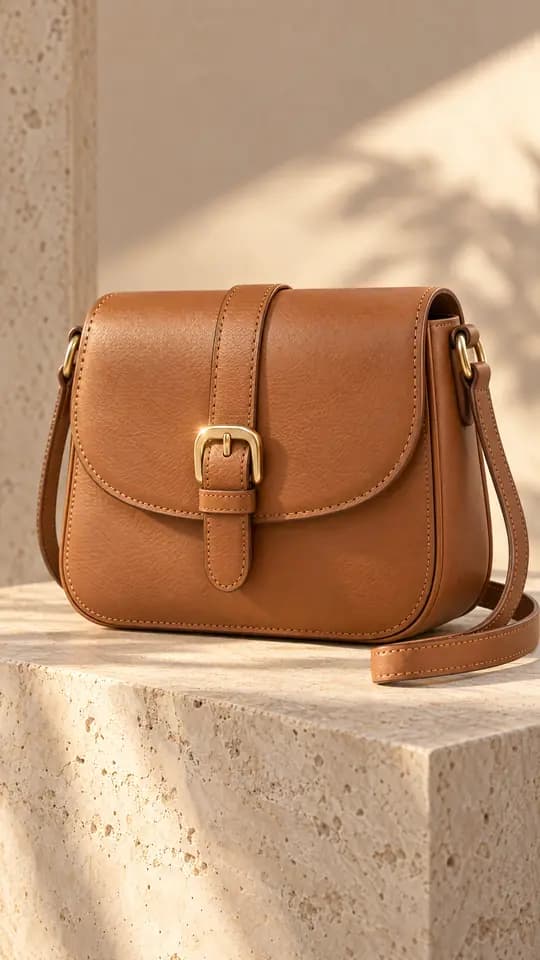 0:02
0:02 0:04
0:04
Test three AI video ad variations, credits first
Ask for three styles of the same ad for your next test. Manus plans each version and estimates the Runway credits it needs, so you decide what to generate.
- Studio light
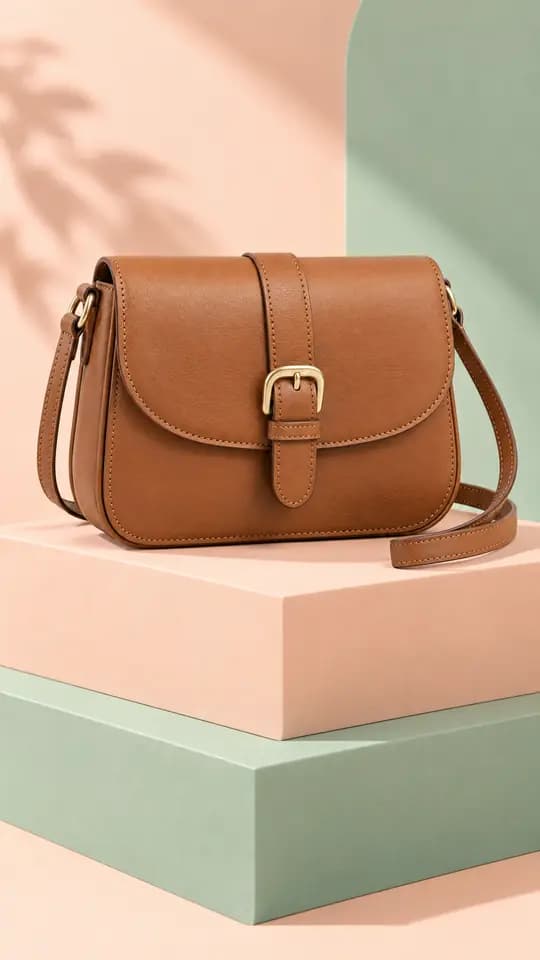 A
A - Café table
 B
B - Bold red set
 C
C
Upscale your clips and add a voiceover
Finish the video in the same chat: sharpen the picture for big screens and lay a voiceover under it.


Runway upscale video for ads and big screens
When a clip looks right, ask Runway to upscale it so the details stay sharp in an ad, a website banner or on a large screen.
VoiceoverCalm, warm voice · 0:04“Picked at dawn. Ready in a minute.”
Runway text to speech for the voiceover
Paste a line of script and Runway turns it into voiceover audio. Manus tells you how long it runs, so you can trim the line to fit the clip.
Connect the Runway MCP server to Manus
Runway is already in Manus Connectors. Sign in with your Runway account once, and any task can generate with the models and credits on your plan.
Open Connectors
In Manus, open Connectors, choose Runway and select Connect.
Sign in to Runway
Sign in with your Runway account and allow access. You don’t need an API key or any code.
Ask in any task
Mention Runway and say what you want to make. Ask Manus to show the plan and the credits before it generates.
Edit and share your Runway AI videos
Join the clips in Video Editor or get them ready for Instagram. When you don’t need Runway, Manus’s own video tools work without a Runway account.
- Video EditorFine-tune your video ads on a timeline.
- Instagram MCP for ManusPost your finished clip as an Instagram Reel after you review it.
- VideoManus’s own video tools, no Runway account needed.
- Higgsfield MCP for ManusTurn a brief into image and video ads.
- MCP connectorsConnect your apps to Manus with MCP connectors
- MCP connectors guideLearn how to connect and use MCP servers.
Questions about Runway MCP and Manus
How do I connect Runway to Manus?
Open Connectors in Manus, choose Runway and select Connect. Sign in with your Runway account and allow access. After that, mention Runway in any task and say what you want to make.
How does Runway AI pricing work in Manus?
Generations use the credits in your Runway account, the same way they do in the Runway web app. The cost depends on the model, resolution and other settings. Runway’s Explore Mode isn’t available through this connection.
Which models can I use, like Runway Gen-4.5 or Gen-4 Image?
The models included in your Runway plan. Runway lists models such as Gen-4.5, Gen-4 Image and Gen-4 Turbo for this connection. Manus can pick one for each shot, or you can name the model you want.
Do I need a Runway API key or any code?
No. You sign in with your Runway account in Connectors, and Manus works with Runway for you. You don’t write code against the Runway video generator API, paste an API key or buy separate Runway API credits.
Can I see the plan before any credits are spent?
Yes. Ask Manus to show the script, the storyboard and the credits each clip is expected to use, and to wait for your OK. You can change the plan before anything is generated.
Is this the same as video in Manus?
No. The Runway connector generates with the models and credits in your Runway account. Manus’s own Video feature works without a Runway account. You can use either one, or both in the same project.
How long can each Runway clip be?
Length and aspect ratio depend on the Runway model you use. Ask for a vertical, square or widescreen clip, and Manus picks settings that model supports.
Does Runway MCP also work with Claude or ChatGPT?
Yes. Runway offers its MCP connection to AI assistants such as Claude and ChatGPT. In Manus, Runway is already in Connectors, so you sign in once and use it in any task along with your other connected apps.
Can I use the videos commercially?
That depends on Runway’s terms and your Runway plan. Check Runway’s terms of use before you publish. Manus doesn’t change them.