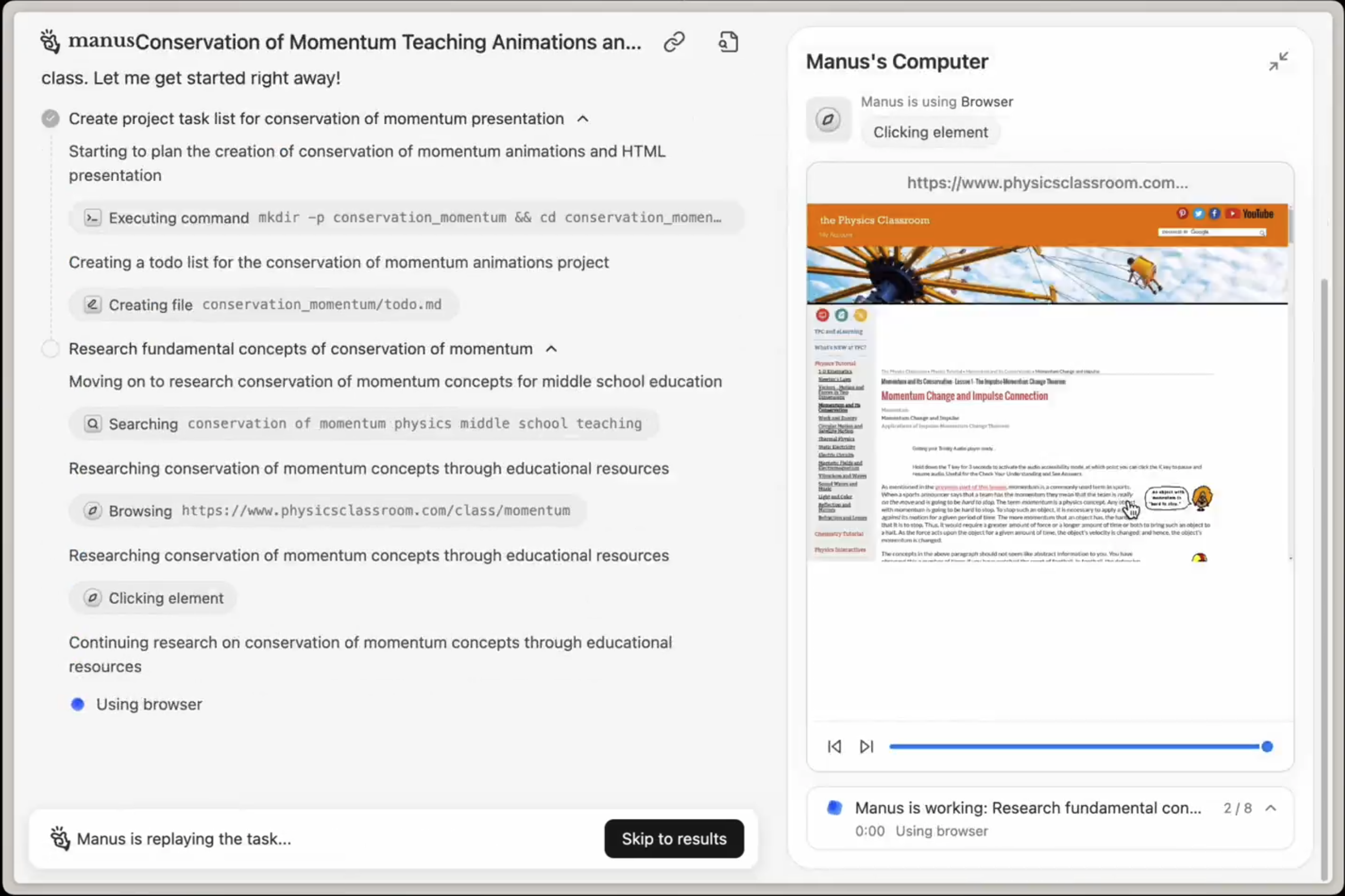
 When you give Manus a task that requires web access, Manus automatically opens Cloud Browser and navigates to the relevant websites.
Manus:
* Opens Cloud Browser
* Visits relevant news sites, databases, and startup directories
* Extracts information from multiple sources
* Compiles results into a structured report
You see everything Manus is doing in real-time.
### 2. You Can Log Into Your Accounts
For tasks that require authentication, you can log into your accounts in Cloud Browser. Manus will then use those authenticated sessions to perform actions on your behalf.
**Example**:
When you give Manus a task that requires web access, Manus automatically opens Cloud Browser and navigates to the relevant websites.
Manus:
* Opens Cloud Browser
* Visits relevant news sites, databases, and startup directories
* Extracts information from multiple sources
* Compiles results into a structured report
You see everything Manus is doing in real-time.
### 2. You Can Log Into Your Accounts
For tasks that require authentication, you can log into your accounts in Cloud Browser. Manus will then use those authenticated sessions to perform actions on your behalf.
**Example**:
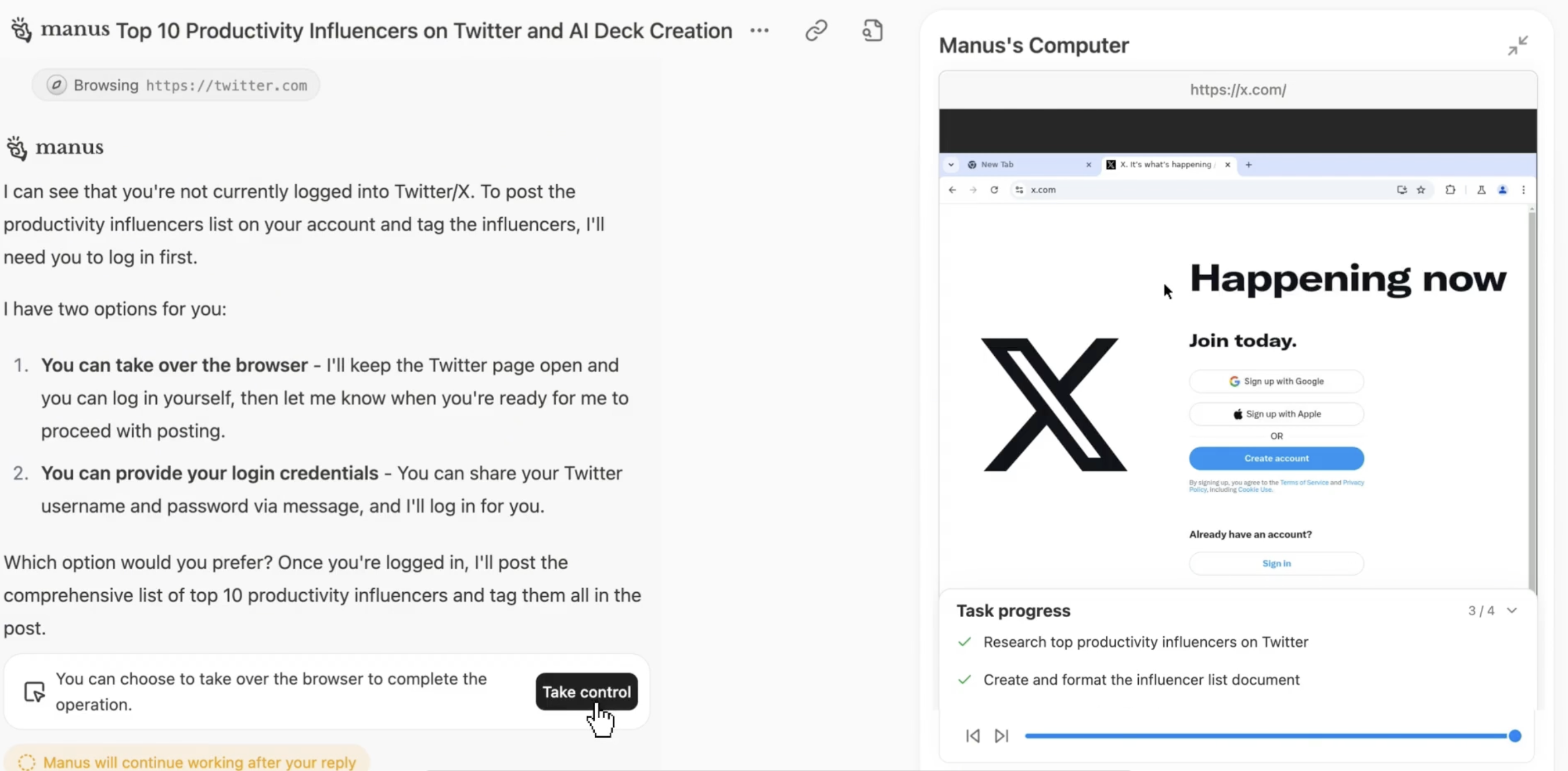 When Manus encounters complex verifications (SMS codes, CAPTCHA, multi-factor authentication), the system will prompt you to **"Take Over"** the browser.
**How Take Over Works**:
1. Manus encounters a verification challenge
2. You receive a notification to take over
3. You complete the verification (enter code, solve CAPTCHA, etc.)
4. You hand control back to Manus
5. Manus continues the task
This ensures Manus can complete tasks even when human verification is required.
### 4. Security and Privacy
Your login credentials and browsing activity are managed with strict security:
* **Encrypted sessions**: All browser sessions are encrypted
* **Isolated environments**: Each user has a separate, isolated browser instance
* **No credential storage**: Manus doesn't store your passwords
* **Access control**: You control which accounts Manus can access
* **Session management**: You can log out or clear sessions anytime
## Cloud Browser Settings
You can configure Cloud Browser in **Manus Settings → Cloud Browser**.
### Available Settings
| Setting | Description |
| :-------------------------- | :----------------------------------------------------------- |
| **Logged-in Accounts** | View and manage accounts you've logged into in Cloud Browser |
| **Session Management** | Log out of specific accounts or clear all sessions |
| **Take Over Notifications** | Configure how you're notified when take over is needed |
| **Browser History** | View recent Cloud Browser activity |
| **Security Settings** | Manage access permissions and security preferences |
### Managing Logged-in Accounts
To see which accounts you're logged into:
1. Go to **Settings → Cloud Browser → Logged-in Accounts**
2. View all active sessions
3. Log out of specific accounts if needed
4. Clear all sessions to start fresh
## Websites to Log Into for Better Automation
Logging into these types of accounts enables Manus to perform more powerful automation:
### Productivity & Communication
* **Gmail / Outlook**: Read, send, and organize emails
* **Slack**: Send messages, create channels, manage notifications
* **Notion**: Create pages, update databases, organize content
* **Google Calendar**: Schedule meetings, check availability, send invites
### Business & CRM
* **Salesforce / HubSpot**: Update leads, create contacts, log activities
* **LinkedIn**: Send connection requests, post updates, message contacts
* **Stripe**: Check payments, create invoices, manage subscriptions
### Research & Data
* **Crunchbase**: Research companies, funding data, and investors
* **PitchBook**: Access private company data and market research
* **SimilarWeb**: Analyze website traffic and competitor data
* **Financial Times / WSJ**: Access premium news and analysis
### Development & Tools
* **GitHub**: Create issues, review pull requests, manage repositories
* **Jira**: Update tickets, track progress, manage sprints
* **Figma**: View designs, leave comments, export assets
### Social Media
* **Twitter / X**: Post updates, schedule tweets, monitor mentions
* **Instagram**: Post content, respond to comments, analyze engagement
* **Facebook**: Manage pages, post updates, respond to messages
**Example Workflows**:
* "Check my LinkedIn messages and draft responses to connection requests"
* "Update our Notion project tracker with this week's completed tasks"
* "Research these 20 companies on Crunchbase and create a funding summary"
* "Post this announcement to our company Twitter and LinkedIn accounts"
## Important: Data Center IP Considerations
### Cloud Browser Uses Data Center IPs
Cloud Browser operates from data center IP addresses, not residential IPs. This means:
* Some websites may trigger additional verification (CAPTCHA, security checks)
* Certain services may flag the activity as automated
* You may encounter more frequent authentication challenges
### When to Use My Browser Instead
For tasks that require residential IP addresses or encounter frequent verification challenges, consider using [**My Browser (Browser Operator)**](https://www.notion.so/Cloud-Browser-2b27ff657cfa8049ad05dba0e33d9dc5?pvs=21) instead.
**My Browser** uses your local browser with your actual IP address, which:
* Avoids data center IP detection
* Reduces CAPTCHA and verification prompts
* Works better with security-sensitive websites
* Maintains your existing logged-in sessions
### Choosing Between Cloud Browser and My Browser
| Use Cloud Browser When | Use My Browser When |
| :------------------------------------- | :-------------------------------------------- |
| Researching public websites | Logging into security-sensitive accounts |
| Extracting data at scale | Performing actions on banking/financial sites |
| Running long-running tasks | Avoiding CAPTCHA challenges |
| You don't mind occasional verification | You need residential IP address |
| Task doesn't require login | Website blocks data center IPs |
**Example**:
* ✅ Cloud Browser: "Research 50 competitors and extract their pricing"
* ✅ My Browser: "Log into my bank and download last month's statements"
## Tips for Effective Cloud Browser Use
### Log Into Accounts in Advance
**✅ Good**: Log into frequently used accounts (Gmail, Notion, LinkedIn) before assigning tasks
**Why**: Manus can immediately access these accounts without interrupting your workflow for login
***
### Be Specific About Actions
**✅ Good**: "Check my Gmail for emails from potential clients this week. Draft responses highlighting our Q4 availability."
**❌ Vague**: "Check my email"
Specific instructions help Manus perform exactly the right actions.
***
### Use Take Over for Complex Verifications
When Manus prompts for take over:
* Respond quickly to keep the task moving
* Complete only the verification step
* Hand control back to Manus immediately
***
### Monitor First-Time Logins
The first time you log into an account in Cloud Browser:
* Watch the process to ensure it works correctly
* Complete any first-time verifications
* Confirm Manus can access the account properly
***
### Consider My Browser for Sensitive Sites
For banking, financial accounts, or sites that frequently trigger CAPTCHA:
* Use **My Browser** instead of Cloud Browser
* This avoids data center IP detection
* Reduces verification challenges
***
### Manage Sessions Regularly
Periodically review and clear logged-in sessions:
* Go to **Settings → Cloud Browser → Logged-in Accounts**
* Log out of accounts you no longer need Manus to access
* Clear all sessions if you're changing workflows
## Common Questions
When Manus encounters complex verifications (SMS codes, CAPTCHA, multi-factor authentication), the system will prompt you to **"Take Over"** the browser.
**How Take Over Works**:
1. Manus encounters a verification challenge
2. You receive a notification to take over
3. You complete the verification (enter code, solve CAPTCHA, etc.)
4. You hand control back to Manus
5. Manus continues the task
This ensures Manus can complete tasks even when human verification is required.
### 4. Security and Privacy
Your login credentials and browsing activity are managed with strict security:
* **Encrypted sessions**: All browser sessions are encrypted
* **Isolated environments**: Each user has a separate, isolated browser instance
* **No credential storage**: Manus doesn't store your passwords
* **Access control**: You control which accounts Manus can access
* **Session management**: You can log out or clear sessions anytime
## Cloud Browser Settings
You can configure Cloud Browser in **Manus Settings → Cloud Browser**.
### Available Settings
| Setting | Description |
| :-------------------------- | :----------------------------------------------------------- |
| **Logged-in Accounts** | View and manage accounts you've logged into in Cloud Browser |
| **Session Management** | Log out of specific accounts or clear all sessions |
| **Take Over Notifications** | Configure how you're notified when take over is needed |
| **Browser History** | View recent Cloud Browser activity |
| **Security Settings** | Manage access permissions and security preferences |
### Managing Logged-in Accounts
To see which accounts you're logged into:
1. Go to **Settings → Cloud Browser → Logged-in Accounts**
2. View all active sessions
3. Log out of specific accounts if needed
4. Clear all sessions to start fresh
## Websites to Log Into for Better Automation
Logging into these types of accounts enables Manus to perform more powerful automation:
### Productivity & Communication
* **Gmail / Outlook**: Read, send, and organize emails
* **Slack**: Send messages, create channels, manage notifications
* **Notion**: Create pages, update databases, organize content
* **Google Calendar**: Schedule meetings, check availability, send invites
### Business & CRM
* **Salesforce / HubSpot**: Update leads, create contacts, log activities
* **LinkedIn**: Send connection requests, post updates, message contacts
* **Stripe**: Check payments, create invoices, manage subscriptions
### Research & Data
* **Crunchbase**: Research companies, funding data, and investors
* **PitchBook**: Access private company data and market research
* **SimilarWeb**: Analyze website traffic and competitor data
* **Financial Times / WSJ**: Access premium news and analysis
### Development & Tools
* **GitHub**: Create issues, review pull requests, manage repositories
* **Jira**: Update tickets, track progress, manage sprints
* **Figma**: View designs, leave comments, export assets
### Social Media
* **Twitter / X**: Post updates, schedule tweets, monitor mentions
* **Instagram**: Post content, respond to comments, analyze engagement
* **Facebook**: Manage pages, post updates, respond to messages
**Example Workflows**:
* "Check my LinkedIn messages and draft responses to connection requests"
* "Update our Notion project tracker with this week's completed tasks"
* "Research these 20 companies on Crunchbase and create a funding summary"
* "Post this announcement to our company Twitter and LinkedIn accounts"
## Important: Data Center IP Considerations
### Cloud Browser Uses Data Center IPs
Cloud Browser operates from data center IP addresses, not residential IPs. This means:
* Some websites may trigger additional verification (CAPTCHA, security checks)
* Certain services may flag the activity as automated
* You may encounter more frequent authentication challenges
### When to Use My Browser Instead
For tasks that require residential IP addresses or encounter frequent verification challenges, consider using [**My Browser (Browser Operator)**](https://www.notion.so/Cloud-Browser-2b27ff657cfa8049ad05dba0e33d9dc5?pvs=21) instead.
**My Browser** uses your local browser with your actual IP address, which:
* Avoids data center IP detection
* Reduces CAPTCHA and verification prompts
* Works better with security-sensitive websites
* Maintains your existing logged-in sessions
### Choosing Between Cloud Browser and My Browser
| Use Cloud Browser When | Use My Browser When |
| :------------------------------------- | :-------------------------------------------- |
| Researching public websites | Logging into security-sensitive accounts |
| Extracting data at scale | Performing actions on banking/financial sites |
| Running long-running tasks | Avoiding CAPTCHA challenges |
| You don't mind occasional verification | You need residential IP address |
| Task doesn't require login | Website blocks data center IPs |
**Example**:
* ✅ Cloud Browser: "Research 50 competitors and extract their pricing"
* ✅ My Browser: "Log into my bank and download last month's statements"
## Tips for Effective Cloud Browser Use
### Log Into Accounts in Advance
**✅ Good**: Log into frequently used accounts (Gmail, Notion, LinkedIn) before assigning tasks
**Why**: Manus can immediately access these accounts without interrupting your workflow for login
***
### Be Specific About Actions
**✅ Good**: "Check my Gmail for emails from potential clients this week. Draft responses highlighting our Q4 availability."
**❌ Vague**: "Check my email"
Specific instructions help Manus perform exactly the right actions.
***
### Use Take Over for Complex Verifications
When Manus prompts for take over:
* Respond quickly to keep the task moving
* Complete only the verification step
* Hand control back to Manus immediately
***
### Monitor First-Time Logins
The first time you log into an account in Cloud Browser:
* Watch the process to ensure it works correctly
* Complete any first-time verifications
* Confirm Manus can access the account properly
***
### Consider My Browser for Sensitive Sites
For banking, financial accounts, or sites that frequently trigger CAPTCHA:
* Use **My Browser** instead of Cloud Browser
* This avoids data center IP detection
* Reduces verification challenges
***
### Manage Sessions Regularly
Periodically review and clear logged-in sessions:
* Go to **Settings → Cloud Browser → Logged-in Accounts**
* Log out of accounts you no longer need Manus to access
* Clear all sessions if you're changing workflows
## Common Questions